Whether you're looking to monetize your expertise, share your knowledge, or build a digital product business - SamCart makes it easy to create professional eBooks, and start selling them immediately!
This guide will walk you through everything from ideation to your first sale. Read and complete each step below in order to learn how to get eBook ideas, design your eBook, upload and sell your eBook with SamCart, and start selling!
Quick Start: Already have an eBook file ready to sell? Skip to Step 3: Upload and Sell Your eBook to get started in minutes!
Not sure what to write about? Our AI eBook Assistant can help you brainstorm topics, create detailed outlines, and even generate complete ebook copy tailored to your expertise and target audience.
What the AI eBook Assistant Can Do:
✓ Topic Ideation: Get personalized eBook topic suggestions based on your niche, expertise, and audience
✓ Outline Generation: Receive detailed chapter outlines with key points and structure
✓ Full Content Creation: Generate complete chapters and sections ready for editing
✓ Audience Targeting: Get recommendations on positioning your eBook for maximum sales potential
How to use the AI eBook Assistant:
1. Access the AI Assistant
To access the AI Assistant, click on the sparkle icon in the top right corner of your dashboard
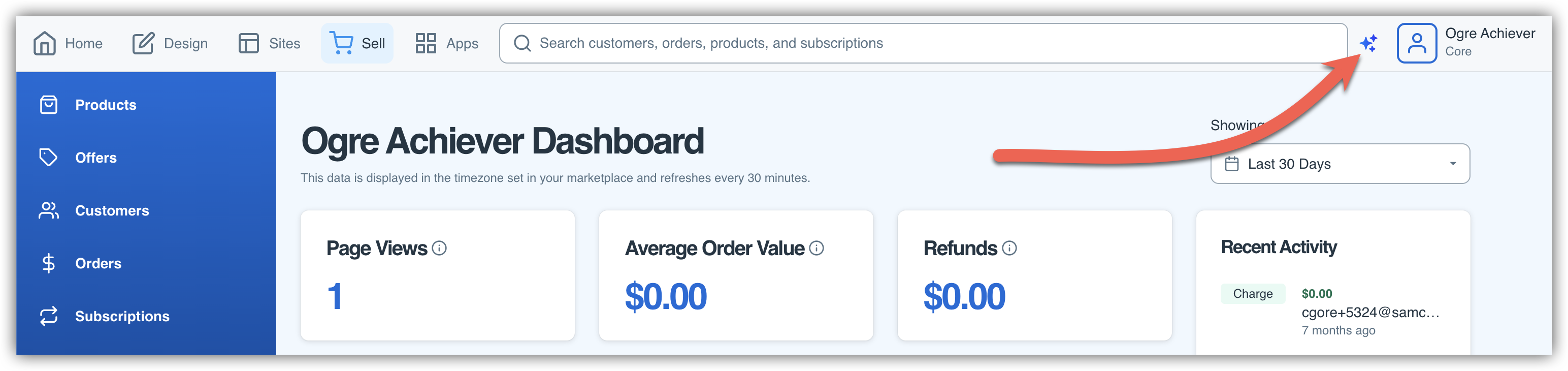
Then, select See What I Can Do.
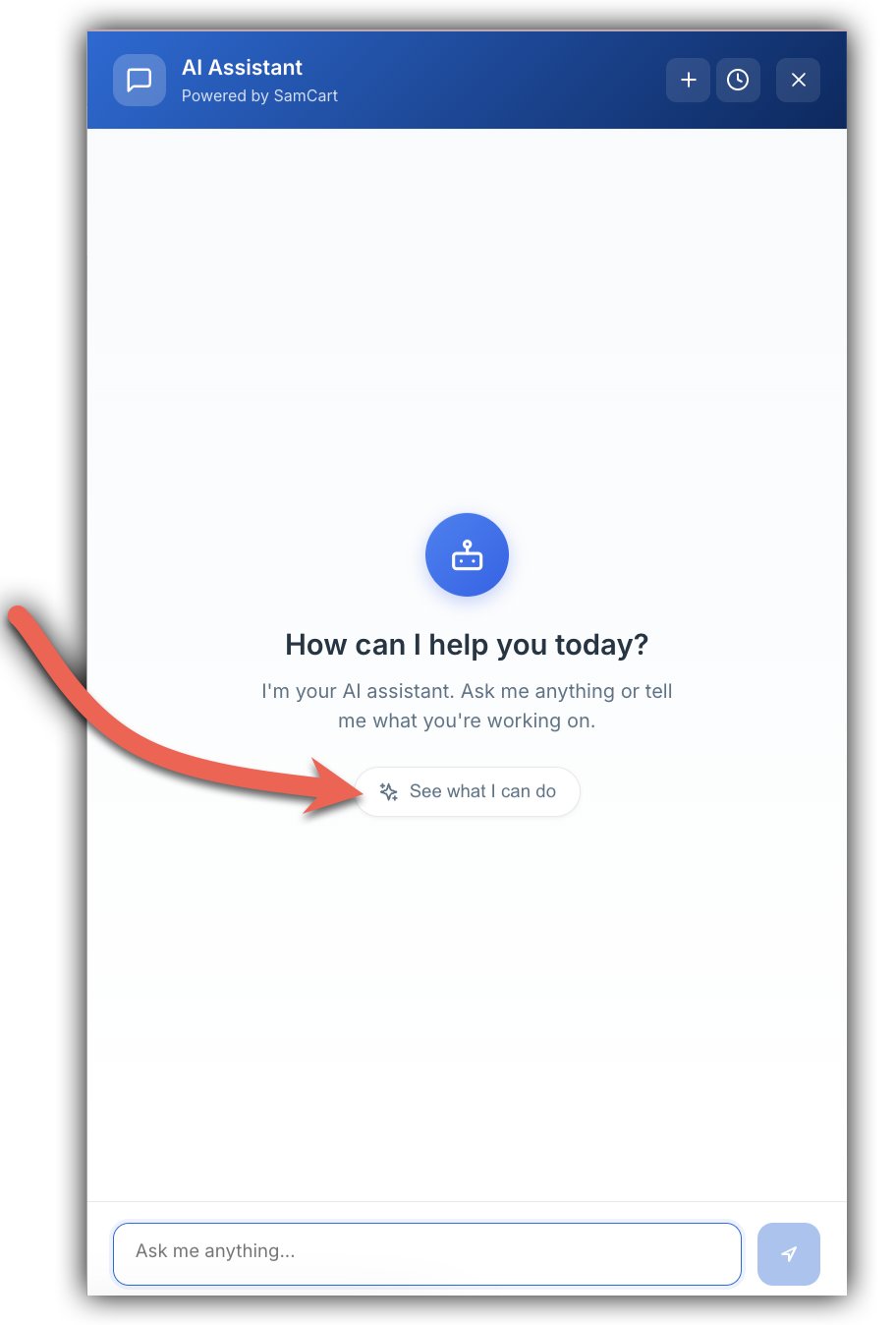 You would then want to select the Generate An eBook option within the AI Assistant popup.
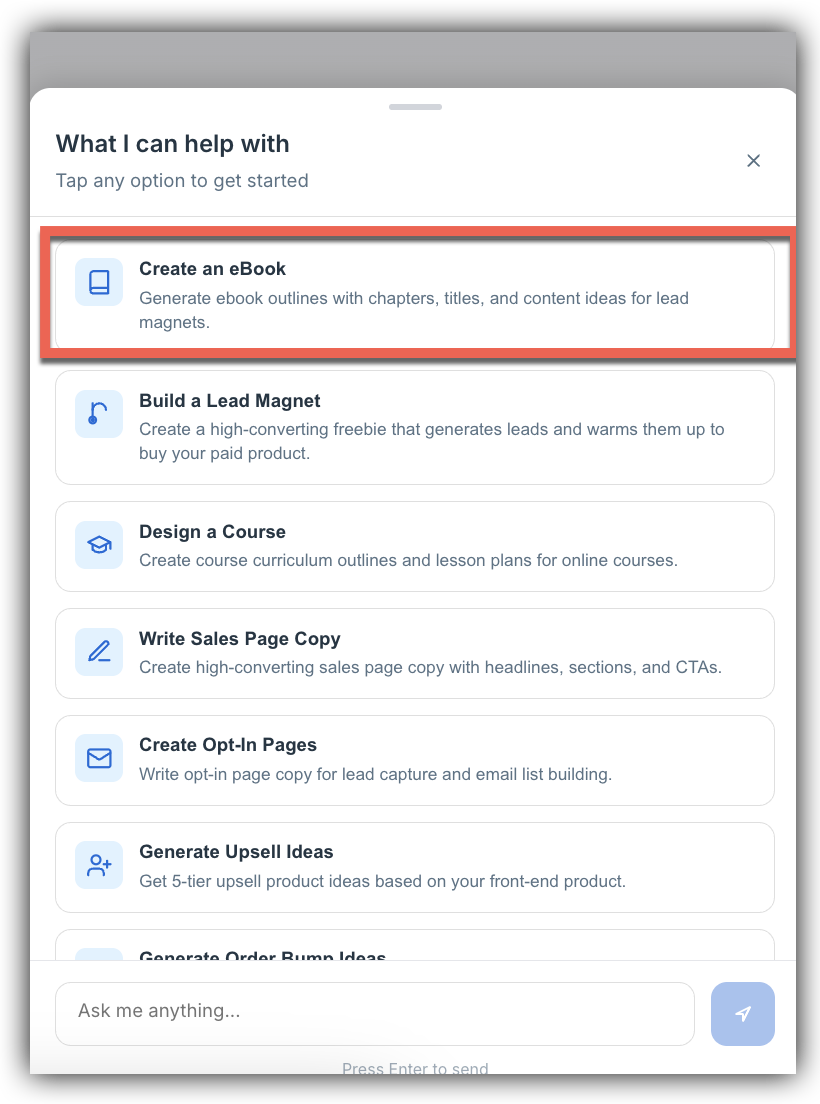
The AI eBook Assistant is available to help you brainstorm and create content. Simply describe what you're an expert in or what your audience needs, and the assistant will provide tailored suggestions!
2. Get Topic Suggestions
Tell the assistant about your area of expertise (e.g., "I'm a fitness coach specializing in busy professionals" or "I teach small businesses how to use social media"). The AI will suggest multiple eBook topics that could resonate with your audience.
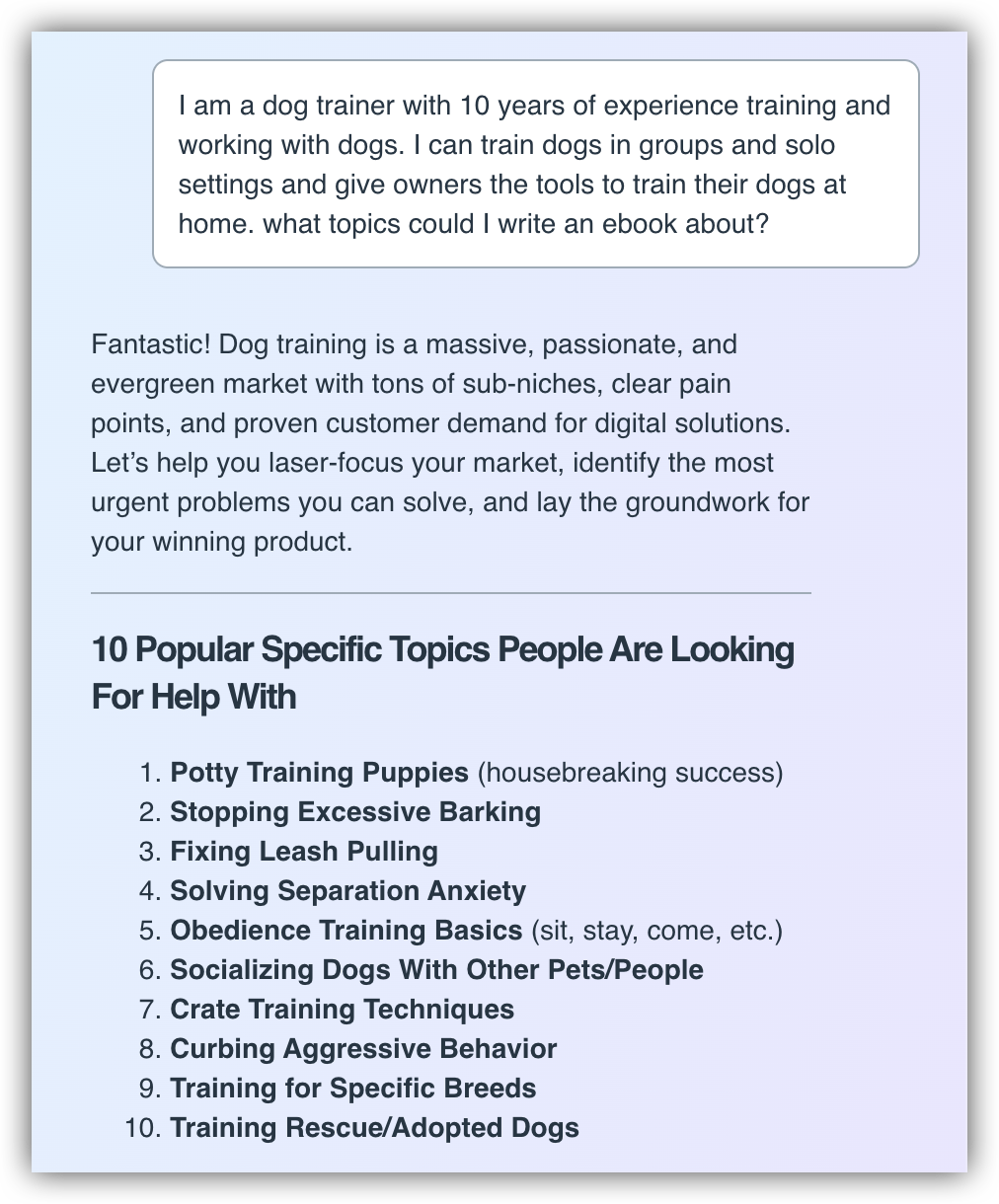
In addition to suggesting Topics, it will also give tons of other helpful context such as problems that customers in this niche face, sub groups to narrow down your audience, popular goals that people in your niche have, and more!
3. Generate Your Outline
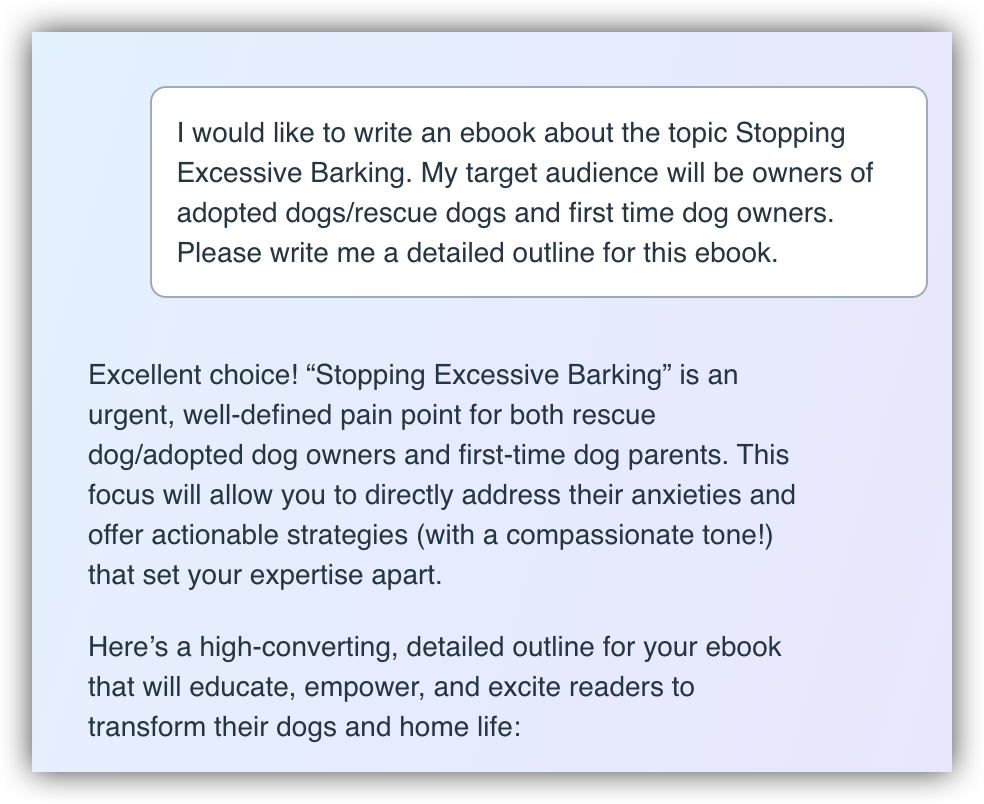
Once you've chosen a topic, ask the assistant to create a detailed outline. You'll get chapter titles, key points for each section, and a logical flow for your eBook.
4. Create Full Content (Optional)
Want to jumpstart your writing? Ask the AI to expand sections into full paragraphs and chapters. You can then edit and personalize this content to match your voice.
5. Copy Your Outline & Turn It Into a Document
Once you have content you're happy with, you will need to convert it into a document so that you can upload the outline to Typeset to create your eBook. Copy the outline from the AI Assistant: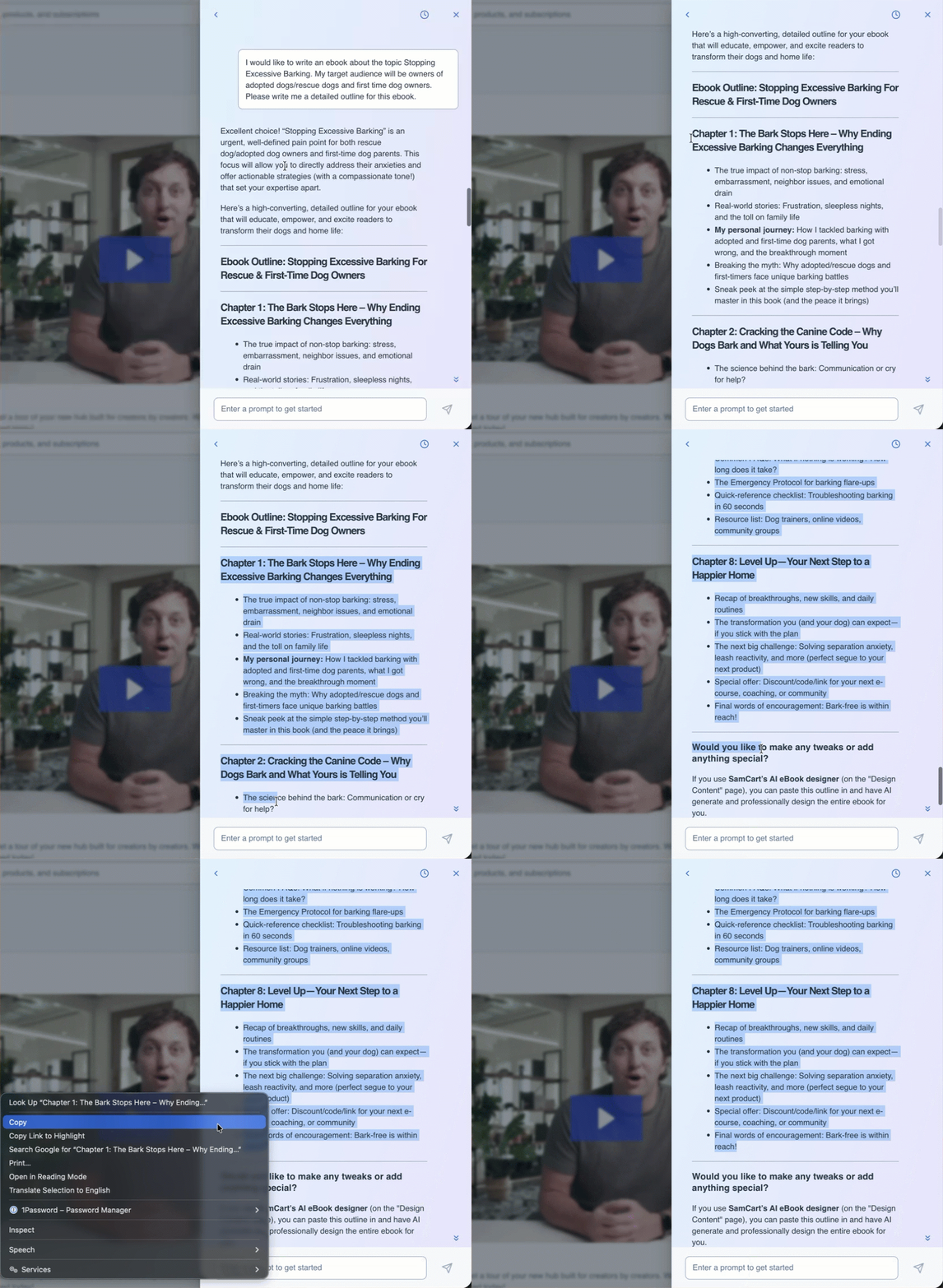
From there, simply paste this outline into a txt, word or markdown application and save the file to your computer! If you are unsure how to do this or do not have access to those applications, check out our FAQ section at the bottom of this article, specifically the question "I do not know how to turn my outline from the AI Assistant into a .txt, .docx or markdown file that can be uploaded to Typeset. How can I do this?"
Pro Tip: The more specific you are about your audience and expertise, the better the AI's suggestions will be. Include details about who you serve, what problems you solve, and what makes your approach unique.
Please note - We recommend using the AI Assistant due to the level of detail and assistance it provides, but there is an option called "Use Coauthor to create with AI" directly within Typeset that can be used to generate an outline and import it to Typeset directly. If you prefer to do this, skip this step and continue on to the next step below!
Step 2: Design Your eBook from Scratch or Your AI Generated Outline
Once you have your content ideas (from the AI Assistant or your own planning), it's time to design a professional-looking eBook. SamCart's Design tab makes it easy to create beautiful, branded digital products.
Three Ways to Create Your eBook
SamCart offers flexible options depending on where you are in your creation process:
Option 1: Use CoAuthor to create with AI
Perfect if you have an idea, but need help with organizing your thoughts and creating an outline. Tell our AI a little bit about what you what to teach your customers and what audience you are trying to reach.
Option 2: Start from a blank document
Build your eBook page by page with complete creative control. Add text, images, headers, and design elements exactly as you envision them.
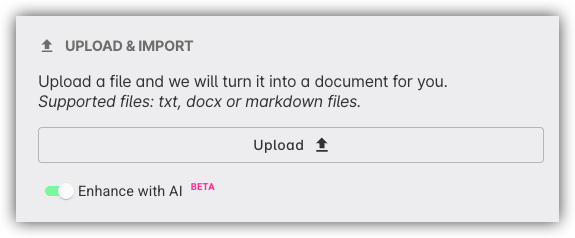
Option 3: Upload & Import
This is where you can upload your outline document generated by our AI assistant, or any other document that you have saved on your device! Take your txt, docx or markdown file and and SamCart will import your text and formatting, allowing you to enhance it with professional design elements.
Creating Your eBook
Navigate to the Design tab (1). Once you are on your Design tab, click on the Create button (2) and select Document/E-book (3).
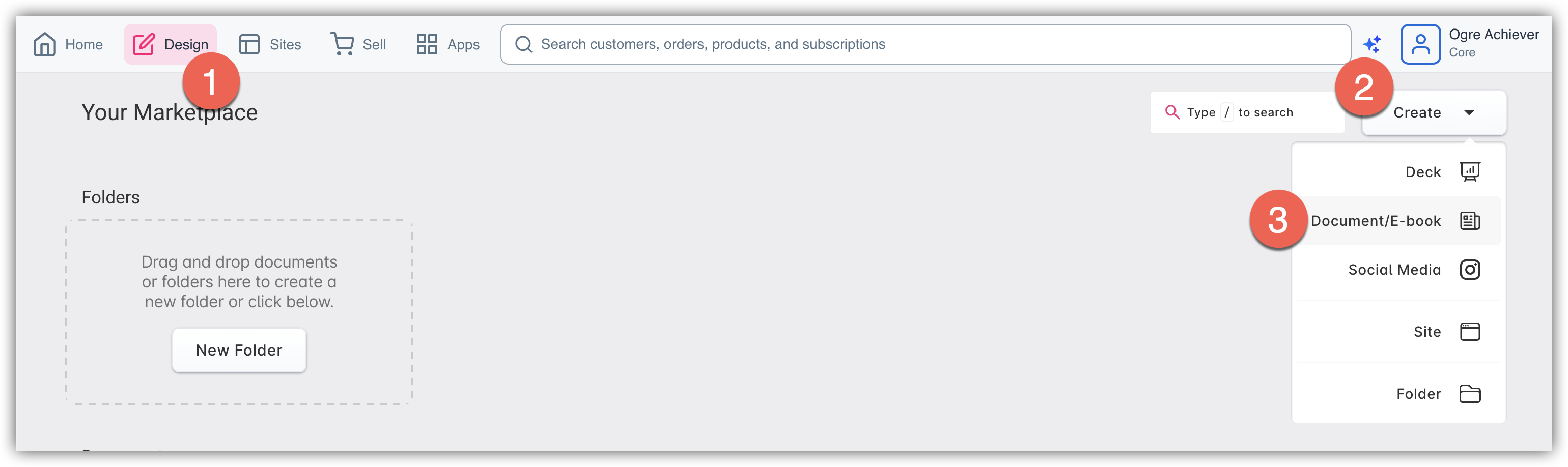
You'll see options for creating a new eBook. Choose your preferred starting point:
• Use CoAuthor to create with AI - Tell our AI exactly what you want to create in a few sentences and click Generate to get a fully complete outline and document. 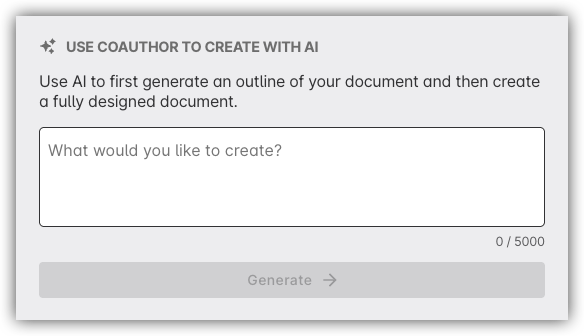
• Start from a blank document: Click Start from a blank document to begin adding your own elements and on a blank canvas. 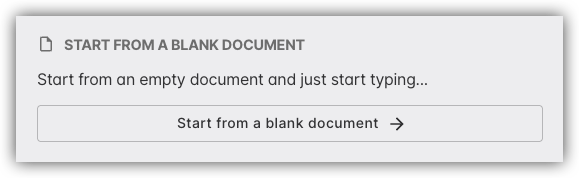
• Upload & Import: Click Upload and select your .txt, .docx or markdown file from your computer.
Highly recommend: Make sure that the Enhance with AI toggle is in the "on" position, this will greatly improve the quality of your eBook and include images and better formatting!
Customize Your Design
Use the design tools to make your eBook visually appealing:
• Add Images: Upload photos, graphics, or illustrations to enhance your content
• Format Text: Adjust fonts, sizes, colors, and styles to match your brand
• Create Layouts: Add headers, footers, page numbers, and section dividers
• Apply Templates: Use pre-designed layouts for a professional look
Attach an Ebook from the Design Tab
If you've created an ebook using the Design tab of SamCart, you can link it to a product directly from the Export panel — no exporting to your computer required.
NOTE: This option is only available on certain plans. If you don't see the Design tab in your marketplace, reach out to our Support team to learn more about enabling it.
To attach an ebook to an existing product:
Step 1: Open your ebook in the Design tab of SamCart and enter edit mode.
Step 2: Click the Export icon in the left sidebar.
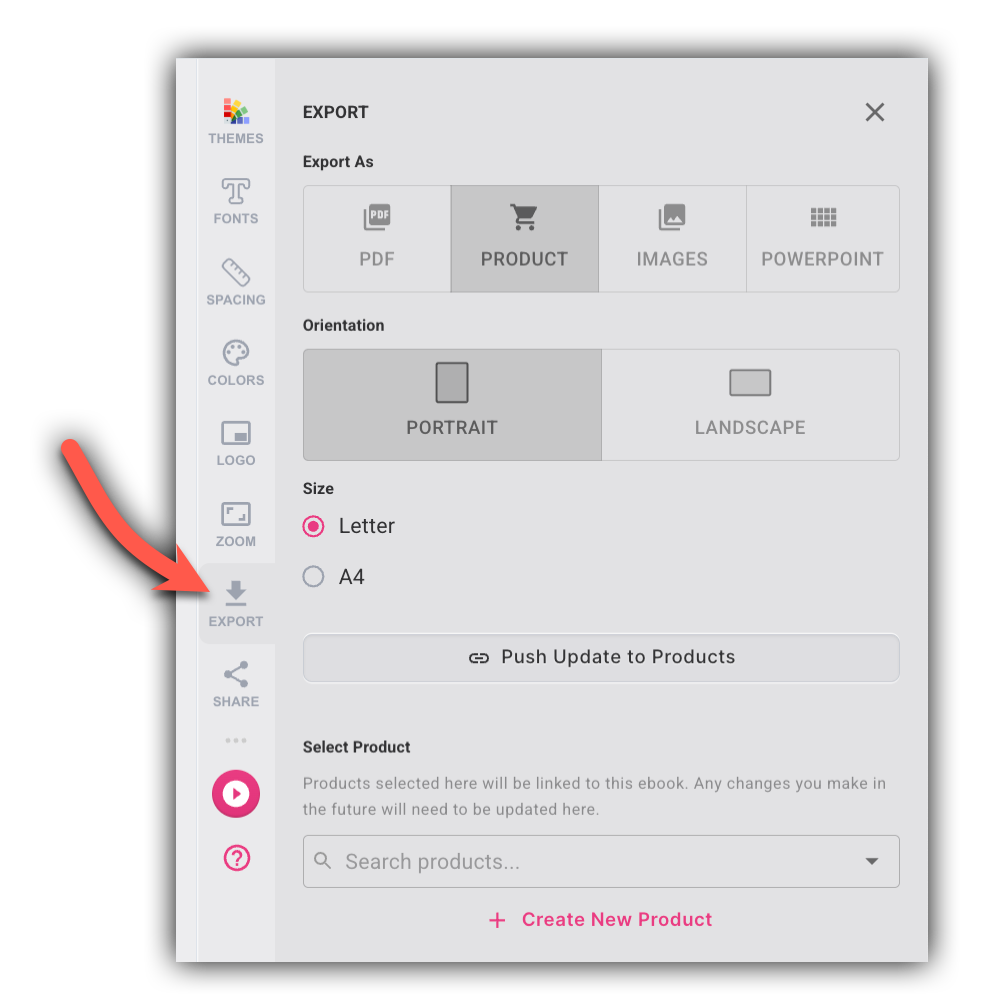
Step 3: Scroll to the Select Product section at the bottom of the Export panel.
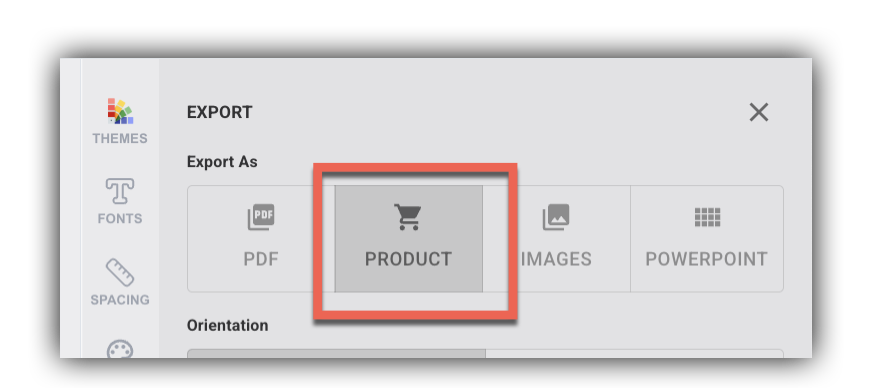
Step 4: Use the search dropdown to find and select an existing product.
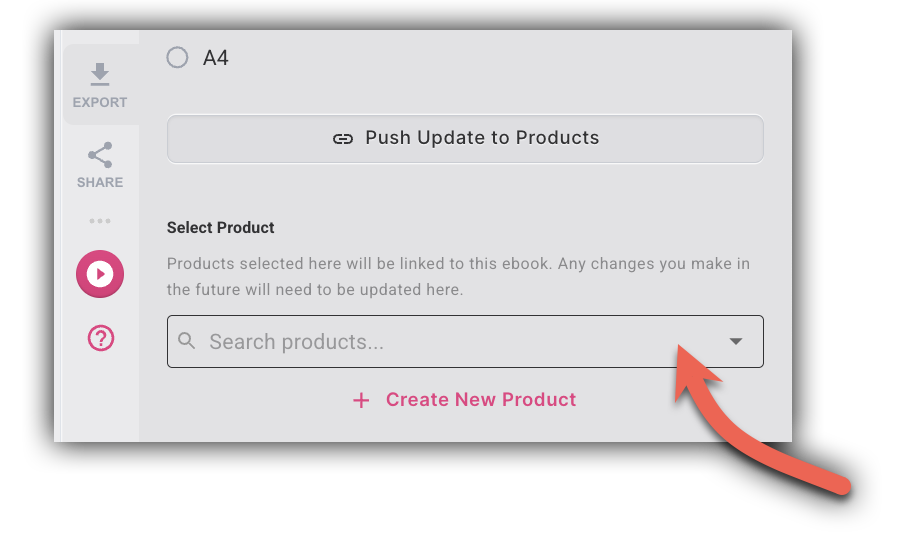
Step 5: Click Push Update to Products.
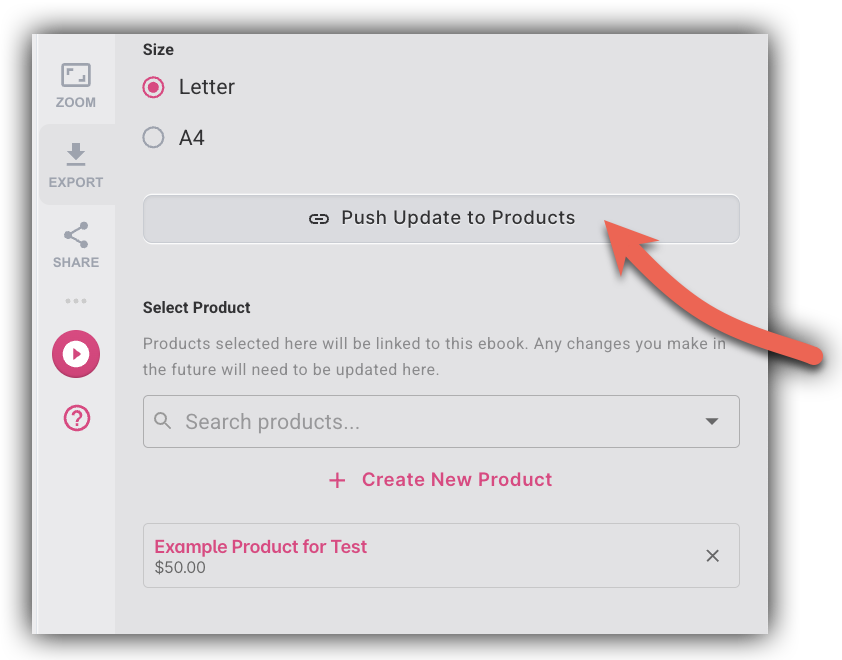
Your ebook is now linked. Customers who purchase the product will receive the ebook as their digital download.
To create a new product directly from the Design tab:
Step 1: Open your ebook in the Design tab of SamCart and enter edit mode.
Step 2: Click the Export icon in the left sidebar.
Step 3: Scroll to the Select Product section at the bottom of the Export panel and click + Create New Product.
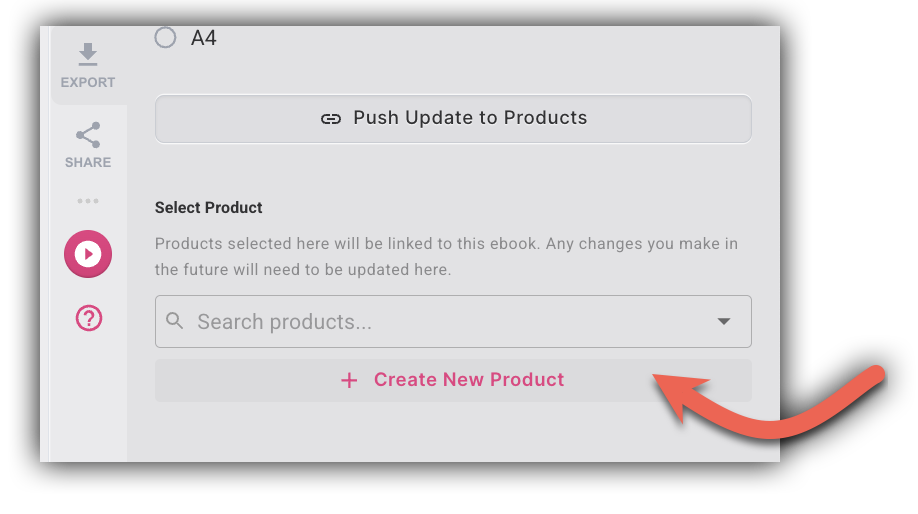
Step 4: A product form opens, pre-filled with your ebook title and set to Digital Product type. Enter a price and fill in any additional details.
Step 5: Click Save.
Your new product is created and your ebook is automatically attached as the digital download.
To push edits to linked products:
After making changes to your ebook, you can push the updated version to all linked products at once.
Step 1: Open your ebook in the Design tab and enter edit mode.
Step 2: Click the Export icon in the left sidebar.
Step 3: In the Select Product section, click Push Update to Products.
All linked products are updated immediately with the latest version of your ebook.
NOTE: Customers who have already received a download link will continue to receive the version that was available at the time of their purchase. If you'd like a specific customer to receive the updated file, re-send their receipt from the SamCart order dashboard — the new receipt will point to the updated version.
What happens if I delete an ebook from the Design tab?
Deleting an ebook from the Design tab does not automatically remove it from any linked products. Your products will retain a stored PDF copy and continue delivering it to customers. If you'd like to remove the file from a product, you'll need to do that separately from the product editor in SamCart.
Customize Your Design Preview and Export
Before finalizing, preview your eBook by clicking the pink preview button (1) in the bottom right corner of the screen to ensure everything looks perfect.
Step 3 - Upload and Sell Your Existing eBook
Whether you just exported an eBook from the Design tab or you already have a finished PDF, Word document, or other digital file, this section will show you how to create a product and attach your file so customers can download it after purchase.
Create Your Product
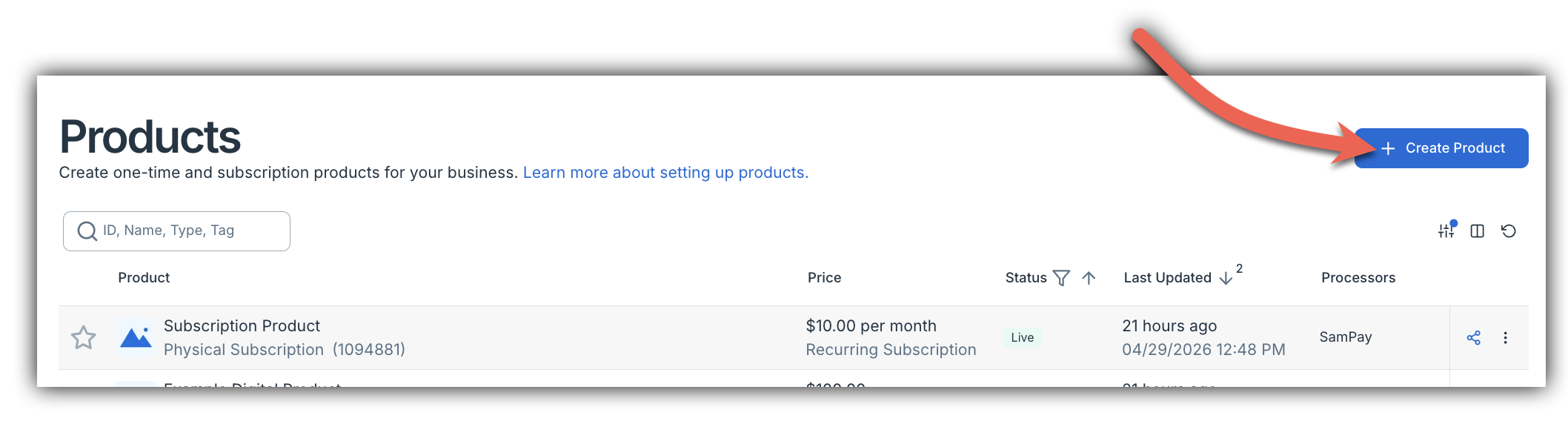
Navigate to the Sell tab in your marketplace, then select Products from the left navigation sidebar.
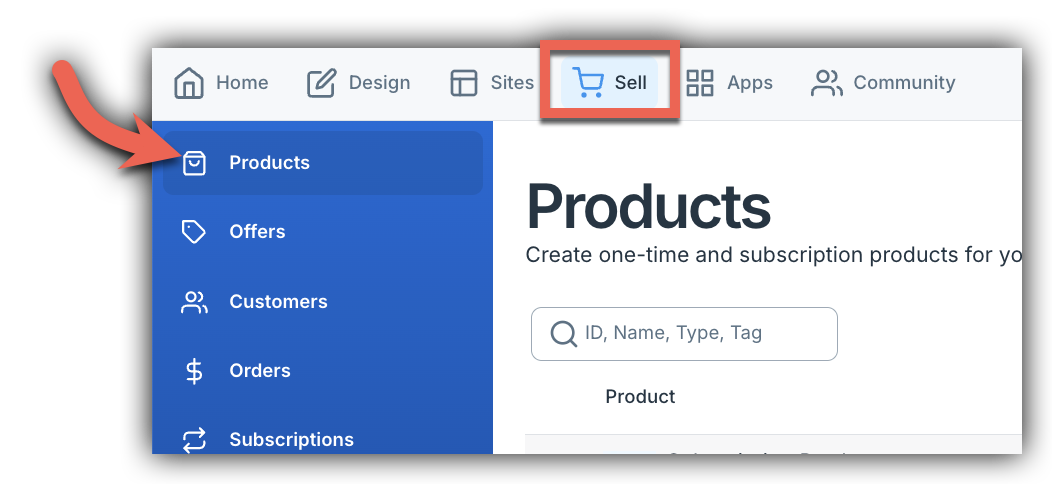
Click Create Product. A popup window will appear where you can fill in the initial details for your product.
- Enter a Product Name — this is what customers will see at purchase and what you'll see in your products list.
- Select Digital Product or Service as the Product Type. This tells SamCart that customers will receive a downloadable file rather than a physical item. Digital products have no shipping costs and are delivered instantly after purchase.
- Set your Product Price.
- Click Create Product to finish.
Once your product is created, you'll land automatically on the new product's details page.
Attach Your File to Your Product
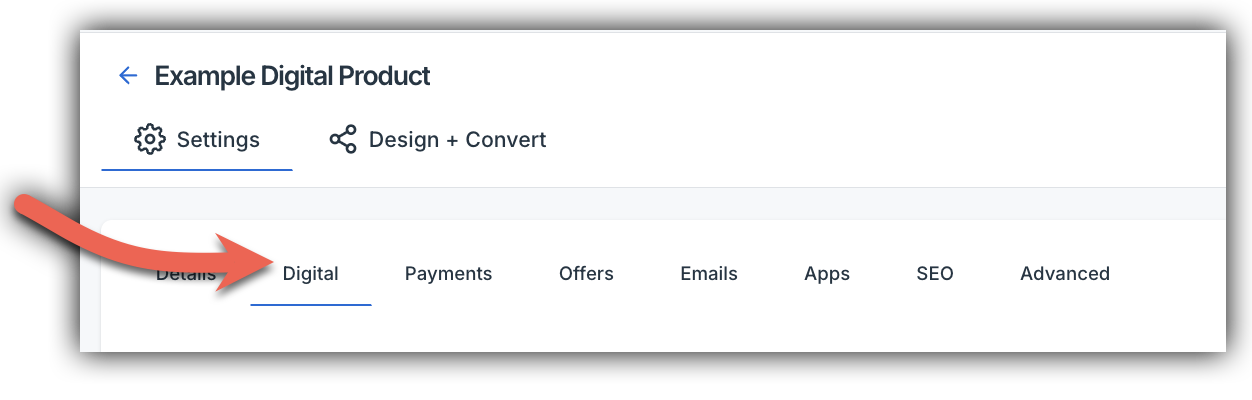
Click on the Digital tab.
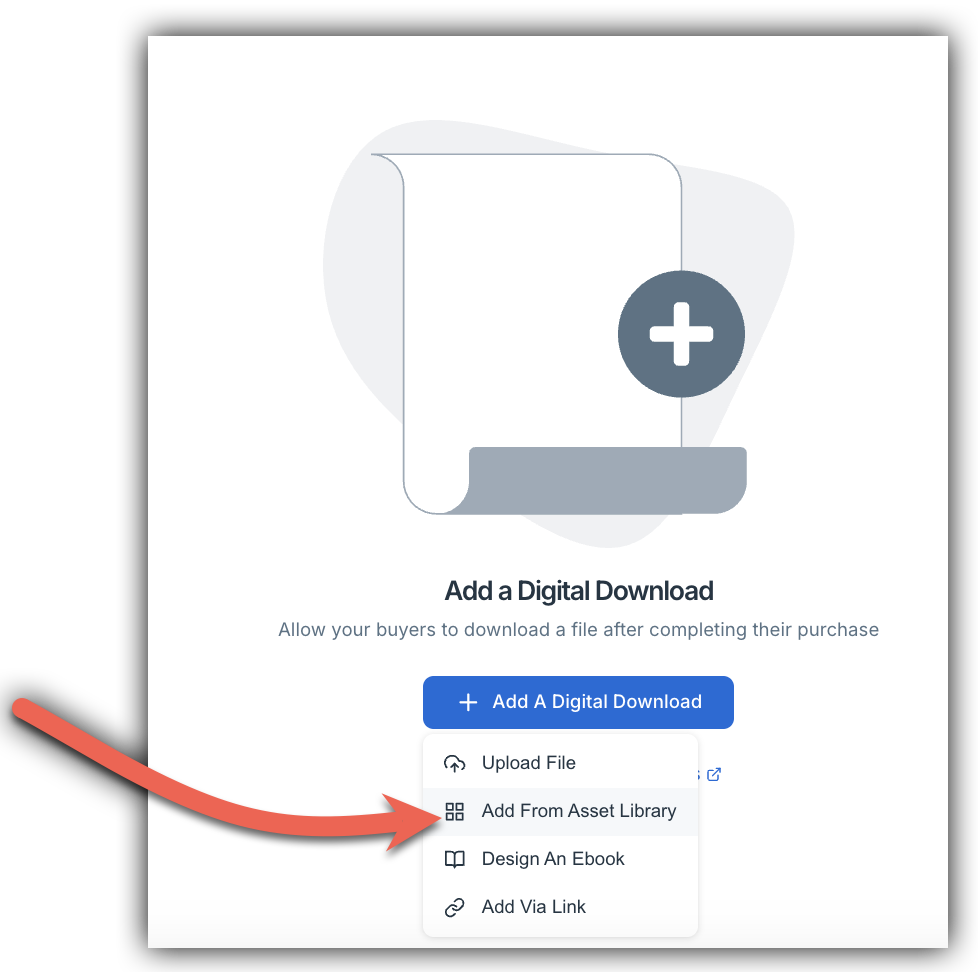
Under Add A Digital Download, click + Add A Digital Download. You'll see four options in the dropdown:
- Upload File — attach any compatible file directly from your device
- Add From Asset Library — link an ebook or file you've created in Design
- Design an eBook — you'll get redirected back to Design where you can create an eBook
- Add Via Link — link a destination URL of the file
Choose Add From Asset Library and it will pull up your projects from the Design tab. You will also find any files you've linked to other products in your Library. This opens your Asset Library, which displays all files and ebooks you've created in Design. Click the asset you'd like to attach. It will appear under File To Download with a smart link notice confirming the connection to Design.
Because the file is smart linked, you can keep it up to date without removing and re-attaching it. From the Digital tab you can:
- Click the pencil icon to rename the file
- Click the sync icon to pull in the latest version from Design
- Click the trash icon to remove the file from this product
- Don't forget to click Save Changes when you're done!
Click Save in the top right corner to finalize your product. Your eBook or digital product is now ready to sell — any time a customer purchases your product, they'll automatically receive a download link to access their file.
Step 4 - Share Your Product and Start Selling
Now that your product is set up with your digital file attached, it's time to start selling! Here are the two most common ways to share your product.
Option 1 - Quick Selling with Express Checkout
Express Checkout is SamCart's streamlined checkout page that's ready to share immediately — no additional setup required. Share the checkout link and customers can purchase your eBook instantly.
Express Checkout works well for:
- Quick launches and testing the market
- Sharing directly with email lists or social media followers
- Simple, no-frills selling
To share your Express Checkout link, navigate to Design + Convert > Express on your product page and click Copy URL.
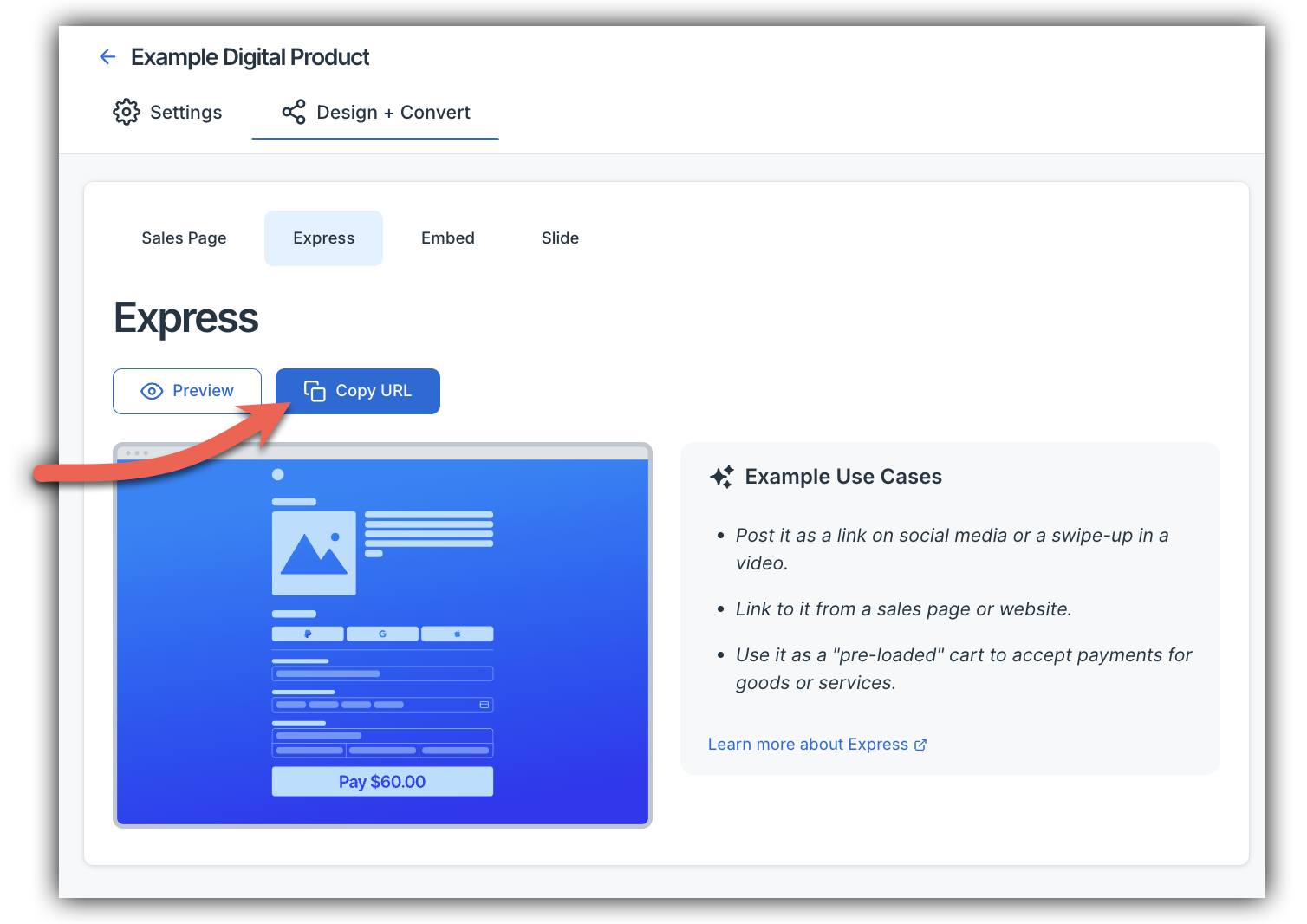
Share this link anywhere — email, social media, text message, etc. Customers click the link, enter their payment details, and instantly receive their download.
Option 2 - Create a Custom Landing Page
A landing page is a dedicated sales page where you can showcase your eBook with compelling copy, images, testimonials, and more. It's designed to convert visitors into customers by highlighting the value of your product.
A landing page works well for:
- Premium products that benefit from more explanation
- Building trust with detailed content and social proof
- Higher-priced eBooks
- Paid advertising campaigns
To create a landing page, navigate to Design + Convert > Sales Page on your product page and click Design New AI Page. This will take you to the AI-powered Page Builder.
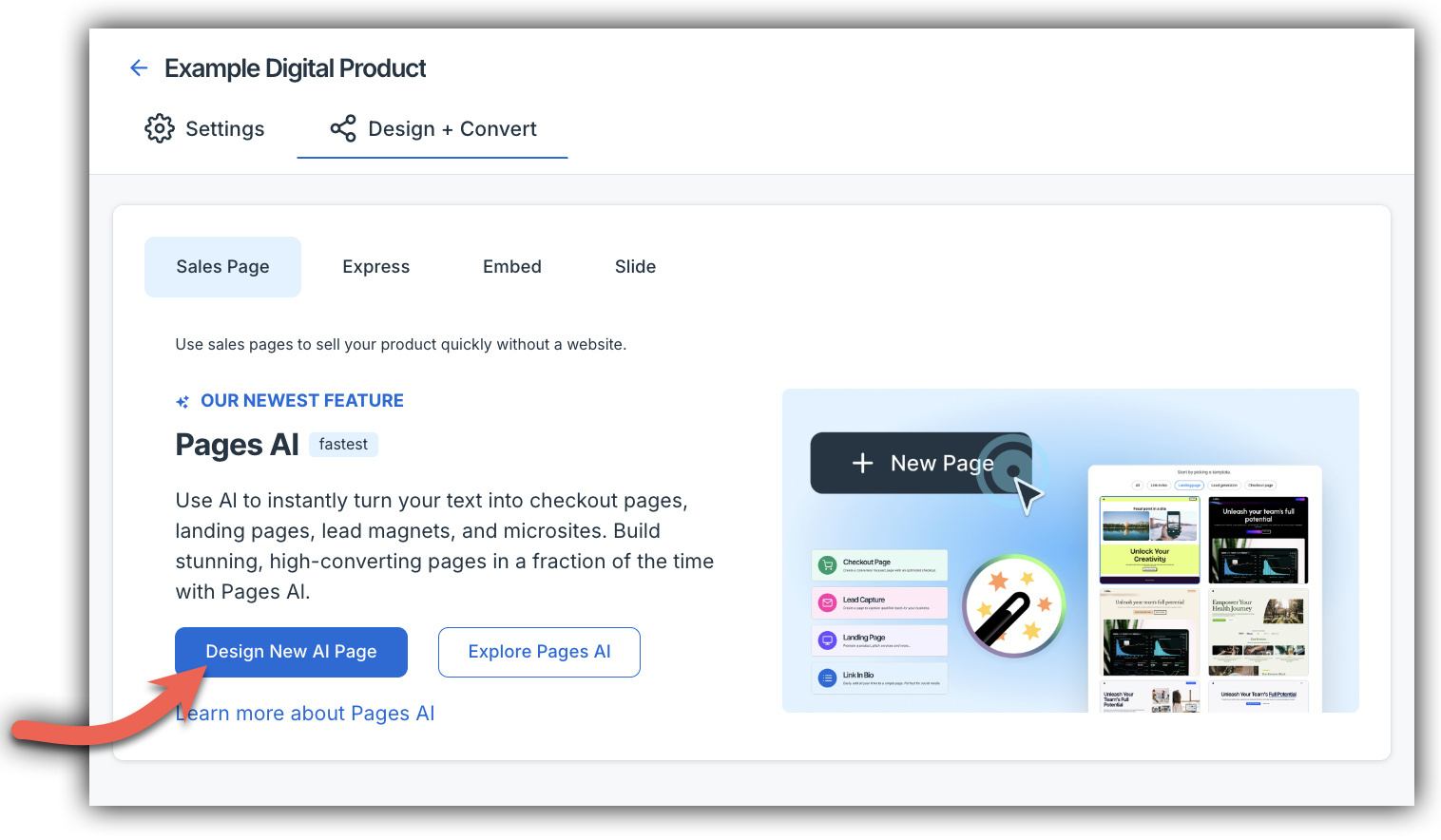
Start by choosing a template from the professionally designed options available. For a walkthrough on creating a checkout page, check out this article. For more on customizing your page in the Page Builder, check out this article.
When your page is ready, click Publish in the top right corner, then click Copy URL to grab your page link to share with customers.
NOTE: Start with Express Checkout to validate demand quickly, then create a landing page once you know people want your product. You can always upgrade your sales approach later.
What Happens After a Purchase?
Once a customer completes their purchase:
Step 1: They're immediately redirected to a confirmation page. Step 2: They receive an email with their receipt and download link. Step 3: They can download your eBook immediately.
The entire process is automated — no manual delivery required.
Tips for Success
- Price strategically — research similar eBooks in your niche to find the right price point.
- Create a great cover — first impressions matter, so invest time in an eye-catching cover design.
- Write compelling descriptions — focus on benefits and outcomes, not just features.
- Test your download — make a test purchase to ensure your file downloads correctly.
- Promote consistently — share your checkout link or landing page regularly across all your channels.
- Gather testimonials — ask early customers for feedback to use in your marketing.
Frequently Asked Questions
Q: I don't know how to turn my outline from the AI Assistant into a .txt, .docx, or Markdown file to upload to Typeset. What should I do?
A: We recommend copying your outline and pasting it into a Google Doc — you can create one for free with a Gmail account. Once your outline is in Google Docs, click File > Download and select either Microsoft Word (.docx), Plain Text (.txt), or Markdown (.md). This will save a compatible file you can upload directly to Typeset.