Share your Typeset documents with other marketplace administrators to collaborate on content without exporting files. Shared administrators can view or edit documents based on the permissions you set.
What you can do with document sharing
- Share documents with marketplace administrators by email address.
- Control whether recipients can view or edit documents.
- See all documents shared with you in one place.
- Receive email notifications when someone shares a document with you.
- Manage who has access to your documents.
How to share a document
Step 1: Navigate to your project
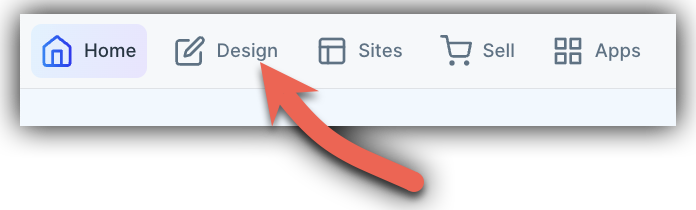
- Click on Design in your Creator Studio Dashboard (top left).
- Select the project you'd like to share.
Step 2: Open the sharing options
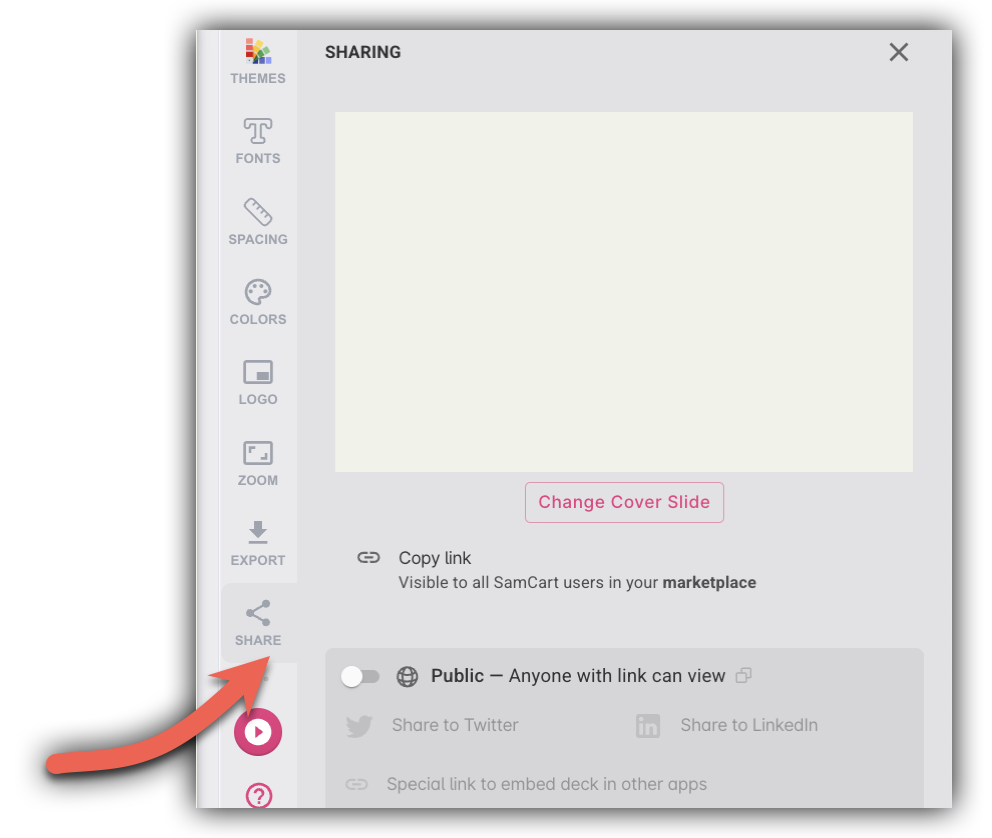
Click on Share in the project interface.
Step 3: Share directly with a collaborator
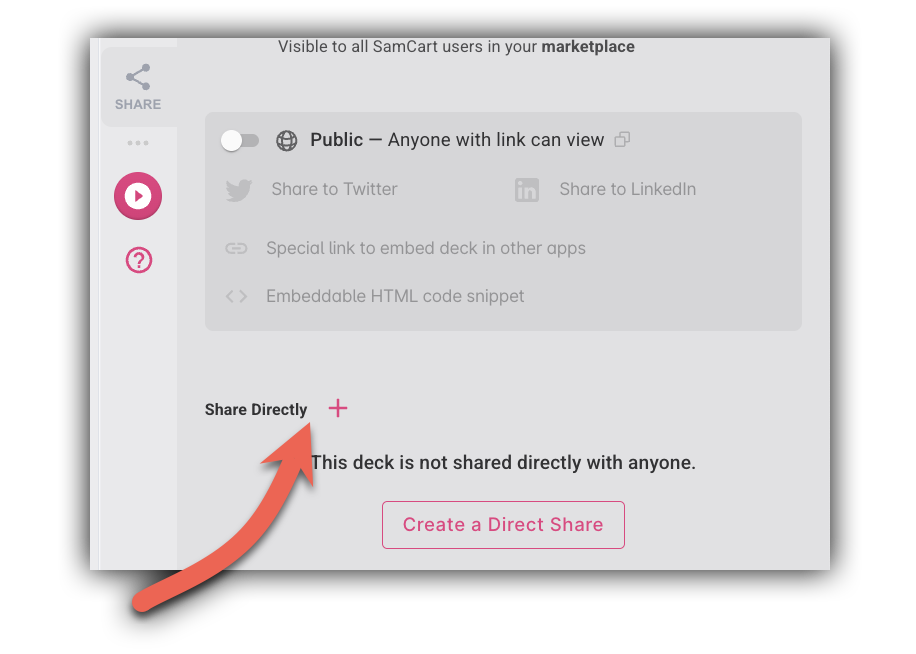
- Click on Share Directly.
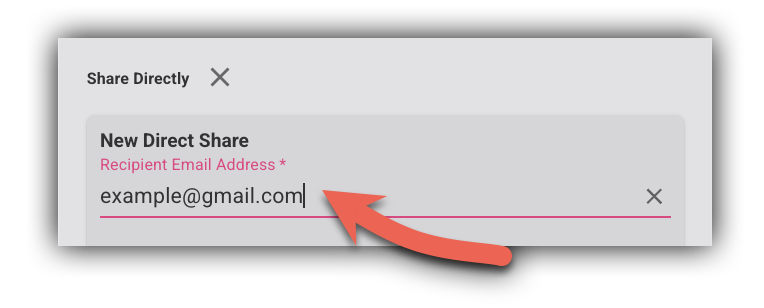
- Enter the email address of the marketplace administrator you want to share with.
- Check the "allow editing" option if you want them to be able to edit the project (leave unchecked if you only want them to view).
- Click Share.
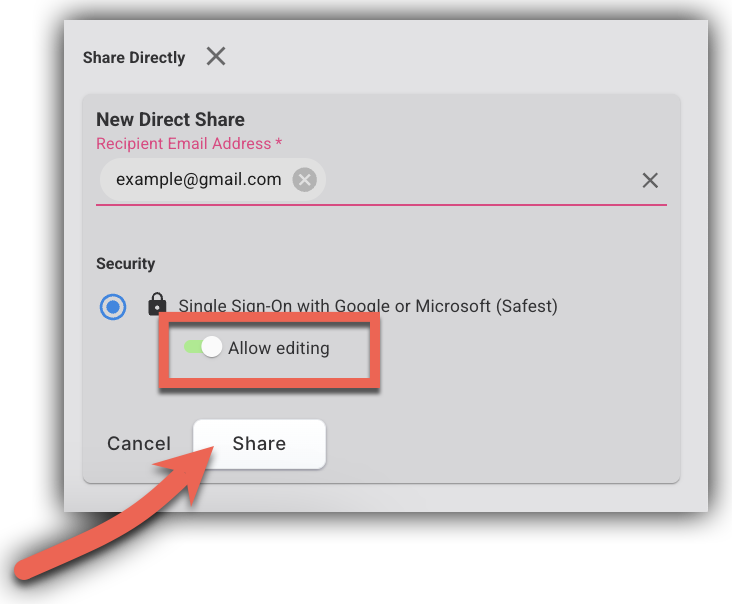
The recipient will receive an email notification with a link to access the document.
Important: Recipients must be a marketplace administrators for your SamCart marketplace to access shared documents.
Step 4: Manage Sharing
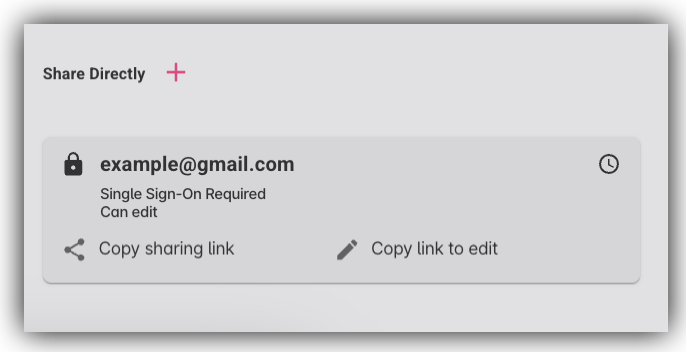
You can return to the Share panel at any time to:
- See who you've shared the document with.
- Change someone's editing permissions.
- Remove someone's access to the document.
How to access documents shared with you
When someone shares a document with you, you can find it in two ways:
From email: You'll receive an email that says "[Marketplace User] shared 'a document' with you. You must complete this step first before the project will appear in your account. Then log in to your SamCart marketplace to view." Click the link in the email to access the document (you must be a marketplace administrator).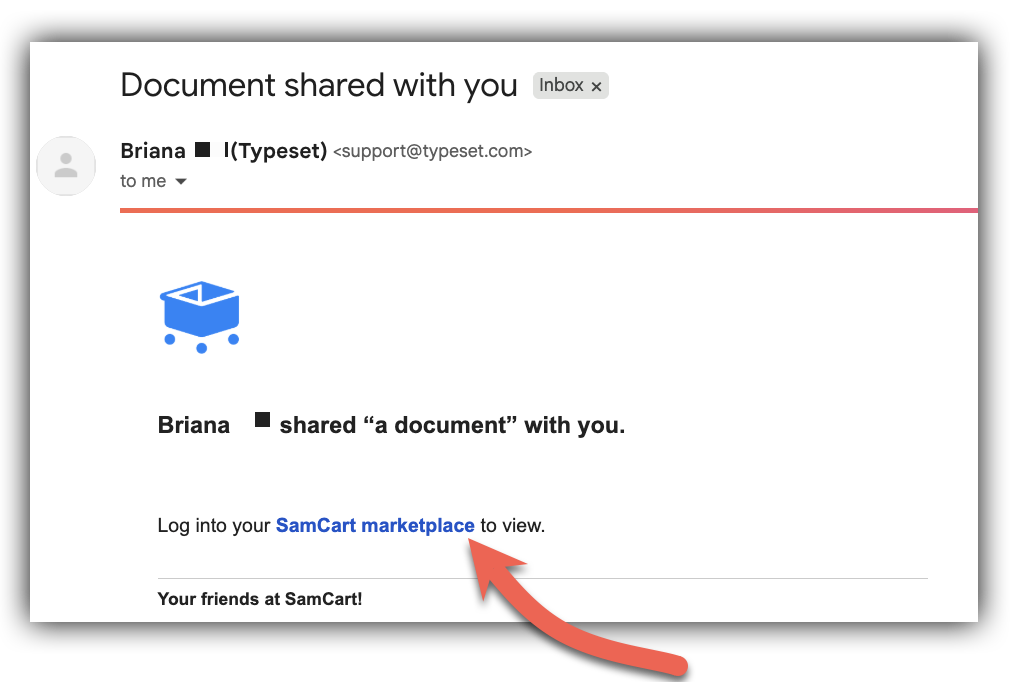
From the Shared with you section:
- Go to the Design tab in Creator Studio.
- Click Shared with you in the breadcrumb navigation at the top (next to "Your Marketplace").
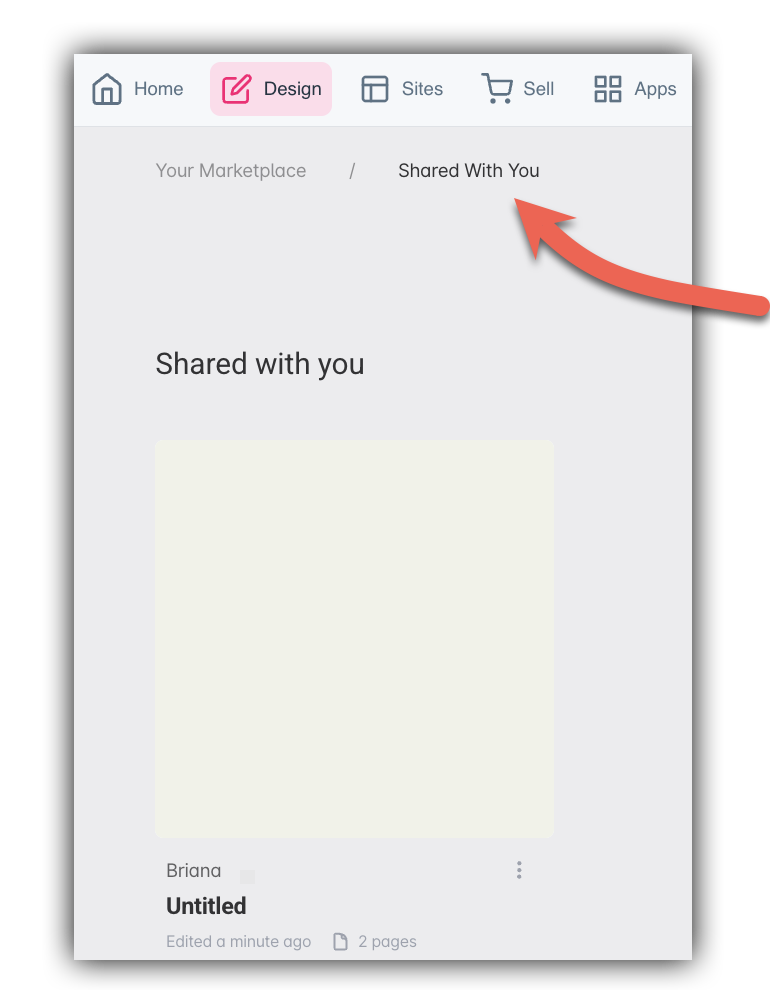
- Find the document you want to open.
- Click on the document to open it.
All documents that have been shared with you will appear here.
Frequently Asked Questions
Q: Who can I share documents with?
A: You can enter any email address when sharing, but the recipient must be a marketplace administrator for your SamCart marketplace to access the document. If they are not a marketplace admin, they will not be able to view the shared document.
Q: What's the difference between allowing editing and not?
A: "Allow editing" unchecked (default): The person can see the document and read its contents but cannot make any changes. "allow editing" checked: The person can view the document and make changes to it, just like you can
Q: Can I stop sharing a document with someone?
A: Yes. Navigate to the document, click Share, and then remove the person's access. They will immediately lose access to the document.
Q: What happens if I delete a document I've shared?
A: If you delete a document, everyone you shared it with will also lose access. The document will be removed from anyone you've shared the document with "Shared with you" section.
Q: How many people can I share a document with?
A: There's no limit to the number of marketplace administrators you can share a document with.
Q: Can I share documents from my mobile device?
A: Yes, document sharing works the same way on mobile as it does on desktop.
Q:Why can't someone access a document I shared with them?
A: The most common reason is that the recipient is not a marketplace administrator for your SamCart marketplace. Only marketplace administrators can access shared documents. Check their role in your marketplace settings.
Q: Where do I find the "Share Directly" option?
A: After opening your project in the Design tab, click the Share button, then click "Share Directly" from the sharing options.