You can now update your Typeset email address directly from your account — no support ticket needed.
Managing your account just got easier. If you need to change the email address associated with your Typeset account, you can do it yourself in just a few steps from the Account & Billing section. Your new address will be confirmed via a secure verification email before any changes take effect, keeping your account safe.
How to Update Your Email Address
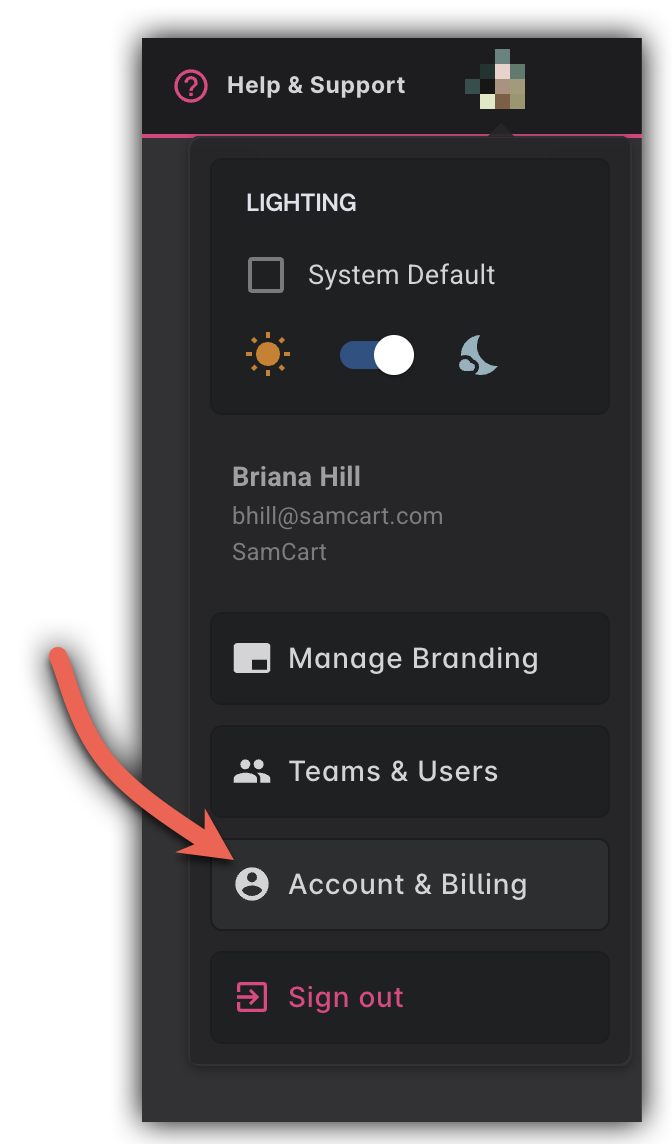
Navigate to your Account & Billing page by clicking on your profile icon in the top right corner and selecting Account & Billing from the dropdown once you click on your profile icon.
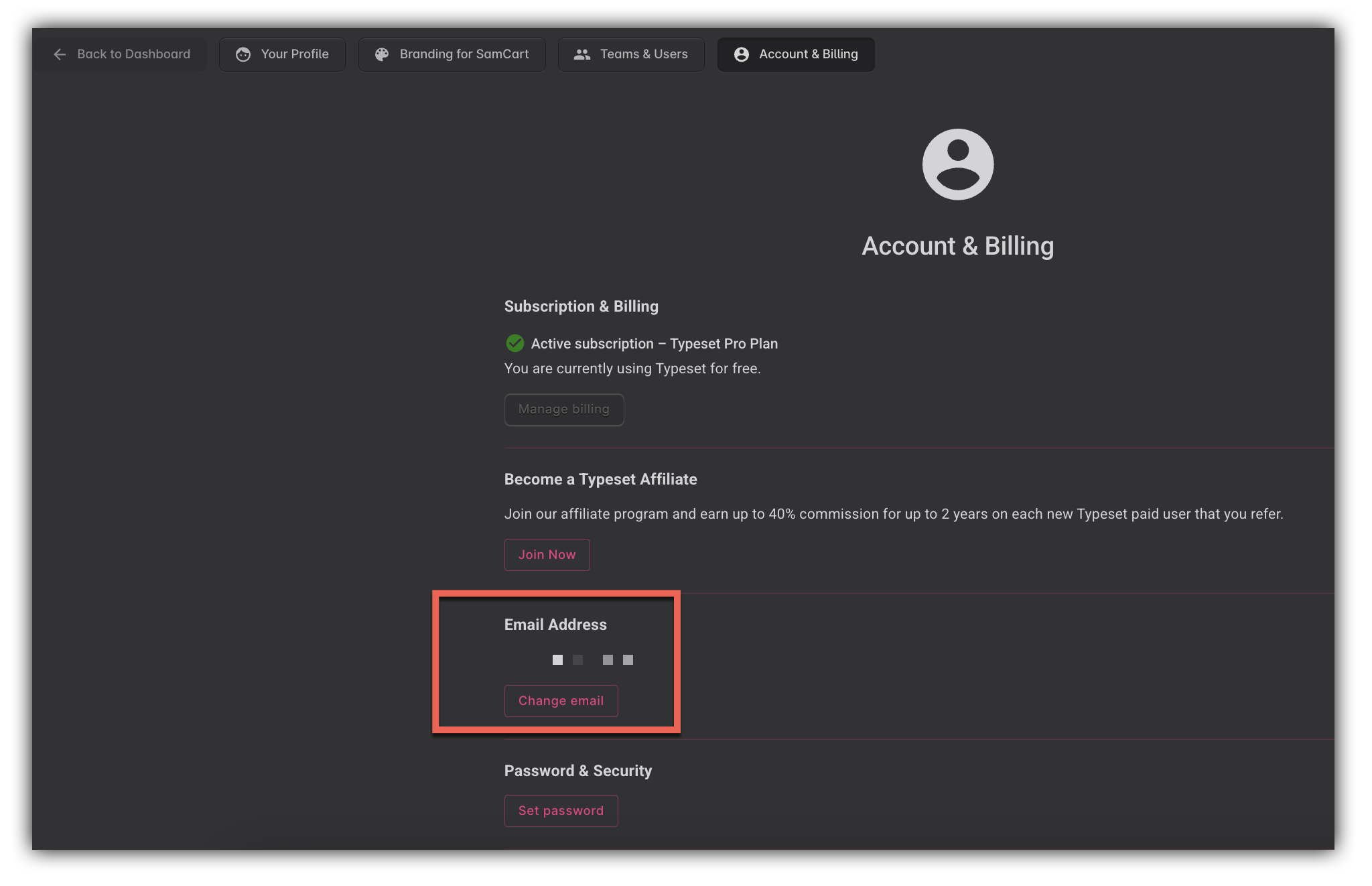
From there, locate the Email Address field and click Change Email.
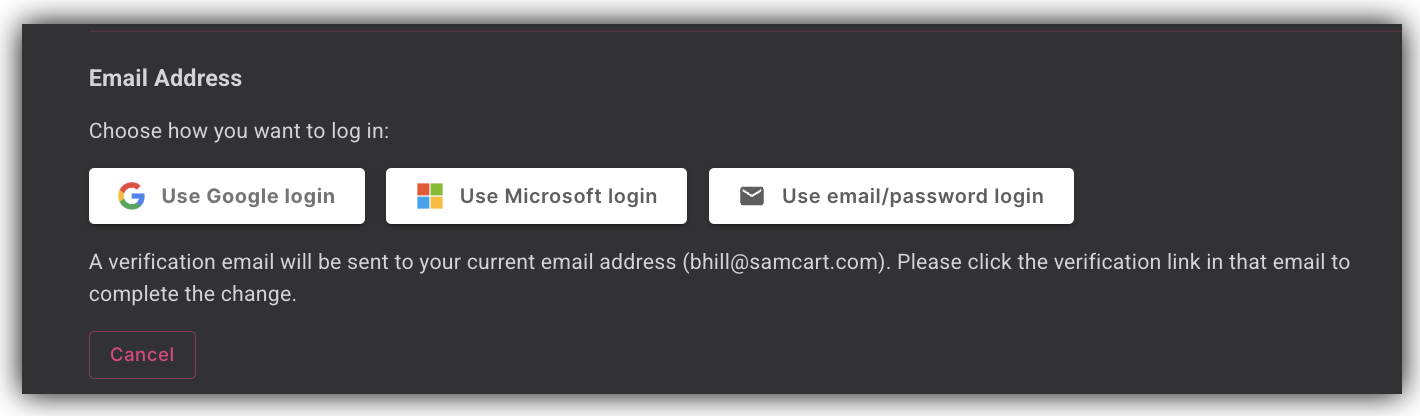
You have two options for updating your email:
Option 1 - Enter a new email address manually Type your new email address into the field and click Save Changes.
Option 2 - Switch to a Google or Microsoft account Select Connect Google or Connect Microsoft to link a social login to your account instead.
Confirming Your Email Change
For security purposes, after submitting your new email address, a confirmation email will be sent to your current email address. You must click the confirmation link in that email to finalize the change.
Your email address will not be updated until that link is clicked. If you don't see the confirmation email, check your spam or junk folder.
Note: If you are switching between a social login (Google or Microsoft) and email/password login — and your email address is staying the same — no confirmation email is required. The change will take effect immediately.
Frequently Asked Questions
Q: I didn't receive the confirmation email. What should I do?
A: Check your spam or junk folder first. If it's not there, wait a few minutes and then try the update again from Account & Billing. Make sure the email address you're confirming from is accessible — the link is sent to your current address, not the new one.
Q: Can I switch from a Google login to an email and password login?
A: Yes! From Account & Billing, you can switch between social logins (Google or Microsoft) and a standard email/password login. If your email address isn't changing as part of the switch, no confirmation is required.
Q: The confirmation link in my email doesn't seem to be working. What should I do?
A: Confirmation links expire after a set period. If your link has expired, return to Account & Billing and submit the email change again to receive a fresh confirmation email.
Q: Will changing my email address affect my subscription or billing?
A: No — your subscription, billing details, and account content remain completely unchanged. Only your login email is updated.
Q: What if I entered the wrong new email address by mistake?
A: As long as you haven't clicked the confirmation link yet, your email address won't change. Simply return to Account & Billing and submit the correct address. A new confirmation email will be sent.