Your Dashboard Data Explained
Your SamCart Dashboard Data gives you a real-time overview of your Marketplace performance, revenue, and customer activity.
The dashboard displays key metrics and analytics to help you monitor your business at a glance. All data shown is based on the timezone you've set in your marketplace settings and refreshes automatically every 30 minutes to keep your information current.
This article will walk you through each section of your dashboard so you can understand what you're seeing and make informed decisions about your business.
NOTE: Dashboard data is displayed in the timezone set in your marketplace. To change your timezone, navigate to General > Marketplace Settings > General > Timezone.
Accessing Your Dashboard Data
Your Dashboard Data is the first page you see when you log into your SamCart marketplace.
Setting Your Date Range
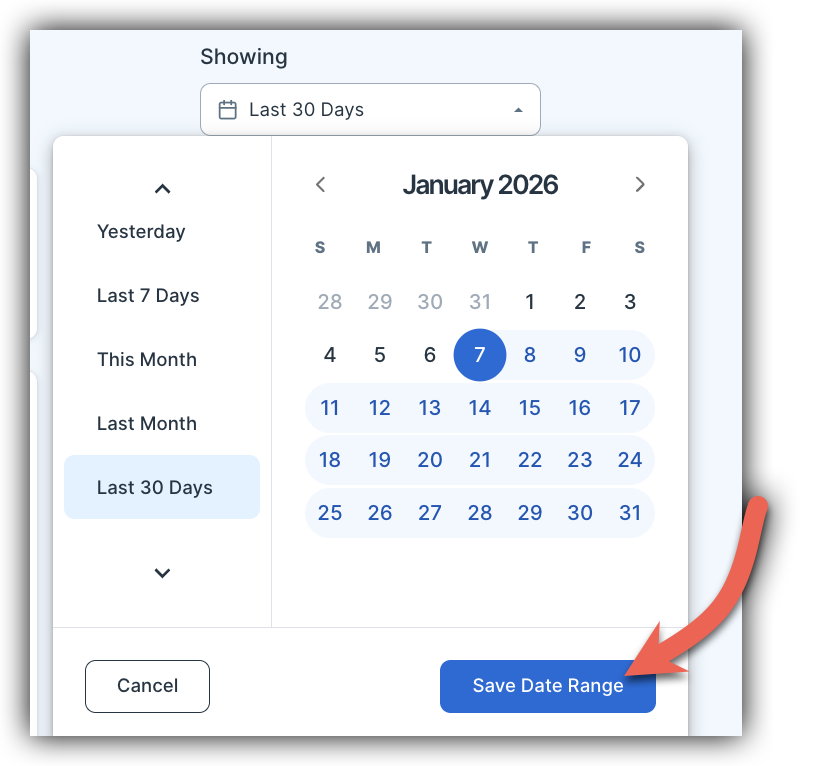
At the top right of your dashboard, you'll see a date range selector that defaults to Last 30 Days. Click on this dropdown to change the time period for your dashboard data.
Available date ranges include:
- Today - Current day's data
- Yesterday - Previous day's data
- Last 7 Days - Rolling 7-day period
- Last 30 Days - Rolling 30-day period (default)
- This Month - Current calendar month
- Last Month - Previous calendar month
- This Year - Current calendar year
- Last Year - Previous calendar year
- All Time - All historical data since your marketplace was created
- Custom Range - Select specific start and end dates
Changing the date range will update all metrics on your dashboard to reflect the selected time period.
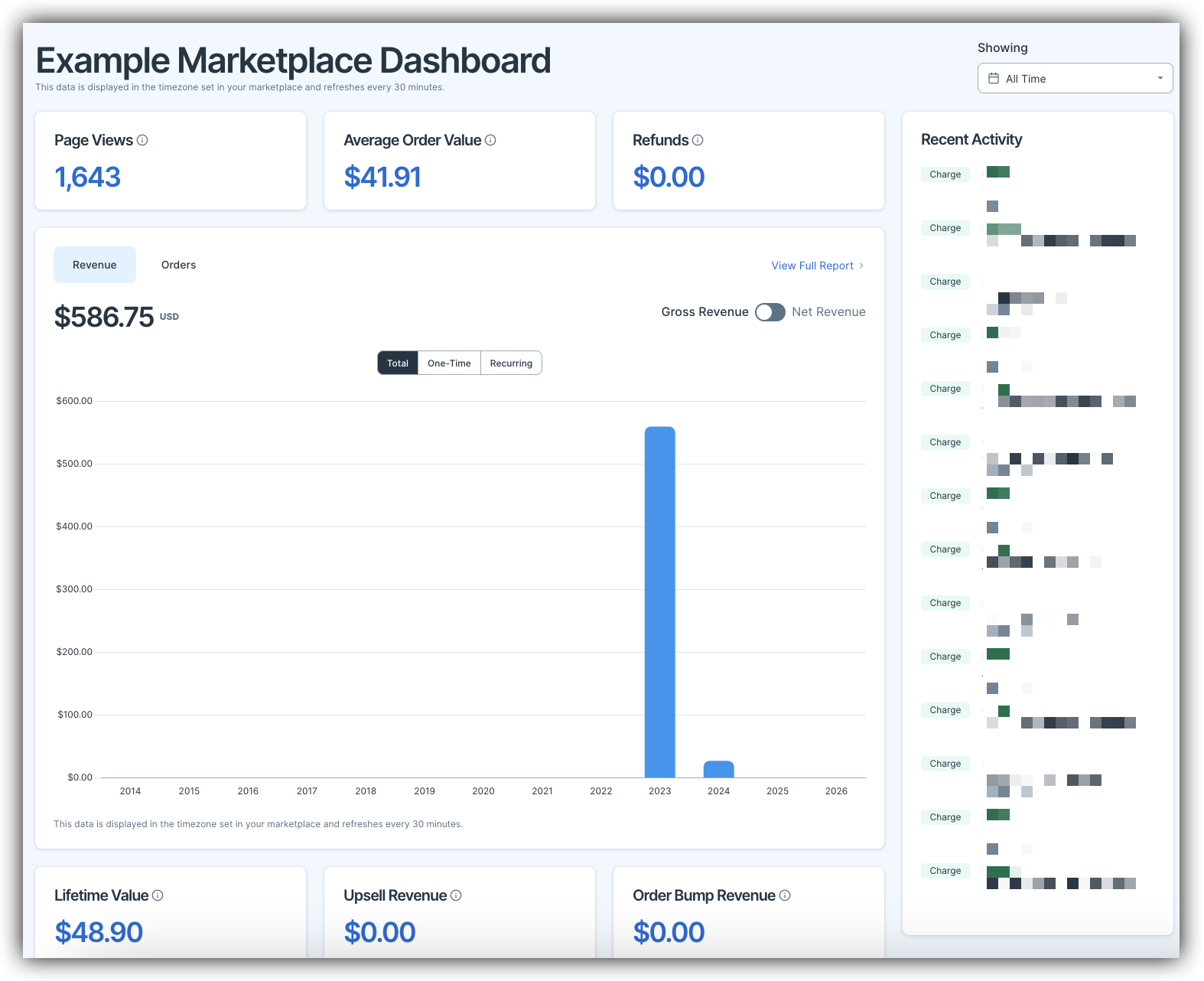
Top Metrics Overview
At the top of your dashboard, you'll see three key performance indicators:

Page Views: This metric shows the total number of views across all of your pages during the selected date range. This is not unique views.
Average Order Value: This displays the average dollar amount of orders placed during the selected time period.
Refunds:This shows the total dollar amount of refunds processed during the selected date range. This includes both full and partial refunds.
Recent Activity Feed
The Recent Activity section on the right side of your dashboard shows real-time transaction activity as it happens in your marketplace.
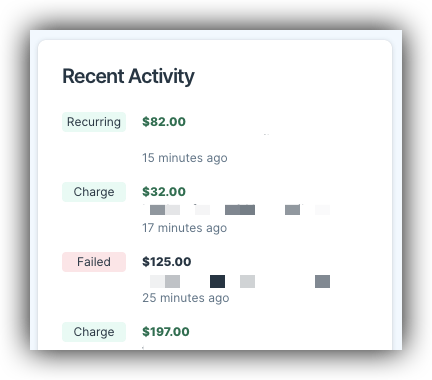
Each entry displays:
- Transaction Type - The status badge (Failed, Charge, Recurring, or Refund).
- Amount - The dollar value of the transaction.
- Customer Email - The customer's email address.
- Timestamp - How long ago the transaction occurred.
Transaction Types:
- Charge - A successful one-time payment.
- Recurring - A successful subscription payment.
- Failed - A payment attempt that was declined or unsuccessful.
- Refund - A refund that was processed.
This feed updates automatically as new transactions occur in your marketplace, giving you a live view of customer activity.
Revenue Graph
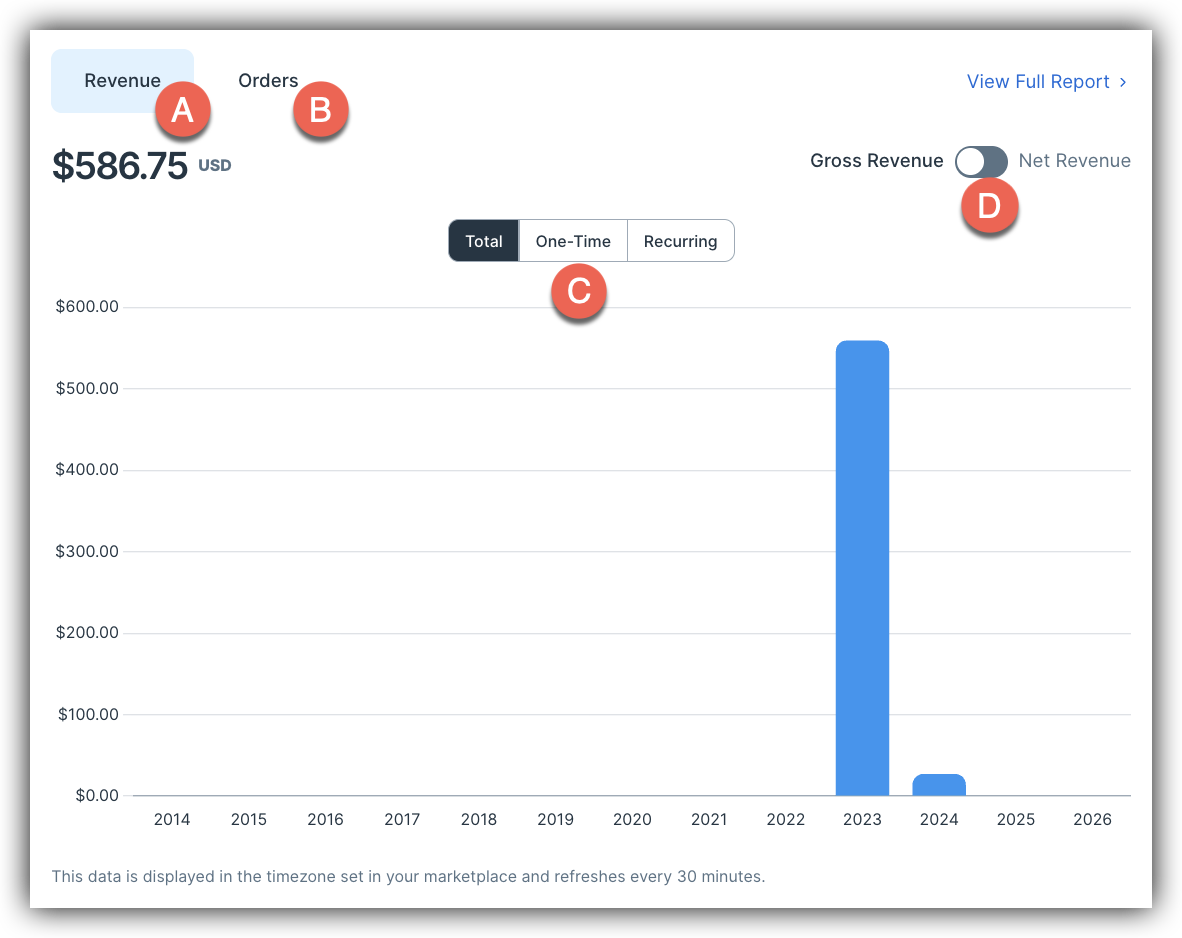
The main revenue graph provides a visual representation of your earnings and order volume over time.
Viewing Options:
Click the tabs above the graph to switch between:
- Revenue (A) - Displays dollar amounts (default view).
- Orders (B)- Displays the total number of orders placed during the selected time period.
When viewing Revenue, you can toggle between three options (C):
- Total - Shows all revenue combined (default).
- One-Time - Shows only revenue from one-time purchases.
- Recurring - Shows only revenue from subscription payments.
Gross Revenue vs Net Revenue (D):
When viewing the Revenue tab, use the toggle on the right side of the graph to switch between:
- Gross Revenue - Total amount charged to customers before any fees, refunds, or deductions.
- Net Revenue - Revenue after payment processing fees, refunds, and chargebacks have been deducted.
View Full Report: click the View Full Report link in the top right corner of the graph to navigate to your Orders page. This gives you access to detailed order data where you can search, filter, and export order information.
The graph displays daily bars for shorter date ranges and aggregates into longer time periods (weeks or months) when viewing larger date ranges like "This Year" or "All Time."
Lifetime Value, Upsell Revenue and Order Bump Revenue
Towards the middle of your dashboard, you'll see three additional key metrics:
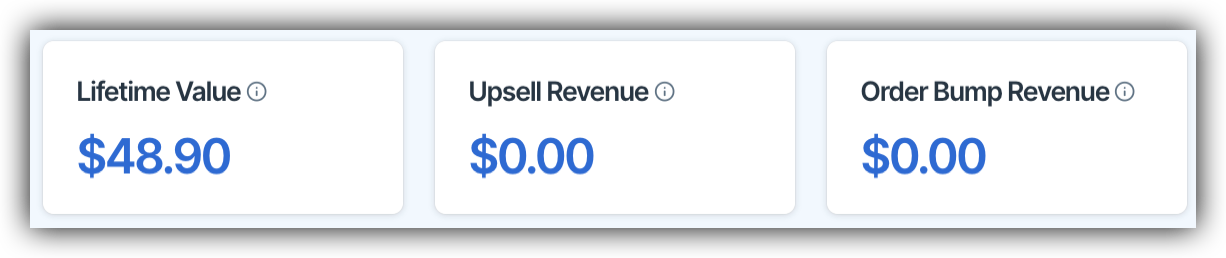
Lifetime Value: This shows the average lifetime value per customer. This is calculated by dividing your total revenue by the number of unique customers who have made purchases.
Upsell Revenue:This displays the total revenue generated from upsell offers during the selected date range. This includes both one-click upsells and downsells.
Order Bump Revenue: This shows the total revenue generated from order bump offers during the selected date range.
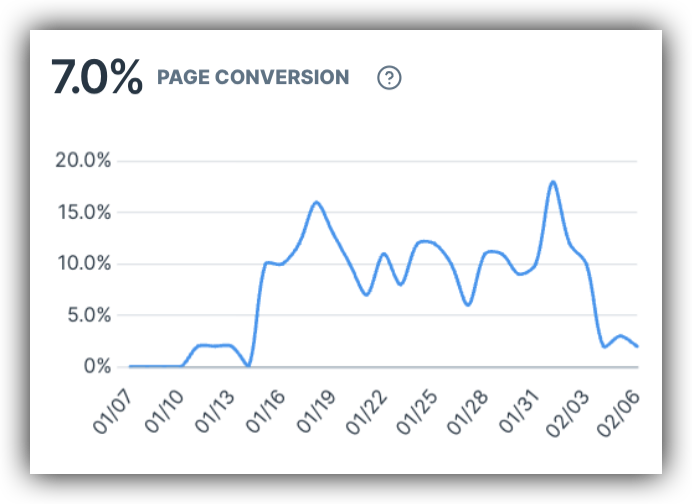
Page Conversion Rate
Below the revenue graph, you'll see your Page Conversion percentage and a trend graph.
How Conversion Rate is Calculated: Your conversion rate is calculated as: Orders ÷ Page Views.
The line graph shows how your conversion rate has changed over the selected date range, helping you identify trends and the impact of changes you've made to your pages.
Subscriptions Created
The Subscriptions Created metric shows how many new subscription sign-ups occurred during the selected date range. The accompanying graph displays subscription creation trends over time, helping you understand when customers are most likely to sign up for recurring offers.
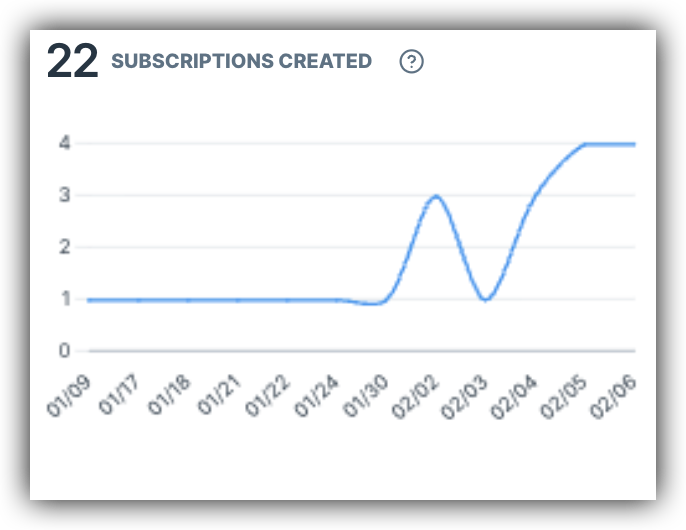
Note: This metric counts new subscriptions only. It does not include recurring charges on existing subscriptions.
Top Products and Referral URLs
The right side panel allows you to view performance data for your products and traffic sources.
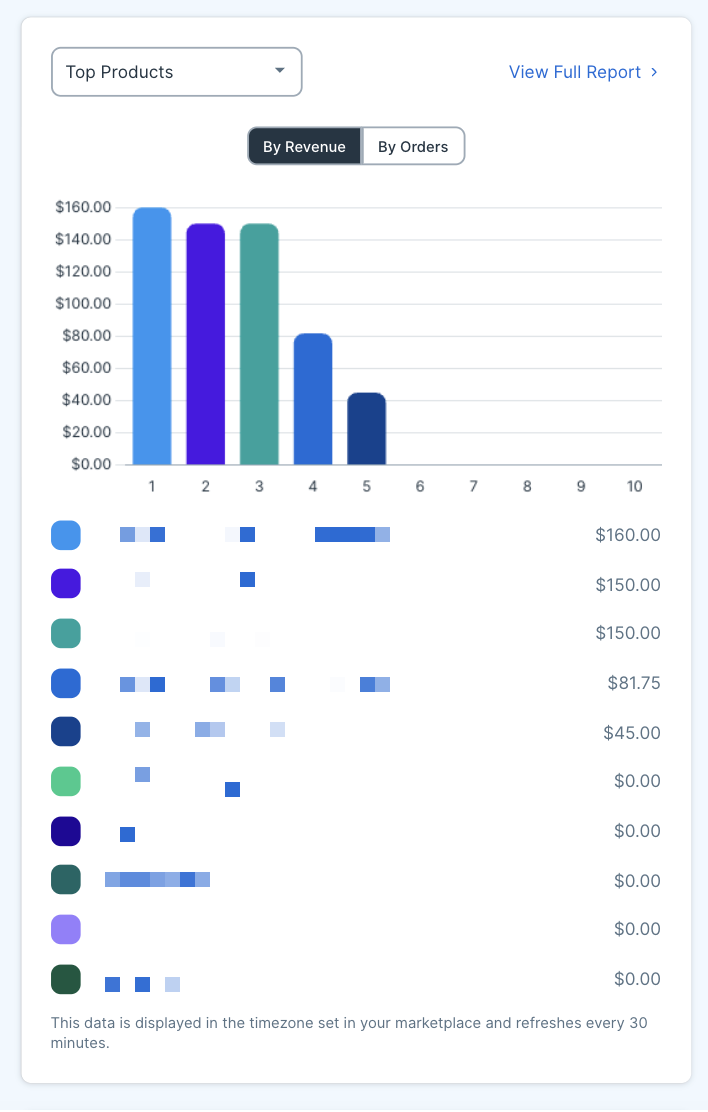
Use the dropdown menu to choose between:
- Top Products - See which products are generating the most revenue or orders.
- Referral URLs - See which traffic sources are driving the most revenue or orders. For example, Facebook or Pinterest.
Sorting Your Data:
Toggle between two sorting options:
- By Revenue - Ranks items by total revenue generated.
- By Orders - Ranks items by number of orders placed.
Each item displays:
- Product name (or referral URL)
- Color-coded bar showing relative performance
- Total dollar amount or order count
- Ranking number (1-10)
This view shows your top 10 performers for the selected category and time period.
View Full Report: click the View Full Report link in the top right corner of the graph to navigate to your Traffic page. This gives you access to detailed Traffic data where you can view your Referrer and UTMs data.
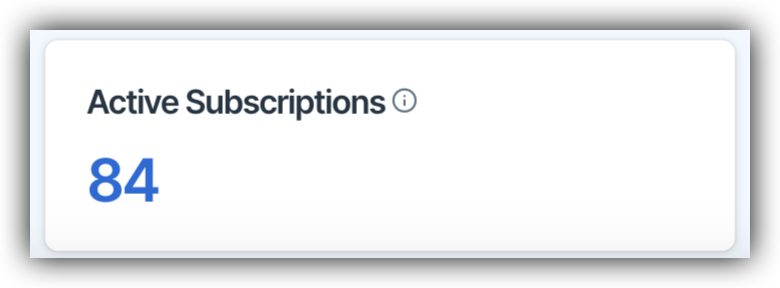
Active Subscriptions
This metric displays the current number of active or trialing subscriptions in your marketplace.
Unlike other dashboard metrics, this number represents the current state of your marketplace, not a count during the date range. This means it shows how many subscriptions are active right now, regardless of when they were created.
Projected MRR
The Projected MRR (Monthly Recurring Revenue) metric shows your estimated monthly recurring revenue based on active subscriptions. This calculation takes all currently active subscriptions and projects what your monthly revenue would be if all subscriptions continue at their current rate. This helps you forecast revenue and understand the health of your subscription business.
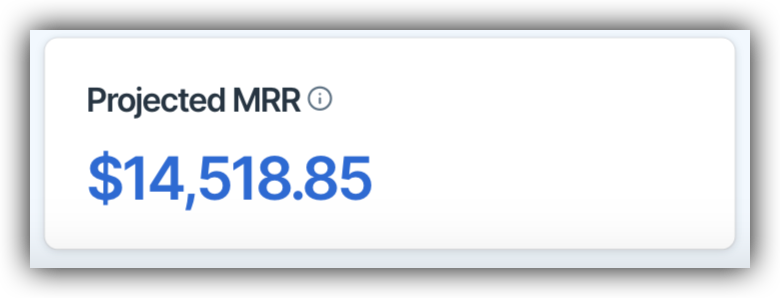
Note: Projected MRR is based on current active subscriptions and does not account for potential cancellations, upgrades, or new sign-ups.
Frequently Asked Questions
Q: What's the difference between Gross Revenue and Net Revenue?
A: Gross Revenue is the total amount charged to customers before any deductions. Net Revenue is what you actually receive after payment processing fees, refunds, and chargebacks are subtracted. Net Revenue gives you a more accurate picture of your actual earnings.
Q: Why doesn't my dashboard data match my payment processor?
A: There can be a few reasons for discrepancies. First, make sure you're comparing the same time periods and that both are using the same timezone. Also, your payment processor may report based on when funds were settled, while SamCart reports based on when the transaction occurred. Finally, if you process refunds, these may be reported differently between systems.
Q: How often does the dashboard update?
A: Dashboard data refreshes automatically every 30 minutes. If you've just made a change or had a transaction occur, you may need to wait up to 30 minutes to see it reflected in your dashboard metrics.
Q: Can I export my dashboard data?
A: The dashboard itself doesn't have an export function, but you can access more detailed reports by clicking View Full Report where available, or by navigating to the Reports section of your marketplace for downloadable data.
Q: Why is my Page Conversion rate different from what I see in my page analytics?
A: The dashboard shows an overall conversion rate across all pages (total orders ÷ total page views). Individual page analytics will show conversion rates specific to that page. If you're running multiple products or pages, your overall conversion rate may be higher or lower than any single page.
Q: The Recent Activity feed is moving too fast. Can I slow it down or see more history?
A: The Recent Activity feed shows real-time transactions as they occur. For historical transaction data and more detailed information, navigate to Orders in your marketplace navigation menu where you can view, search, and filter all past orders.