Create order bumps once and attach them to as many products as you want — all from one central place.
Order bumps are one of the fastest ways to increase your average order value, and Global Order Bumps makes them easier to set up and manage than ever. Instead of configuring a bump separately on each product, you now create a bump once in Offers > Order Bumps and attach it to as many products as you'd like. Content auto-populates from your product, branding inherits from your marketplace settings, and you can attach a single bump to hundreds of products in one action.
If you already had order bumps configured on your products, they've been automatically moved to the new Order Bumps section — no action needed on your part.
NOTE: Order Bumps are available on the Grow, Scale and Core plans. This feature is not available to Launch plan users.
Creating a Global Order Bump
Navigate to Offers > Order Bumps in your left-hand navigation bar.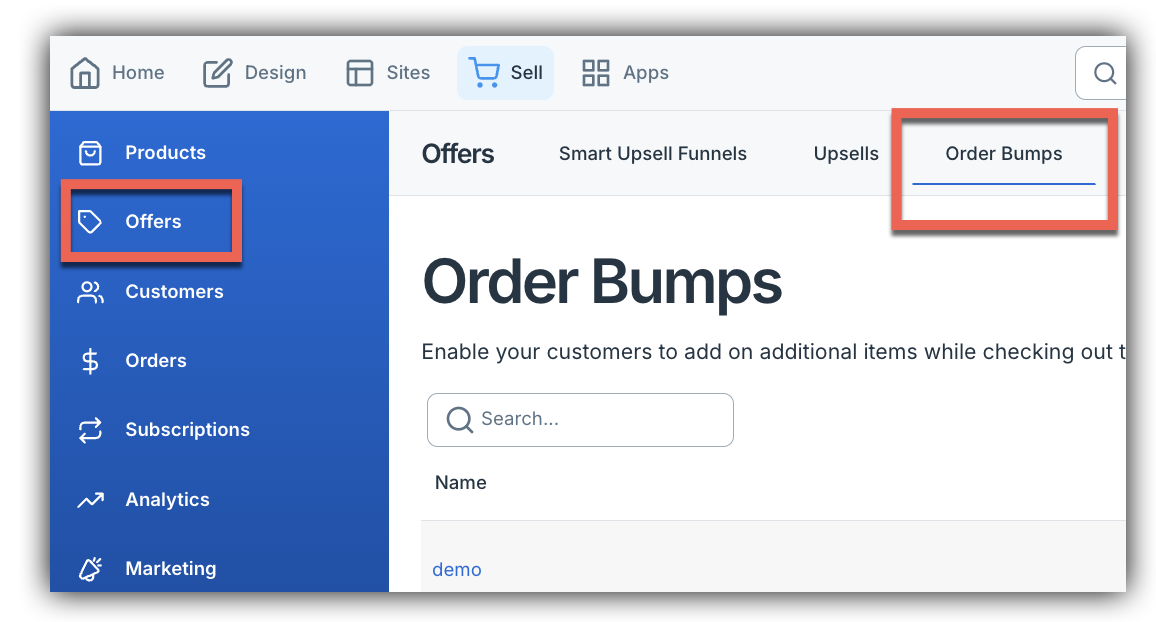 Once you are there you will want to click + Create Order Bump.
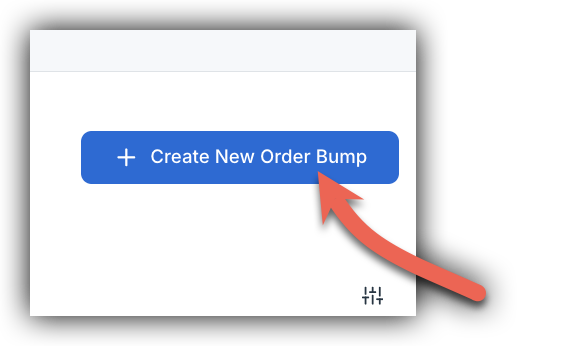
Step 1 - Select a Product
Start by selecting the product this bump will promote. Choose a Name for this Order Bump and then click Create.
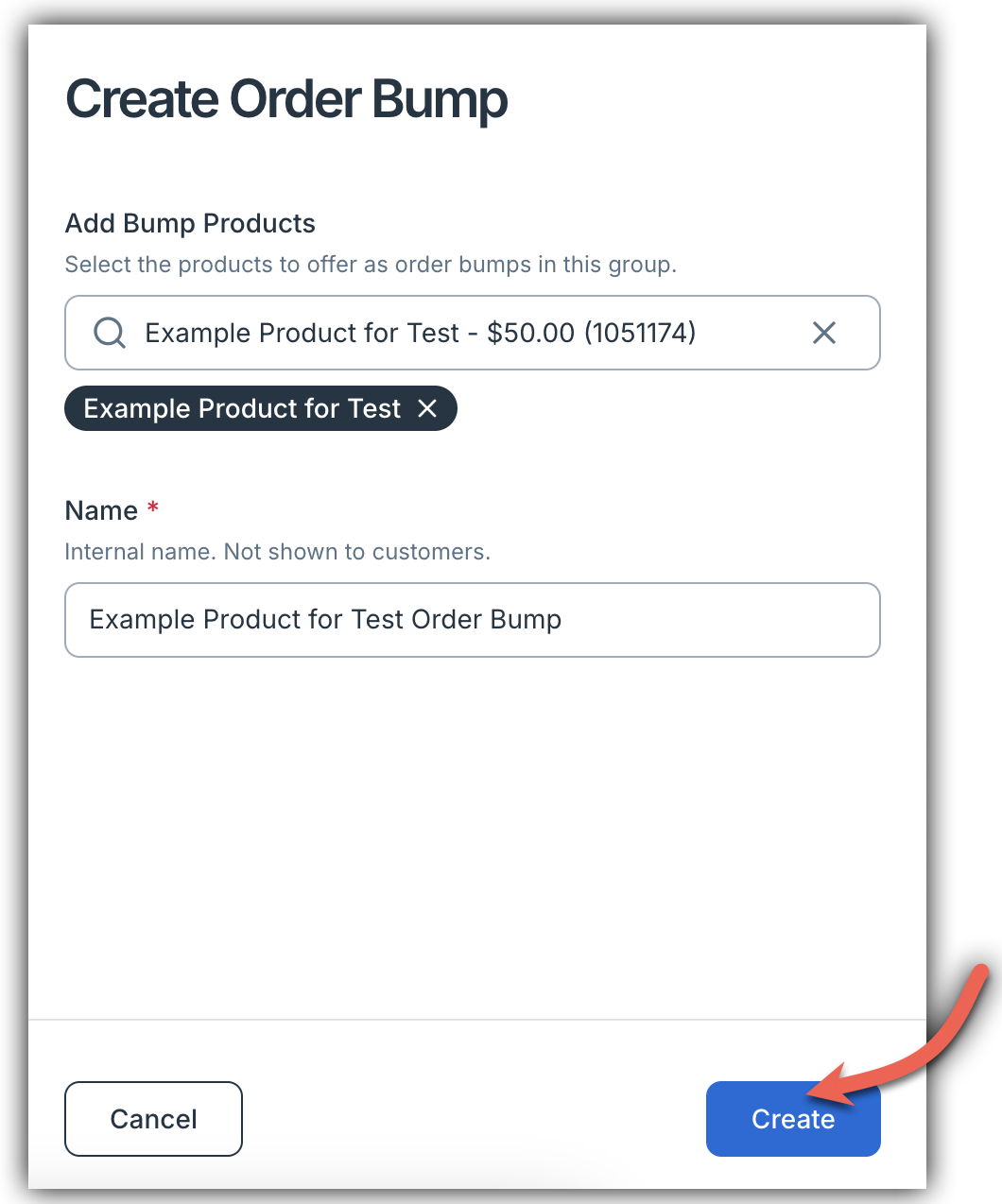
Once you choose a product, SamCart automatically fills in the bump's headline, description, image, price, and strikethrough price based on that product's details. You can edit any of these fields if you'd like a custom headline or different copy. You don't have to — but the option is there. Learn more below!
Not sure what to offer as an order bump? The CreatorAI Assistant can help you brainstorm bump ideas based on your product, suggest pricing, and write the headline, description, and checkbox copy for you. Open the assistant by clicking the Sparkle icon in the top-right corner of your dashboard and select Create an Order Bump to get started. Learn more in our CreatorAI Assistant article.
Step 2 - Customizing Your Order Bump
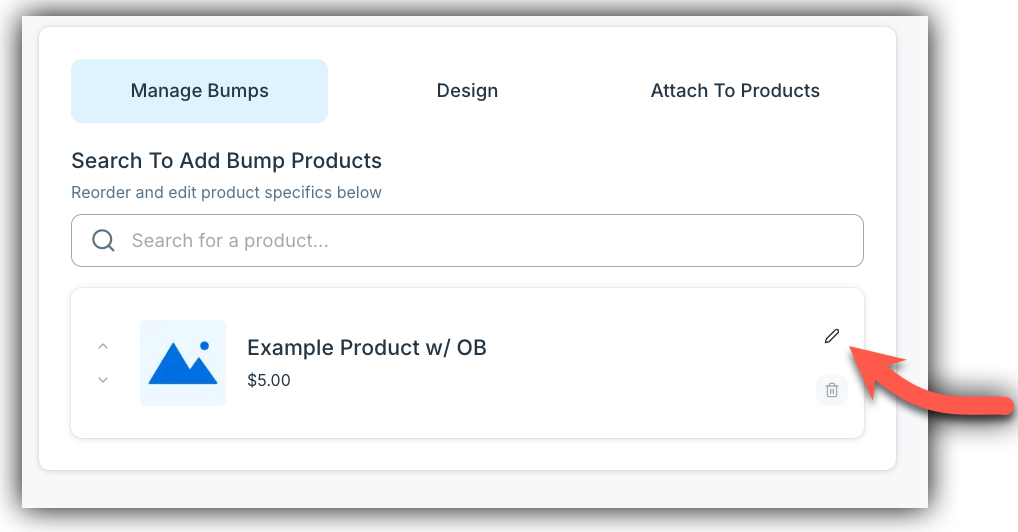
To customize your Order Bump just click the Pencil icon.
From there you will have a few options on how to edit your Order Bump.
- Order Bump Product: Use the search field to find and select the product you want to offer as an order bump. Type any part of the product name to search across your marketplace.
- Override Product Name: By default, the bump will display the product's original name. If you'd like to show a different name on the checkout page, enter it here. This only affects how the name appears to customers at checkout — it does not change the product name in your marketplace.
- Order Bump Image: Upload an image to display alongside your order bump offer. Accepted formats are JPEG, JPG, PNG, BMP, and GIF, and the file must be smaller than 50 MB.
- Show Order Bump Description: Toggle this on to display the product description alongside the bump offer at checkout.
- Show Strikethrough Price: Toggle this on to show a crossed-out original price next to the bump price, helping customers see the value of the offer.
When you're done configuring, click Set to save your changes. You can also click Reset to Defaults to clear any customizations and return the bump to its original settings, or Cancel to exit without saving.
Step 3 - Customize the Display (Legacy Content Builder only)
Choose your preferred layout and adjust any display settings for the bump. You can choose between checkout or classic. Footer and Slide layouts are no longer available (see the Removed Layouts section below for details). Accordion layout is not yet available but is planned for a future update.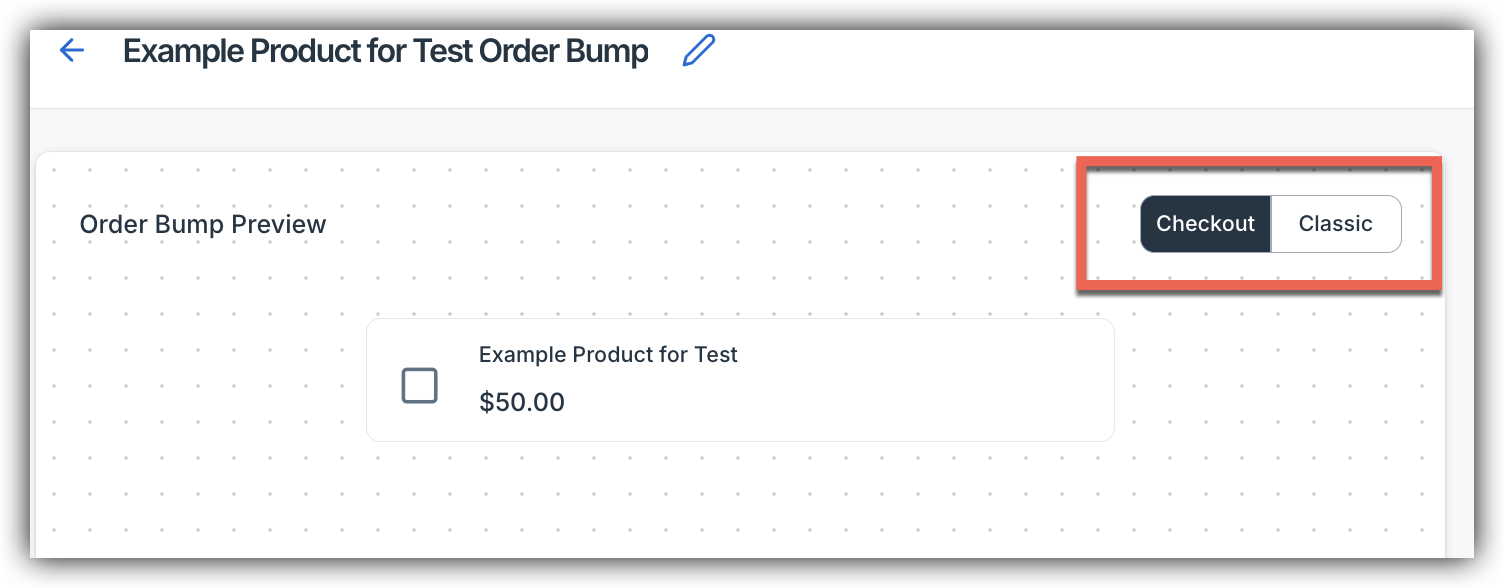
Note: You may not see this feature/option if you do not have the Legacy Content Builder feature.
Step 4 - Designing Your Order Bump
Once you've set up your bump's content, click the Design tab to customize how it looks on your checkout page.
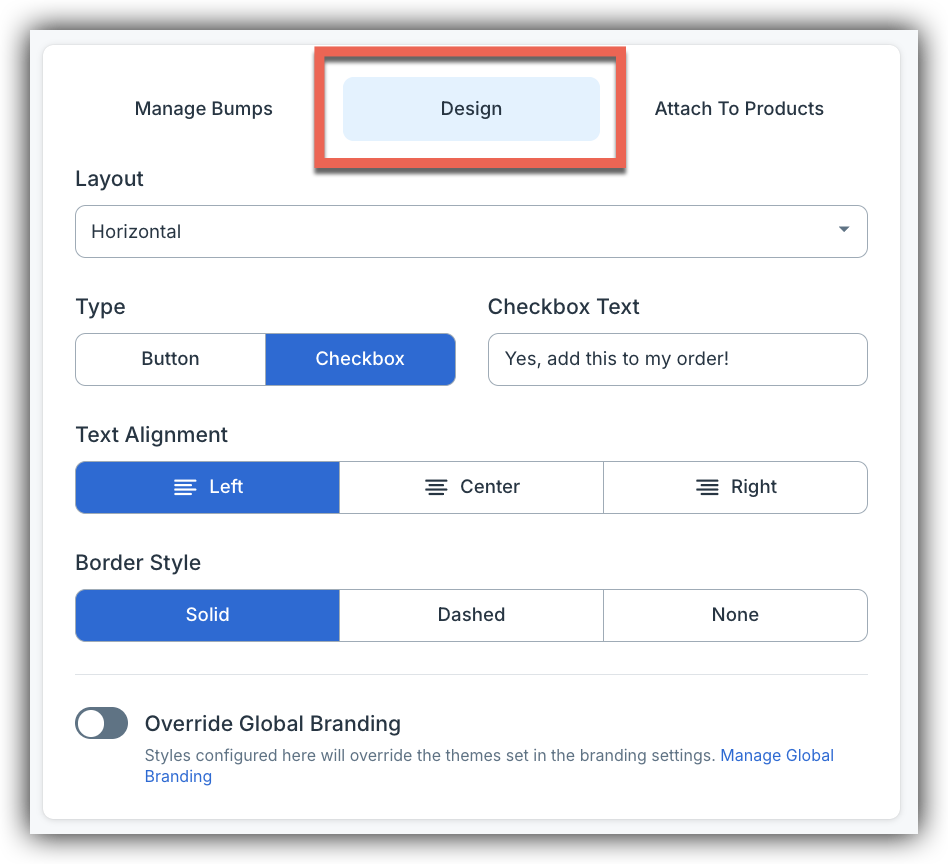
From here you can configure the following display settings:
- Layout - Choose how the bump is displayed on the checkout page. Select from the available layout options using the Layout dropdown.
- Type - Choose how customers interact with the bump:
- Button: Displays a clickable button to add the bump to their order
- Checkbox: Displays a checkbox with customizable text (e.g., Yes, add this to my order!) - Text Alignment - Set the alignment of your bump content to Left, Center, or Right.
- Border Style - Choose the border style for the bump container: Solid, Dashed, or None.
- Override Global Branding - By default, your bump inherits colors from your marketplace's branding settings. Toggle on Override Global Branding to apply custom colors specific to this bump. To update your global branding, click the Manage Global Branding link.
By default, your bump inherits colors from your marketplace's existing branding settings. You'll see a Using Marketplace Branding indicator in the branding section.
The color mapping is:
- Headline Color → Primary color
- Text Color → Text color
- Button & Price Color → Buttons color
If you want a different look for a specific bump, toggle on Override marketplace branding to set custom colors. Don't forget to click Save when you're done!
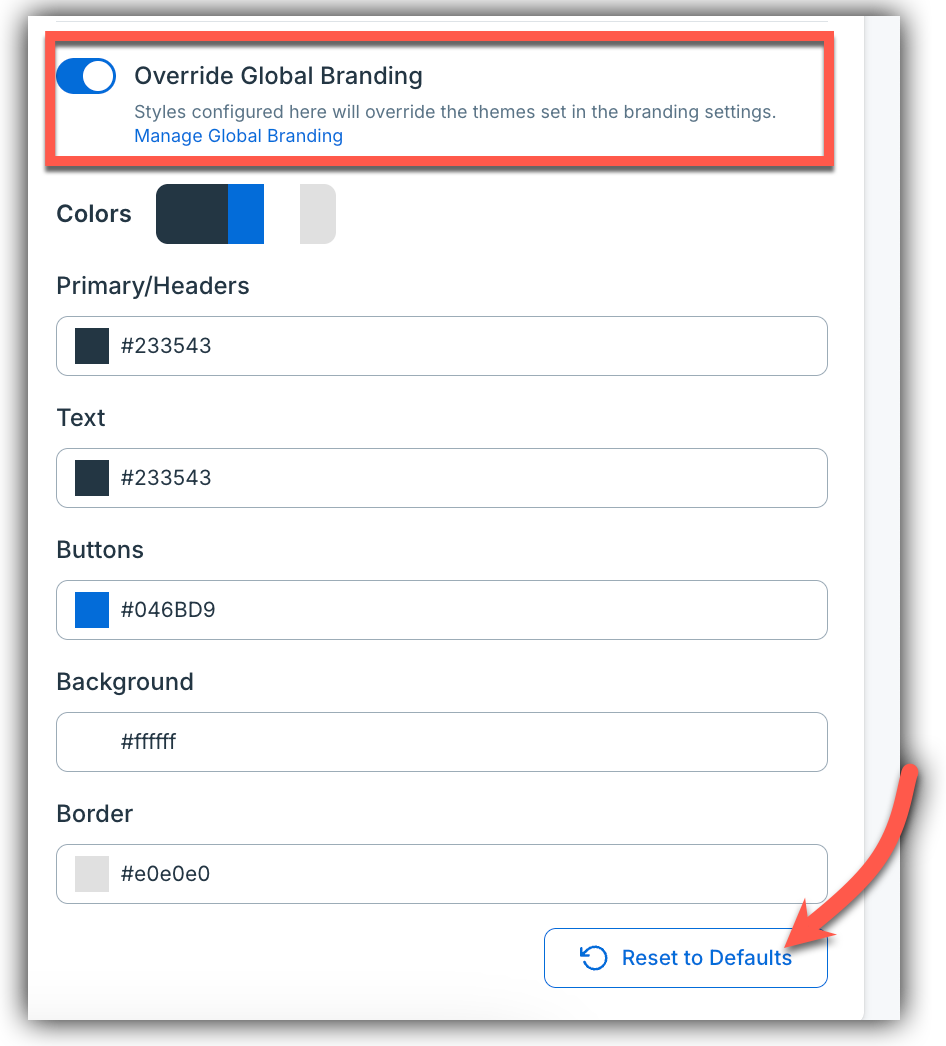 You always have the option to Reset to Defaults at any time as well.
Attaching an Order Bump to Products
Once your order bump is saved, you can attach it to one product or many. From the order bump's edit view, click Attach to Products.
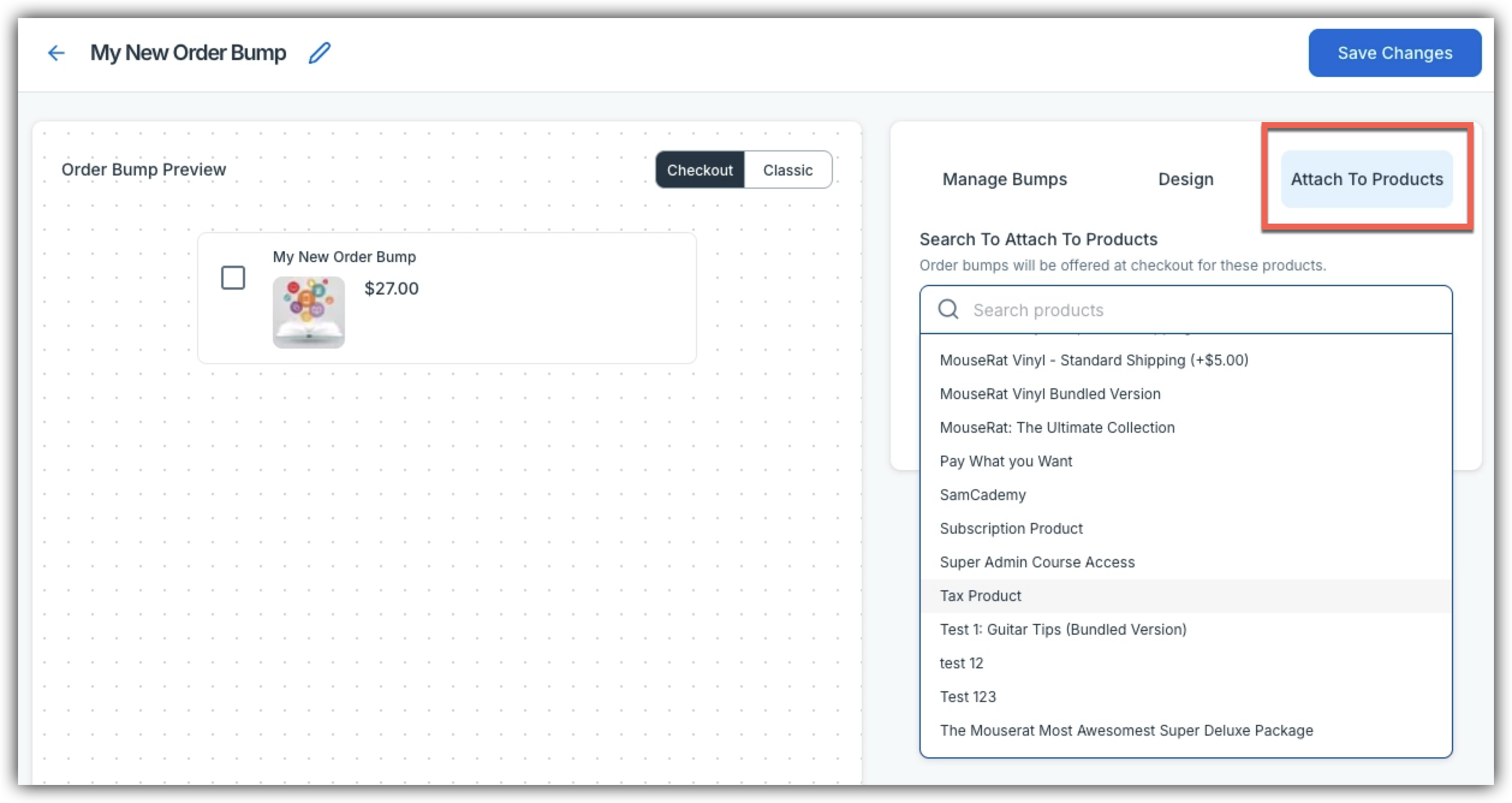
Use the search bar and filters to find the products you want, then select them individually. Click Attach to apply the bump to all selected products at once. To remove a order bump from products, use the same view and click the minus sign to remove the product.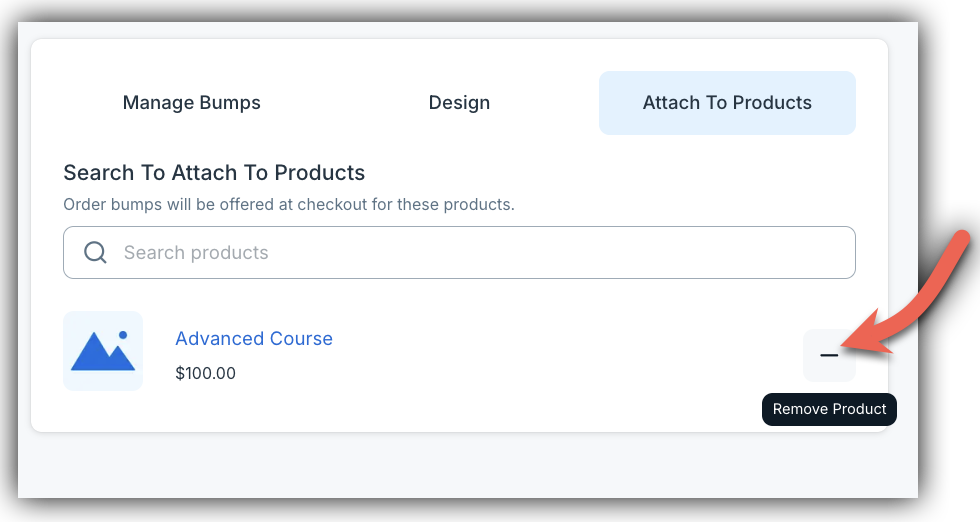
Managing Your Order Bumps
All of your order bumps are visible from Offers > Order Bumps. Each bump shows how many products it's currently attached to, so you can see at a glance where an order bump is in use.
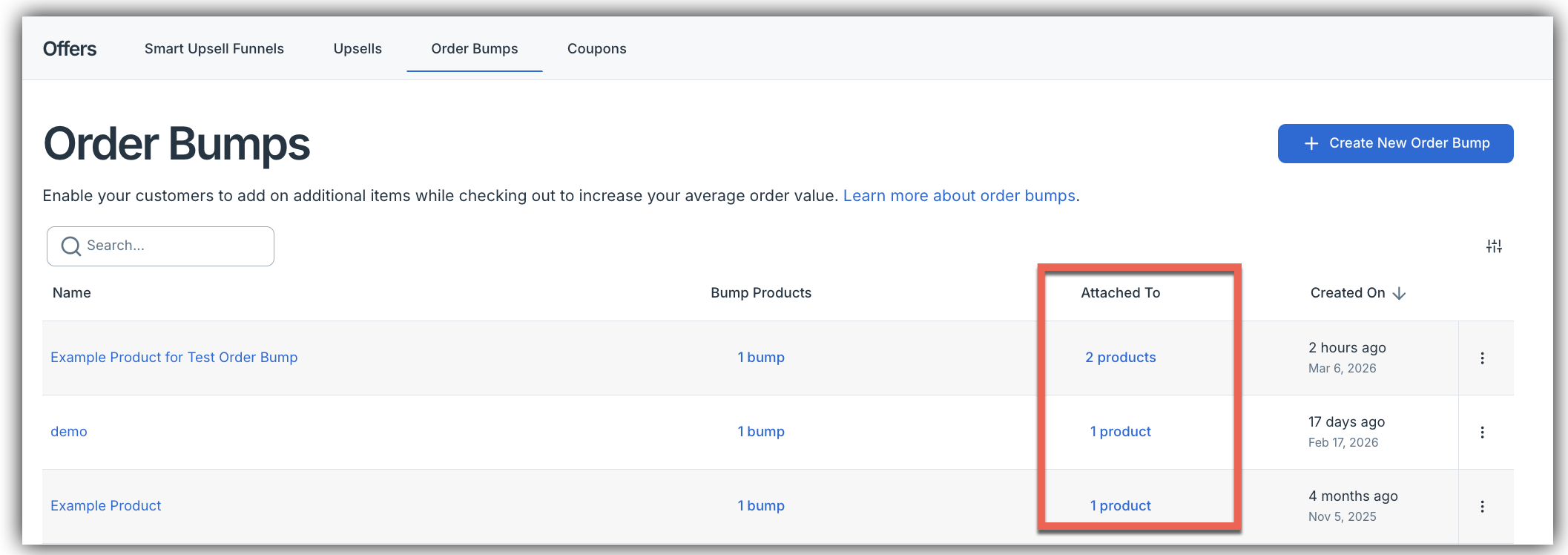
From this view you can edit, duplicate, or delete any order bump, and bulk-attach or detach products from any order bump's edit view.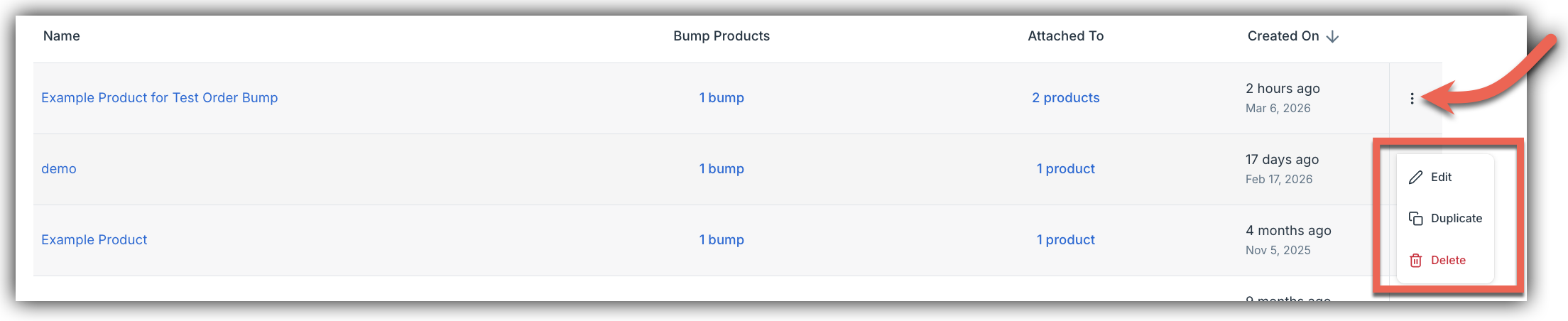
From the Manage Bumps tab, you can search for and add the product you want to promote as an order bump.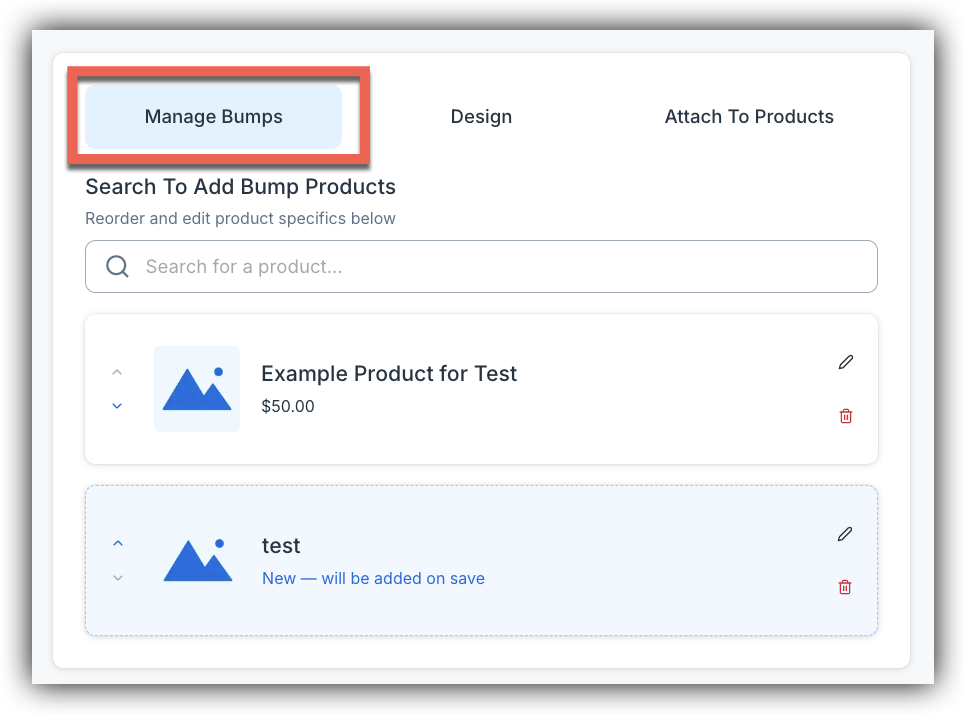
You can add as many products as you want to a single bump — either during the initial creation flow or anytime afterward from the Manage Bumps tab. As you add products, they build into a list within the bump record. Once your bump is set up with all the products you want to include, you can attach that bump to as many products in your marketplace as you'd like.
This makes it easy to create a collection of add-ons — for example, if you want to offer three add-ons at checkout, add all three products to the same bump. Your layout, design, and branding settings apply across all of them automatically.
Use the Search for a product...search bar to find the product you want to feature. Once added, it will appear in the list below with its product image, name, and price.From the product list you can:
- Reorder bumps using the up and down arrows on the left.
- Edit product-specific settings using the pencil icon
- Remove a product from the bump using the trash icon
Note: When multiple Order Bump groups are attached to a single product, you can now re-order them. (This is in addition to the existing ability to re-order multiple bump products within a single group.)
Adding an Order Bump on the Product Level
You can also attach an order bump directly from within an individual product. Navigate to the product you'd like to add a bump to, click the Offers tab, and scroll down to the Order Bumps section.
Click + Add Your First Order Bump to attach a bump to this product.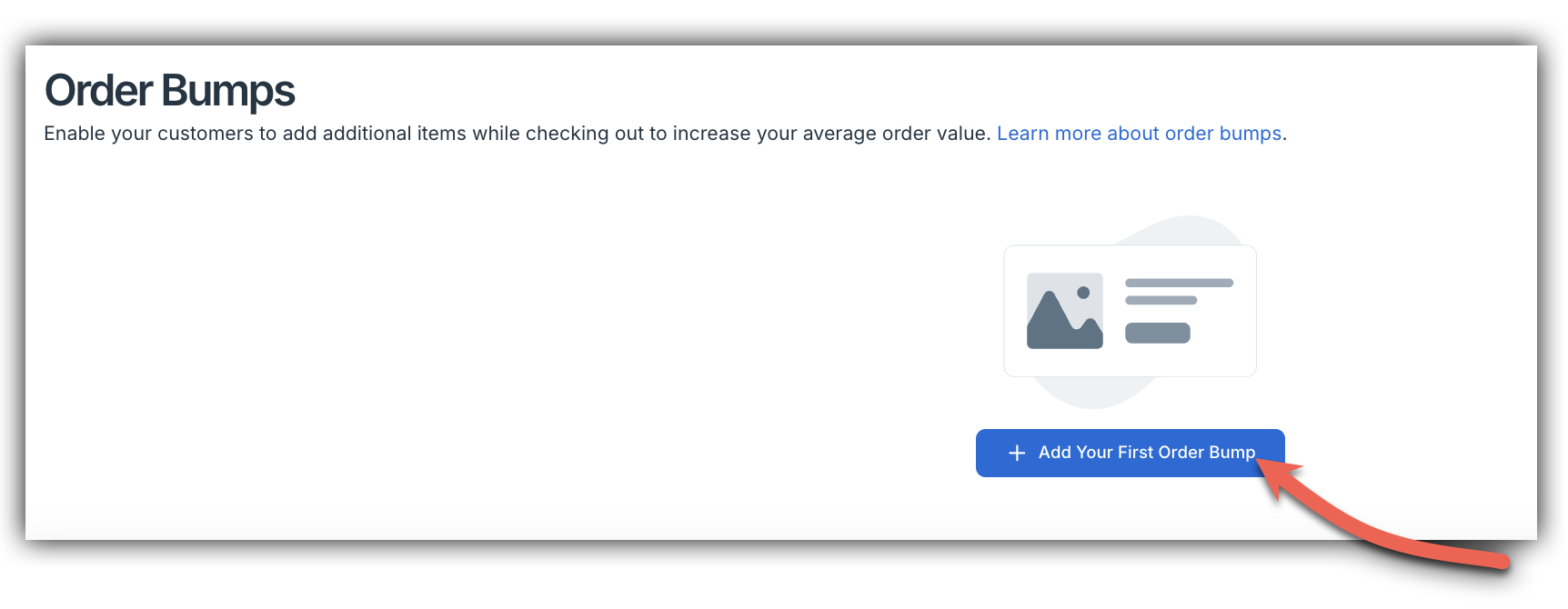
This will allow you to select from your existing global order bumps. Any bump you attach here will also appear in your central Offers > Order Bumps list. Once you choose your Order Bump - just click Set.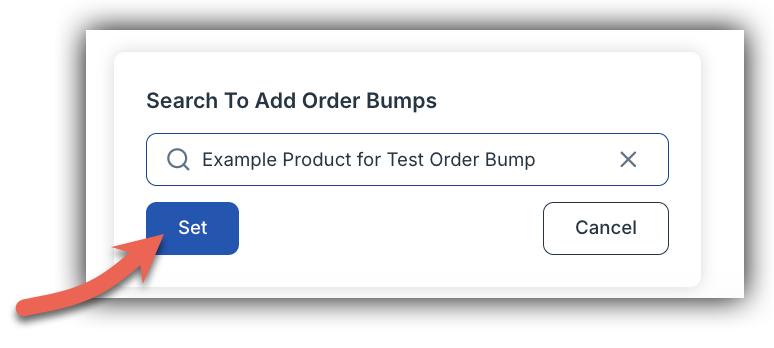
Once a bump has been attached, it will appear as a card in the Order Bumps section showing the bump name and the products associated with it.
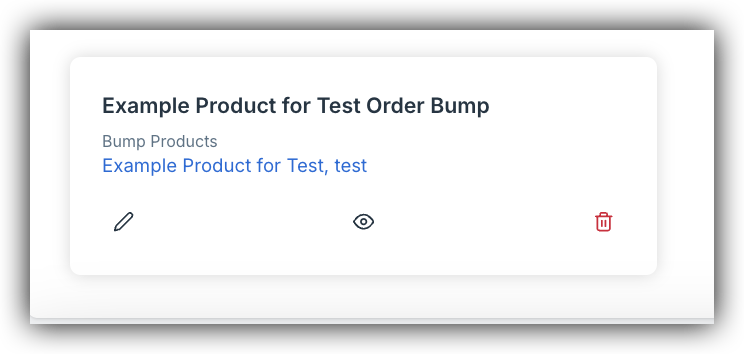
From the bump card you can:
- Edit the bump using the pencil icon
- Preview how the bump appears on the checkout page using the eye icon
- Remove the bump from this product using the trash icon
To attach an additional bump to this product, click + Add Order Bump. This will allow you to Create a New Order Bump or Select for an Existing one.
What Happened to My Existing Order Bumps?
When Global Order Bumps was enabled for your marketplace, all of your existing per-product bumps were automatically converted to global bumps. You'll find them waiting in Offers > Order Bumps with all of your original settings intact — nothing changed on your checkout pages.
If you had the same bump configured on multiple products individually, you'll see a separate global bump for each one. This is expected. You can consolidate them at your own pace: create one bump, bulk-attach it to all the relevant products, then delete the duplicates you no longer need.
Removed Layouts
Footer and Slide display layouts have been retired and are no longer available when creating or editing order bumps. These layouts had very low usage across all marketplaces. If you were using one of these layouts, select from the remaining available options when editing your bump — your content and settings will carry over.
Frequently Asked Questions
Q: Can the AI Assistant help me create an order bump?
A: Yes! The CreatorAI Assistant can suggest bump ideas for your product, help you pick the right price point, and write the bump copy for you. Open the assistant from the Sparkle icon in the top-right corner of your dashboard to get started.
Q: Do I have to recreate my existing order bumps?
A: No. All existing per-product bumps were automatically converted to global bumps when the feature was enabled for your marketplace. You'll find them in Offers > Order Bumps with all original values preserved. Your checkout pages are unaffected.
Q: Can I attach the same order bump to multiple products?
A: Yes — that's the main benefit of Global Order Bumps. From any bump's edit view, use the product selector to search, filter, and bulk-attach the bump to as many products as you'd like in one action.
Q: Why do I see so many bumps after the update? I only had a few.
A: If you had the same bump configured on multiple products individually, the automatic conversion created one global bump per product. You can consolidate them by creating a single bump, bulk-attaching it to all relevant products, and then deleting the duplicates.
Q: What happened to the Footer and Slide layouts?
A: These two layouts have been retired due to very low usage. They are no longer available when creating or editing bumps. Select from the remaining layout options — your bump content will carry over.
Q: Is Accordion layout available?
A: Not yet. Accordion layout is planned for a future update. In the meantime, select from the currently available layout options.
Q: Will changes to a global bump affect all attached products at once?
A: Yes. Because a global bump is one entity attached to many products, any edits you make to the bump will apply everywhere it's attached. If you need different copy or branding for a specific product, create a separate bump for that product.
Q: What if my order bumps aren't showing up after the update?
A: First, check Offers > Order Bumps to confirm your bumps are listed there. Then verify that the bump is attached to the correct product and that your checkout page is rendering as expected. If bumps are missing entirely, contact support so we can investigate.
Q: Is there a limit to how many products I can attach a single global order bump to?
A: No — you can attach a global order bump to your entire product catalog in one click.
Q: Can I use different branding on individual bumps if I want something different from my marketplace defaults?
A: Yes. Branding inherits from your marketplace settings by default, but you can override colors, fonts, and images on a per-bump basis when creating or editing a bump.
Q: Can I offer multiple add-ons in a single order bump?
A: Yes! You can add multiple products to the same bump — either when you first create it or anytime afterward from the Manage Bumps tab. Each product you add builds into a list within the bump record, and your layout, design, and branding settings apply to all of them. Once your bump is configured, you can attach it to as many products in your marketplace as you want.
Q: I've added text to the Checkout Text field on my Classic order bump design, but it's not showing on my checkout page. Why?
A: The Checkout Text field is not functional on the Classic order bump design. Any text entered here will not appear on your order bump — it will always display as "Add to Order" by default. If you'd like more control over your order bump's button text, consider switching to the Checkout order bump design.