Sell appointments, consultations, and coaching calls directly through SamCart checkout — with automatic Google Calendar integration.
Calendar Bookings lets your customers select an appointment time as part of the checkout process. Once they pay, both you and your customer automatically receive a calendar invite with all the details. No follow-up emails, no scheduling back-and-forth.
This feature is ideal for coaches, consultants, and service providers who sell their time — strategy sessions, discovery calls, 1:1 coaching packages, and more.
NOTE: Calendar Bookings is currently in beta. Features and behavior may change as we continue to improve the experience. Only Google Calendar is supported at this time.
What Calendar Bookings Does
When a customer purchases a product with Calendar Bookings enabled, they'll complete these steps at checkout:
Step 1: Select their timezone
Step 2: Choose an available date
Step 3: Pick an available time slot
Step 4: Complete contact and payment details
Step 5: Receive an automatic calendar invite — sent to both you and your customer
Availability is pulled directly from your connected Google Calendar in real-time, so customers can only book times that are open. If no slots are available, customers won't be able to complete checkout.
Note: What This Feature Does Not Support (Yet)
- No automated rescheduling — if an appointment needs to change, you'll need to update it in Google Calendar and contact your customer directly
- No cancellation management — refunds for canceled appointments must be processed manually through your SamCart dashboard
- No group bookings — each booking is for one customer at a time
- No appointment add-ons — bookings can only be enabled on main products, not as order bumps or upsells
Connecting Your Google Calendar
Before creating a bookable product, you'll need to connect your Google Calendar to SamCart.
Navigate to Marketplace Settings > Bookings and click Connect New Calendar.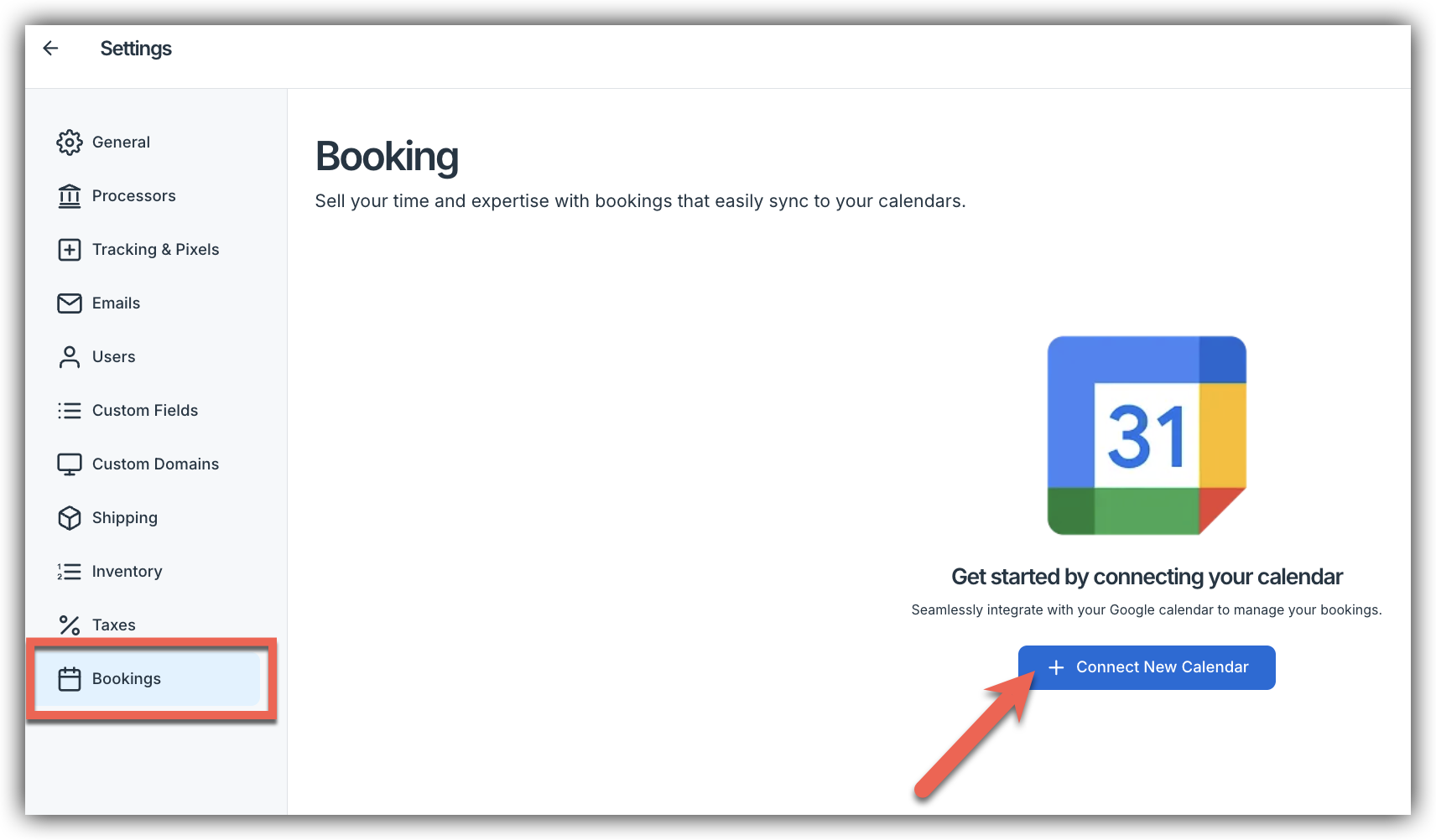
Sign in with your Google account, confirm the connection and select Allow.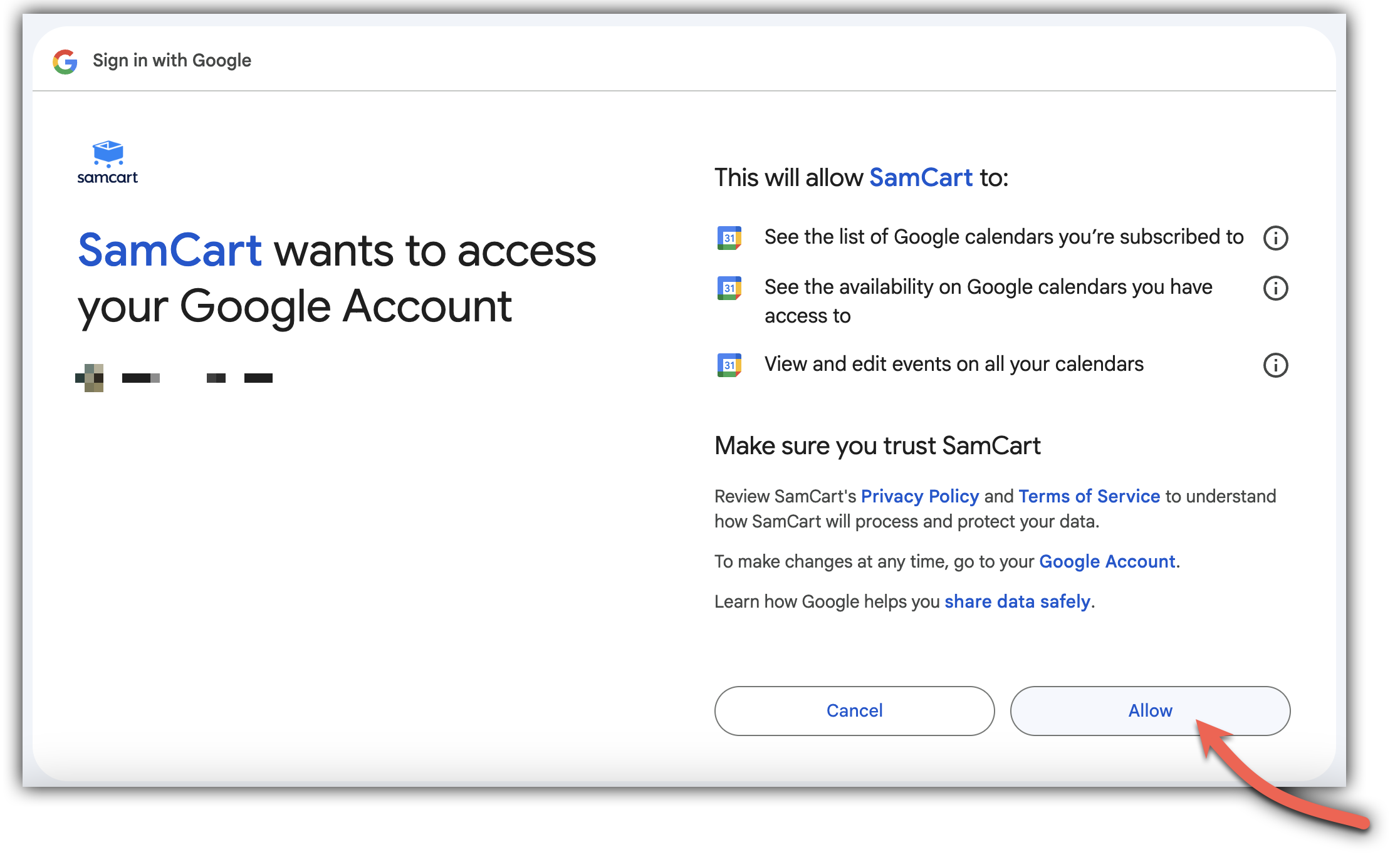 You should see a Connected status when it's done.
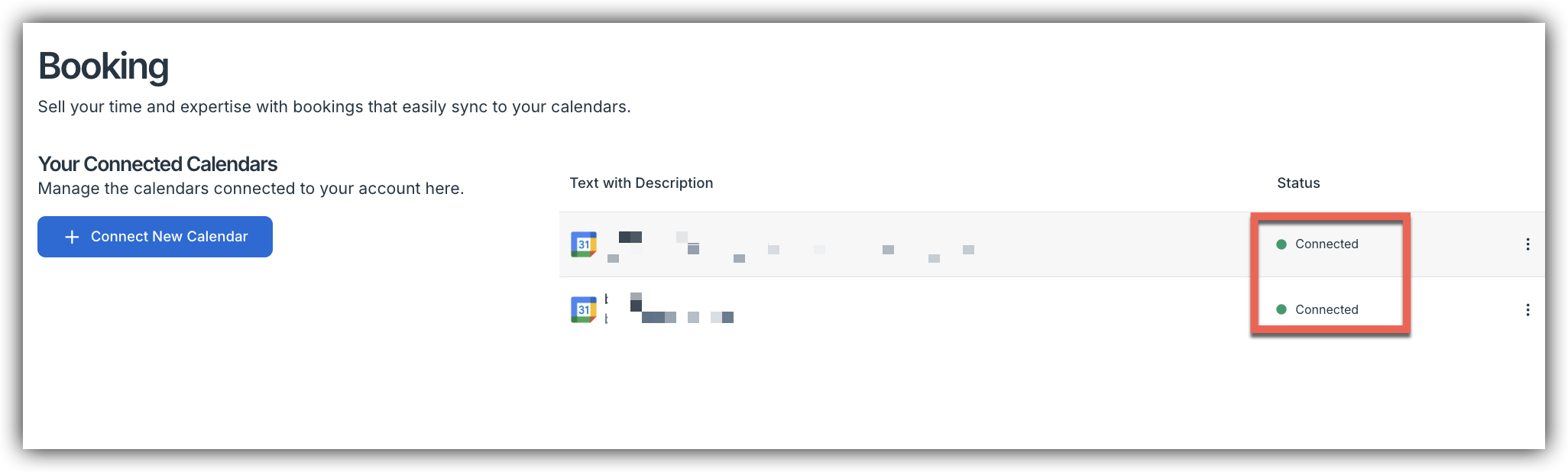 You can can Disable a connected calendar by clicking on the 3 dots to the right. Then just click Disable.
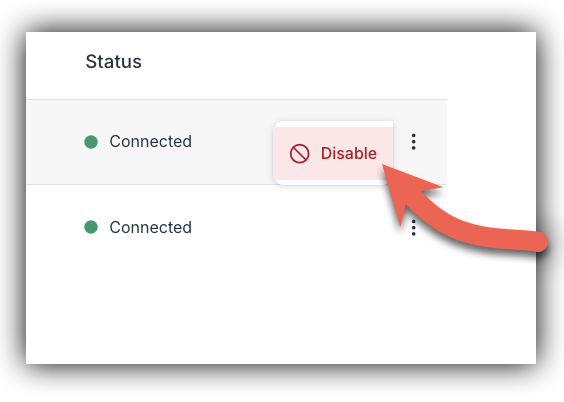 However, you can always Reenable a calendar at anytime! By again, clicking on the 3 dots to the right. Then just click Reenable.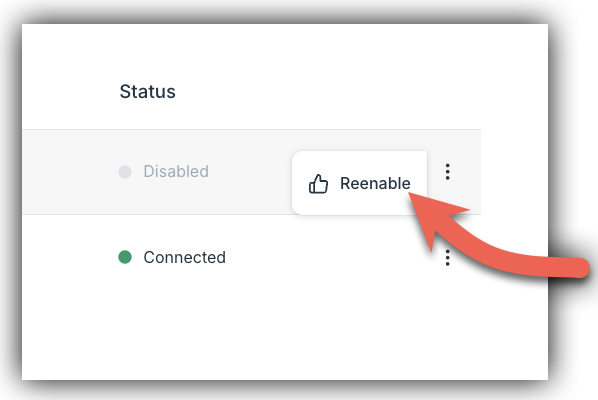
Note: Only Google Calendar is supported during this beta. Outlook, Apple Calendar, and other providers are not currently available.
Once you have connected your Calendar - navigate to Products and create a new product or open an existing one you'd like to make bookable. We recommend using Digital Product as your product type.
Fill in your standard product details — name, description, price — then click on the Bookings tab.
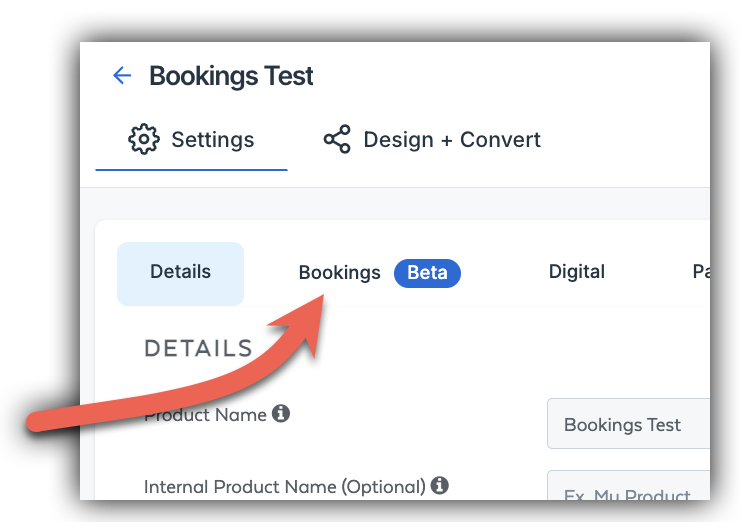
Enable and Configure Bookings
In the Bookings tab, toggle Enable Booking to ON. This makes appointment selection a required step for customers purchasing this product.
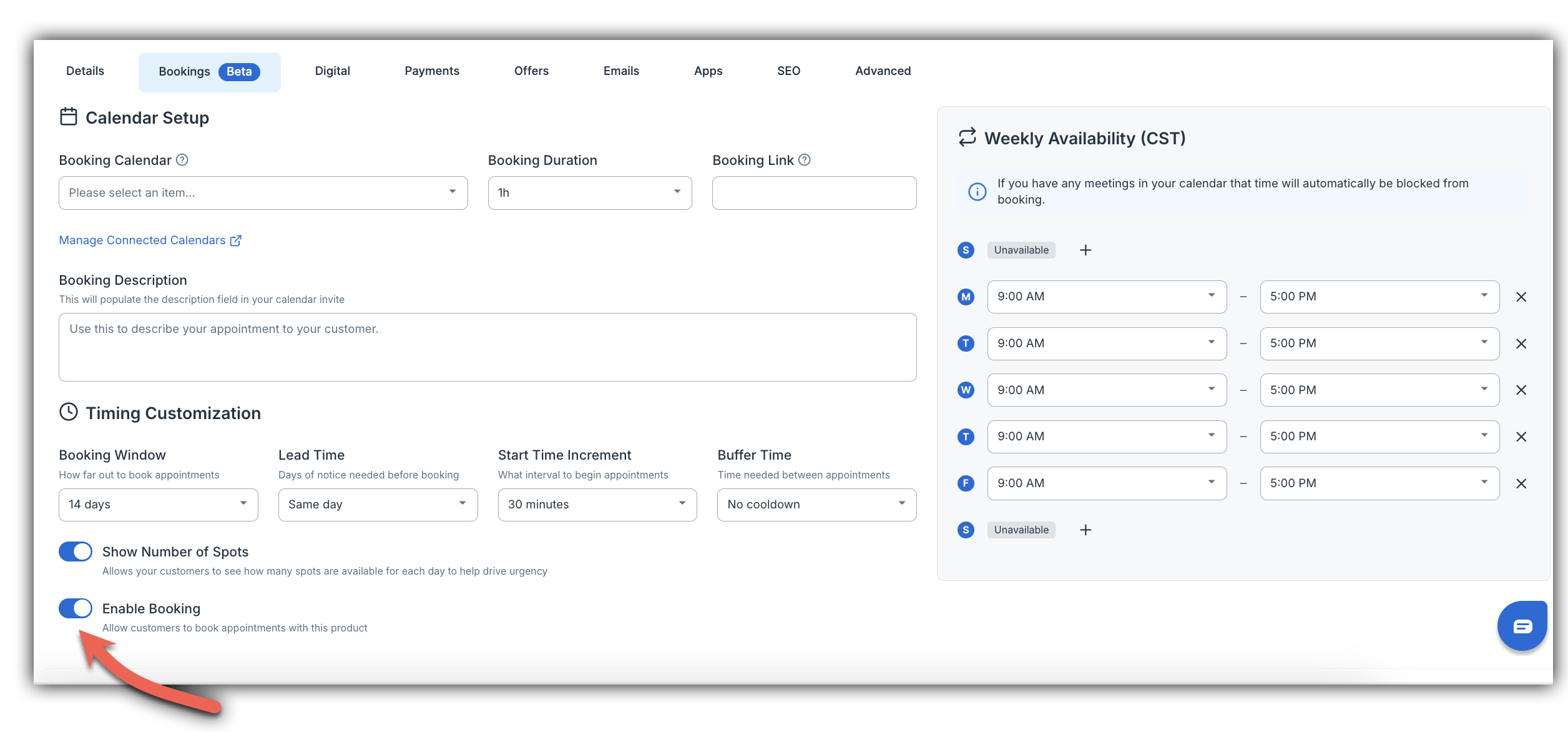
Configure Your Calendar Settings
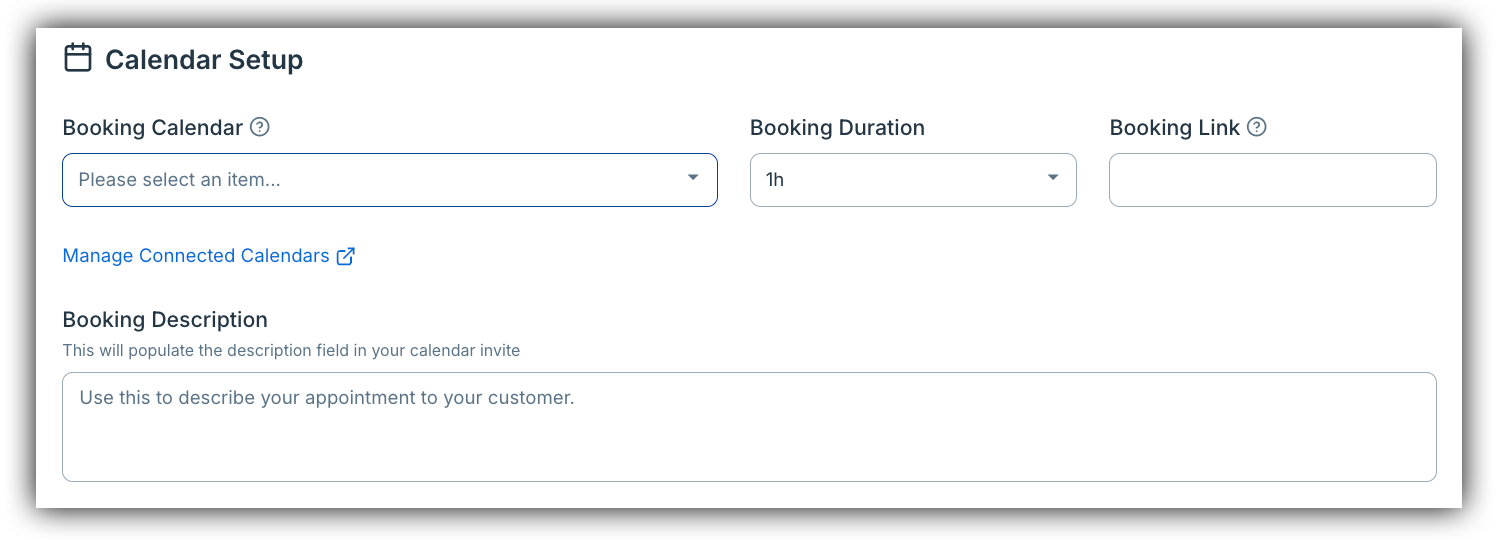
With bookings enabled, you'll see the following settings to configure:
- Booking Calendar — select the connected Google Calendar to use for this product
- Booking Duration — choose how long each appointment will be (e.g., 1 hour)
- Booking Link — optionally add a custom link to include in the calendar invite
- Booking Description — write what will appear in the calendar invite sent to your customer (e.g., "Thank you for booking! I'm looking forward to our consultation. Please have your questions ready.")
Set Your Weekly Availability
Define the days and hours you're available each week. Click on any day to set your available hours, add multiple time blocks if needed, or mark days as Unavailable.
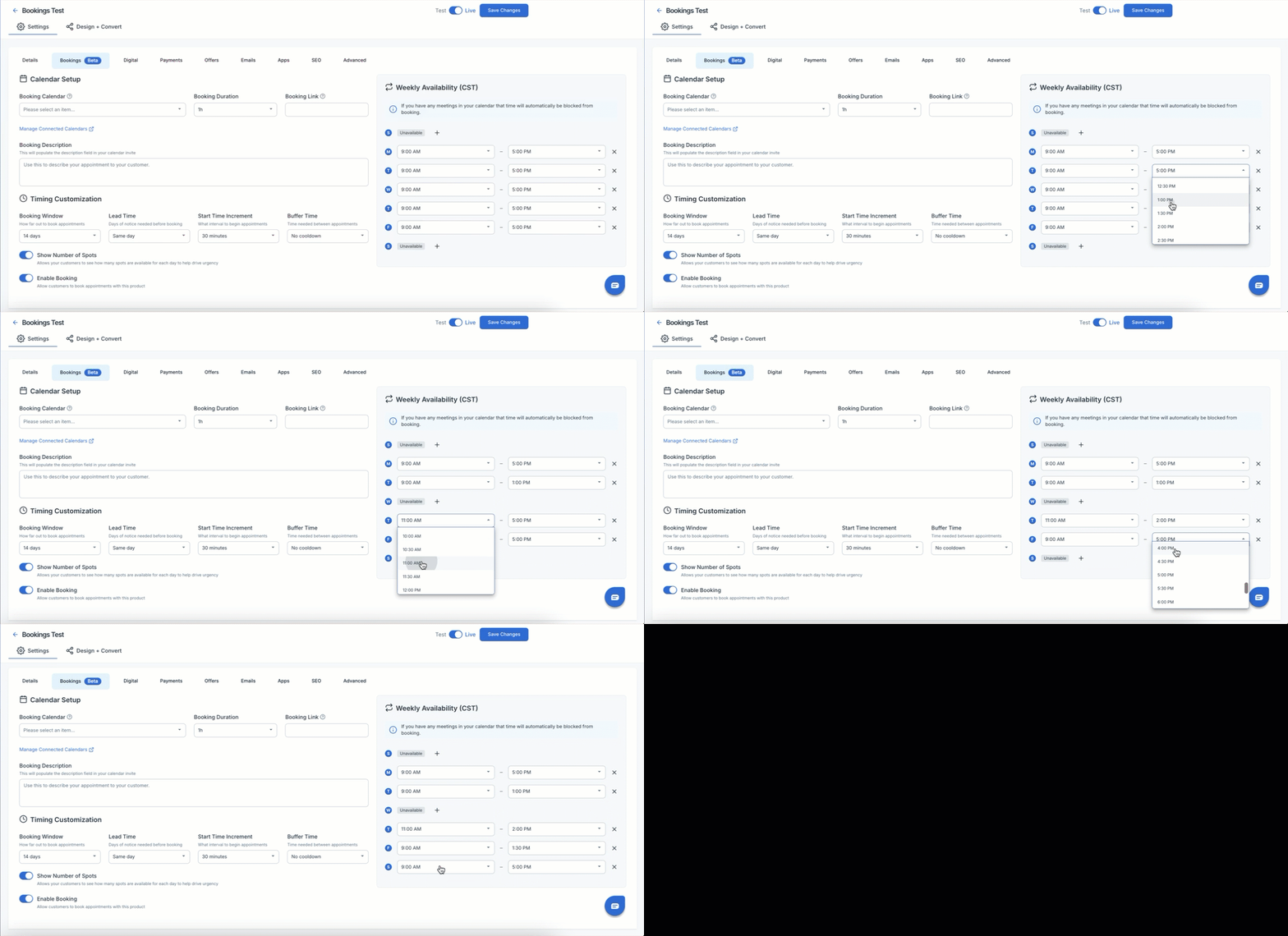
Note: Any existing events on your connected Google Calendar will automatically block those time slots from being available to customers. You don't need to manually remove them.
Configure Timing Settings
These settings control exactly how and when customers can book with you:
- Booking Window — how far in advance customers can book. Setting this to "14 days" means customers can only see and book appointments within the next 14 days. If you have no available slots within this window, customers won't be able to complete checkout.
- Lead Time — how much advance notice you need. "Same day" allows bookings for today; "2 days" requires customers to book at least 2 days ahead.
- Start Time Increment — how often appointment slots are offered. Setting this to "30 minutes" means slots appear at 9:00, 9:30, 10:00, and so on.
- Buffer Time — how much time you need between appointments. "No cooldown" allows back-to-back bookings; "15 minutes" adds a break between each.

Optional: Show Number of Spots
Toggle Show Number of Spots to ON to display how many appointment slots are available each day (e.g., "9 spots left"). This creates a sense of urgency and can help customers book faster.
Testing Before You Launch: Before going live, place a test order yourself to verify the full customer experience — including time slot selection, checkout, and calendar invite delivery. This is the best way to catch any configuration issues before your customers do.
Don't forget to click Save Changes when you're done configuring your booking settings!
Managing and Viewing Your Bookings
All confirmed bookings appear directly in your connected Google Calendar. You'll receive notifications based on your existing Google Calendar settings — no separate inbox to check.
Blocking Time Off: To prevent bookings during vacations, meetings, or any unavailable time, simply add an event to your Google Calendar. The system will automatically mark that time as unavailable for customers.
Updating Your Availability: To change your available hours going forward, navigate to your product's Bookings tab, update your Weekly Availability, and click Save Changes. This only affects future bookings — existing appointments are not impacted.
Handling Cancellations and Rescheduling
If an appointment needs to be canceled or rescheduled:
- Update the event in your Google Calendar
- Contact your customer directly to let them know
- If a refund is needed, process it manually through your SamCart dashboard
Important: Changes made to Google Calendar events do not automatically update or trigger refunds in SamCart. You'll need to handle those steps separately.
Frequently Asked Questions
Q: What happens if I have no available slots during my booking window?
A: Customers won't be able to complete checkout until availability opens up. To resolve this, try extending your Booking Window to show more future dates, adding hours to your Weekly Availability, or checking your Google Calendar for events that could be moved.
Q: Can I offer different appointment lengths (like a 30-minute call and a 1-hour session)?
A: Yes! Create separate products for each appointment type and configure different booking durations and settings for each.
Q: Can I connect more than one Google Calendar?
A: You can connect multiple Google Calendars to your marketplace, but each product can only use one calendar at a time.
Q: Will my existing calendar events block booking times automatically?
A: Yes. Any event on your connected Google Calendar automatically makes that time unavailable to customers — you don't need to do anything extra.
Q: Can customers see my other appointments or calendar details?
A: No. Customers only see which time slots are available or unavailable. None of your appointment details are visible to them.
Q: What if two customers try to book the same time slot at the same moment?
A: In rare cases, both bookings may go through simultaneously. If you notice a double-booking, contact both customers right away, offer to reschedule one of them, and reach out to SamCart support to report the issue.
Q: How does the feature handle different timezones?
A: The system automatically converts times based on each person's timezone, so you and your customer both see the correct local time.
Q: What if a customer doesn't show up?
A: No-show handling is up to you. SamCart doesn't automatically track attendance or process refunds for missed appointments.