Deliver digital files of up to 1 GB instantly with SamCart's built-in file delivery.
When a customer purchases your digital product, SamCart automatically sends them a secure download link — on the order confirmation page and in their receipt email. No third-party file hosting required.
You have a few ways to attach a digital file to your product: upload a file directly from your device, link the file or connect an asset you've already built via the Design tab, SamCart's AI-powered ebook builder. All options are covered below.
Created an ebook in the Design tab of SamCart? You can attach it to a product directly from the Export panel — no downloading or uploading required. Jump to Attach an Ebook from the Design Tab section.
Please note: The ability to design ebooks directly from your SamCart marketplace is only available on certain plans at this time. If you don't see this option in your marketplace, contact our Support team to learn more about enabling that and/or switching your plan.
Attaching a Digital File to an Existing Product
Navigate to Products and open the digital product you want to update. Click the Digital tab.

Under Add A Digital Download, click + Add A Digital Download. You'll see four options in the dropdown:
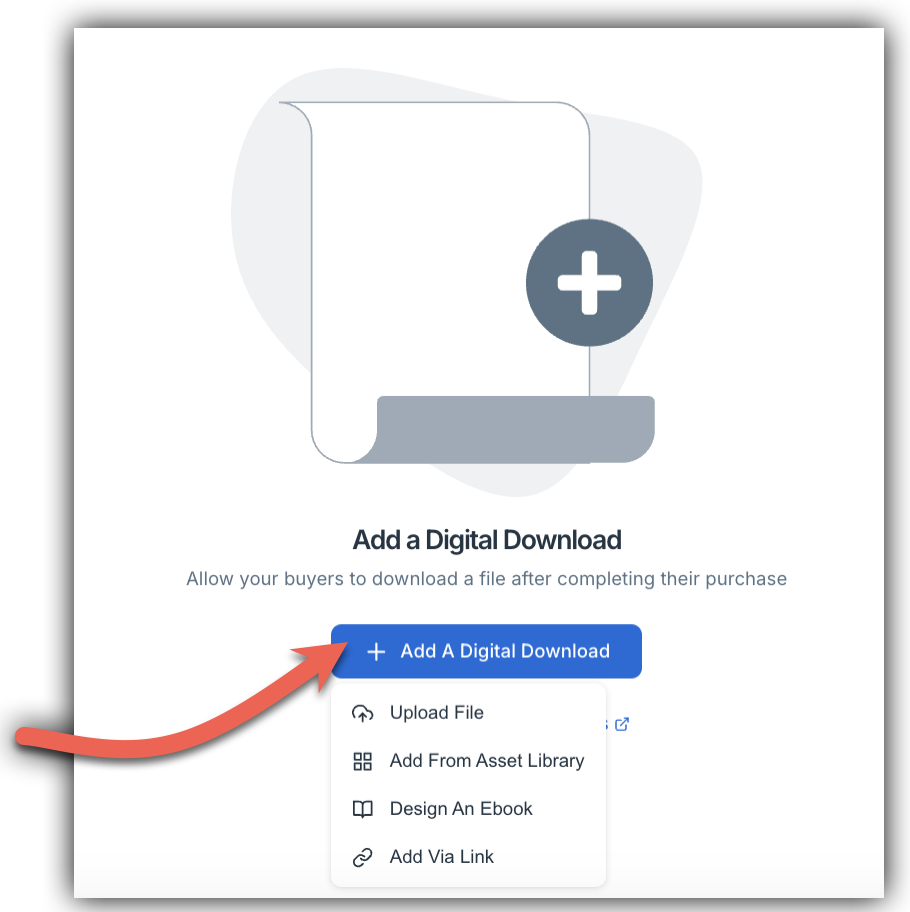
- Upload File — attach any compatible file directly from your device
- Add From Asset Library — link an ebook or file you've created in Design
- Design an eBook — you'll get redirected back to Design where you can create an eBook
- Add Via Link — link a destination URL of the file
Choose the option that fits your workflow. All are covered in detail below.
Option 1 — Upload a File Directly
Select Upload File from the dropdown and choose the file from your device. SamCart accepts the following file types: .png, .jpg, .mp3, .mp4, .pdf, and .zip.
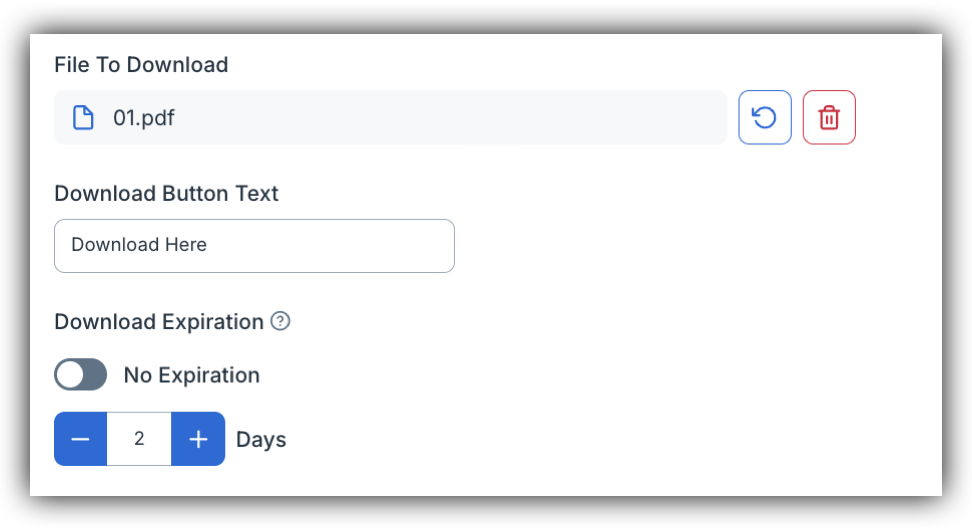
Once your file is attached, you'll see it listed under File To Download.
From here you can also customize two additional settings:
Download Button Text — Edit the label on the download button your customers see. The default is "Download Here."
Download Expiration — By default, download links do not expire. If you'd like to set a time limit on access, toggle off No Expiration and set your preferred expiry window.
Don't forget to click Save Changes when you're done!
Option 2 — Add From Asset Library (Design)
If you've built your ebook or digital file in Design, you can link it directly to your product without downloading and re-uploading it. You will also find any files you've linked to other products in your Library.
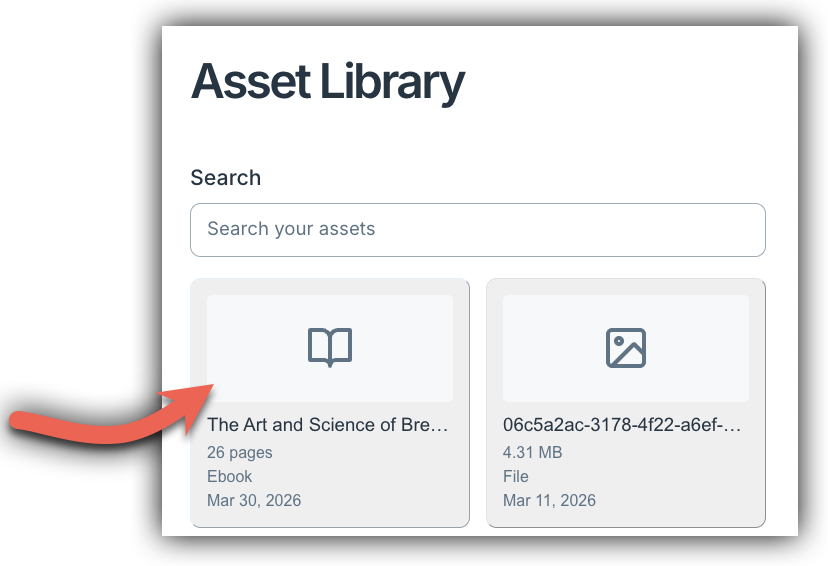
Select Add From Asset Library from the dropdown. This opens your Asset Library, which displays all files and ebooks you've created in Design.
Click the asset you'd like to attach. It will appear under File To Download with a smart link notice confirming the connection to Design.
Because the file is smart linked, you can keep it up to date without removing and re-attaching it. From the Digital tab you can:
- Click the pencil icon to rename the file
- Click the sync icon to pull in the latest version from Design
- Click the trash icon to remove the file from this product
Don't forget to click Save Changes when you're done!
Option 3 — Design an eBook
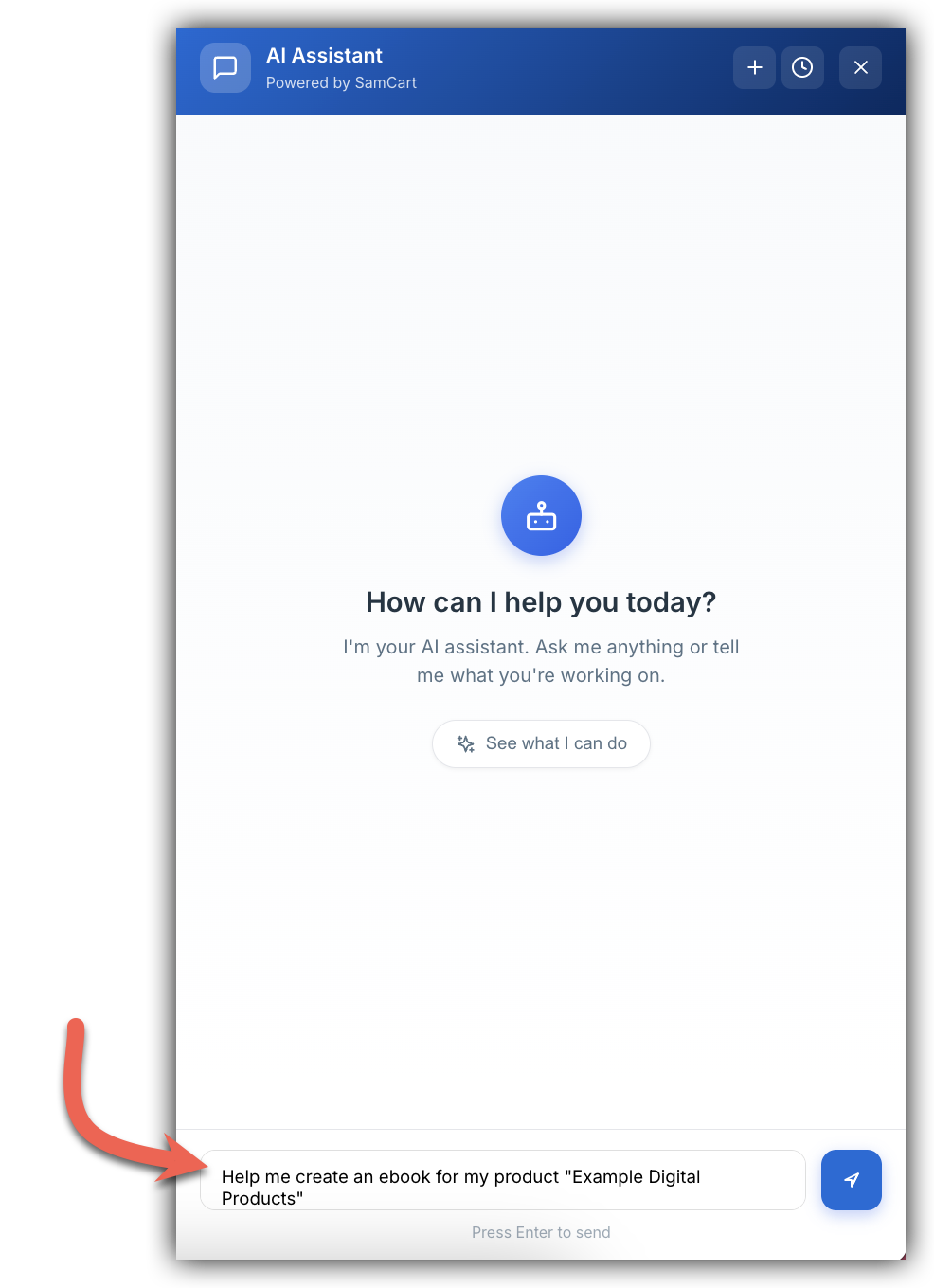
If you don't have an ebook yet, you can build one without leaving SamCart. Select Design an eBook from the dropdown and you'll be taken to the AI Assistant, SamCart's AI-powered assistant where it can help you generate an eBook or an eBook outline. It will default in the chat box with a prompt already for you - pulling from the title of your product name.
Once you've finished building and publishing your ebook via the Ai Assistant and then in Design, head back to your product's Digital tab and select Add From Asset Library to attach it. Your completed ebook will appear in the Asset Library ready to link.
NOTE: You'll need to return to your product and attach the file once it's ready — selecting Design an eBook redirects you to the AI Assisant but doesn't automatically link the file to your product.
Option 4 — Add Via Link
If your file is hosted externally — such as in Dropbox, Google Drive, or on another platform — you can provide a direct download URL instead of uploading a file.
Select Add Via Link from the dropdown and paste your destination URL into the field provided.
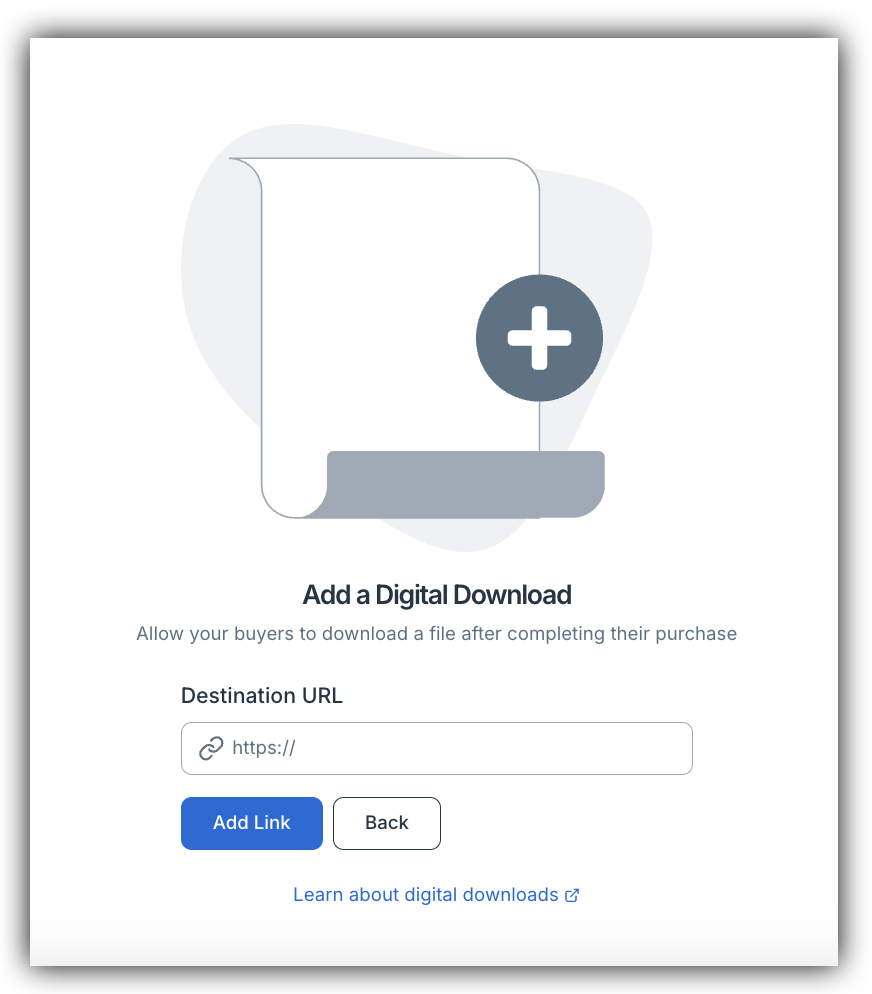
This is a good option if your file is larger than 1 GB, or if you're delivering an unsupported file type such as an EPUB.
Don't forget to click Save Changes when you're done!
Adding a Digital File During Product Creation
You can also attach a digital file while creating a new product, so it's ready to go from day one.
In the Create a Product modal, scroll down to + Add A Digital Download and click the arrow to expand the dropdown. The same two options are available — Upload File and Add From Asset Library.
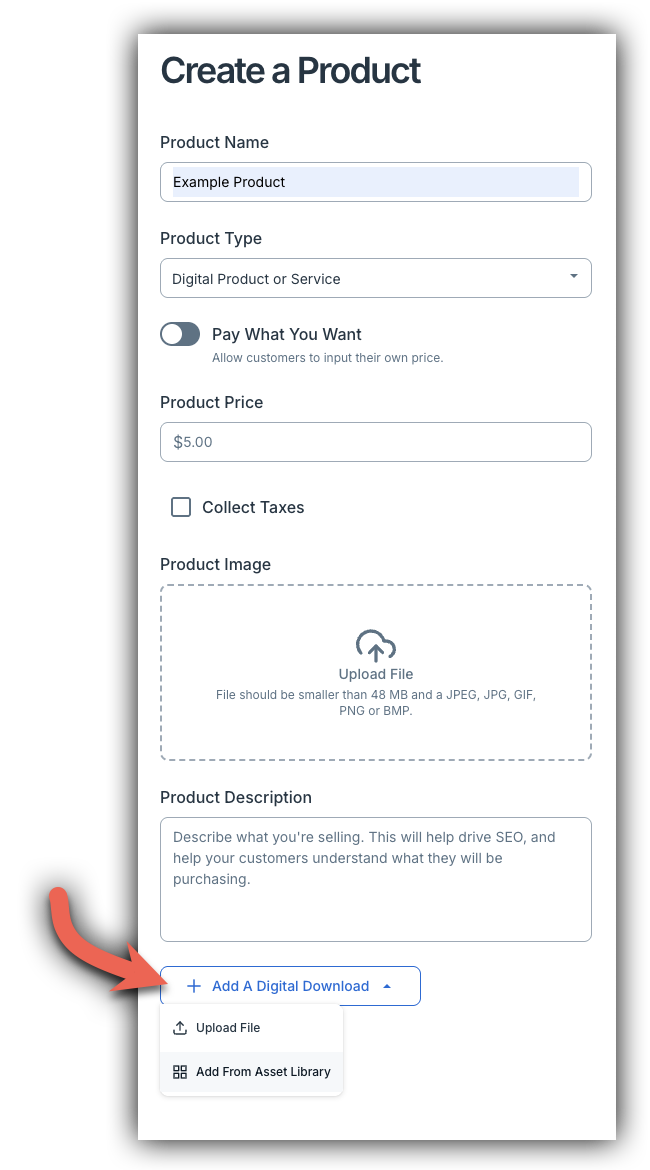
Select your preferred option and follow the same steps as above. The file will be attached automatically when you click Create Product.
How Customers Receive Their File
Once a digital file is attached to your product, customers will receive their secure download link in two places:
- The Order Summary Page, displayed immediately after they complete their purchase
- Their Order Receipt, sent to their email address right after the order is confirmed
Download links are securely hosted by SamCart at no extra cost. By default, links do not expire — but you can set an expiry window from the Digital tab if needed.
Attach an Ebook from the Design Tab
If you've created an ebook using the Design tab of SamCart, you can link it to a product directly from the Export panel — no exporting to your computer required.
NOTE: This option is only available on certain plans. If you don't see the Design tab in your marketplace, reach out to our Support team to learn more about enabling it.
To attach an ebook to an existing product:
Step 1: Open your ebook in the Design tab of SamCart and enter edit mode.
Step 2: Click the Export icon in the left sidebar.
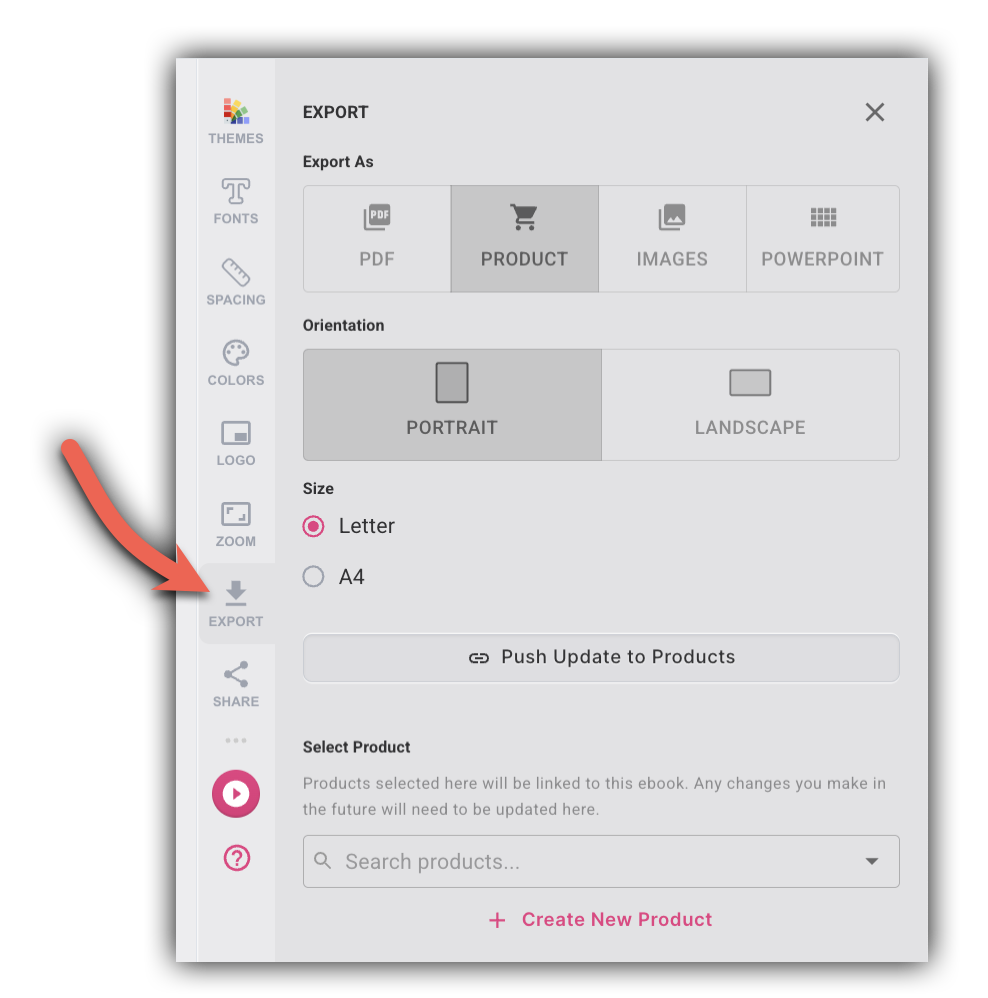
Step 3: Scroll to the Select Product section at the bottom of the Export panel.
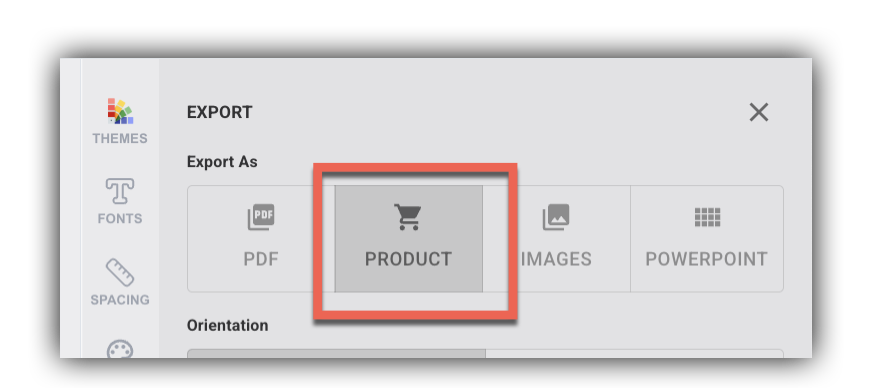
Step 4: Use the search dropdown to find and select an existing product.
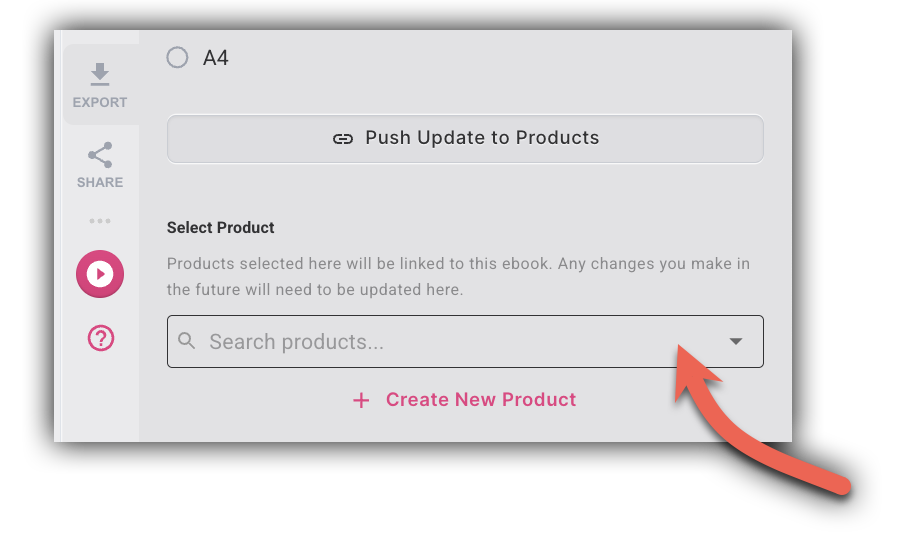
Step 5: Click Push Update to Products.
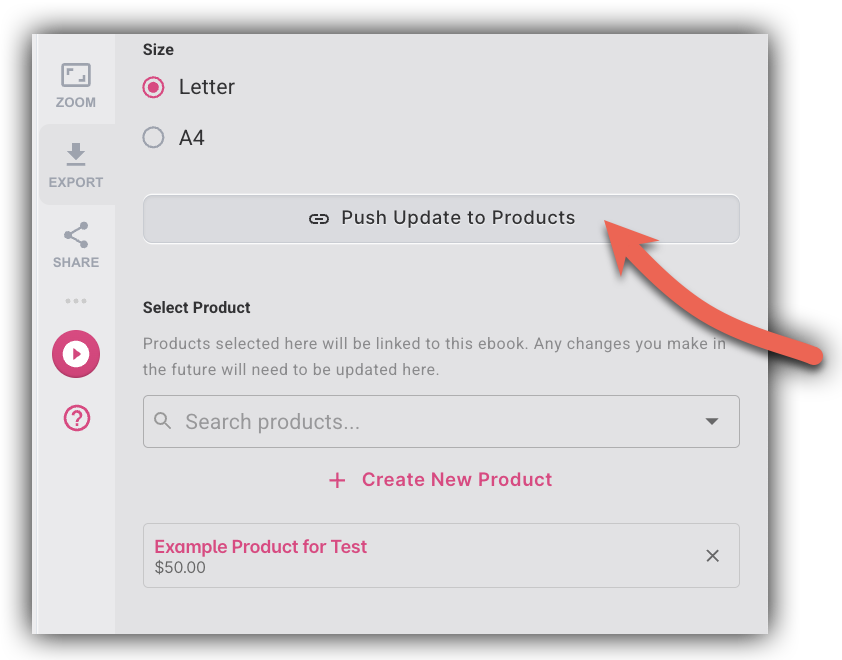
Your ebook is now linked. Customers who purchase the product will receive the ebook as their digital download.
To create a new product directly from the Design tab:
Step 1: Open your ebook in the Design tab of SamCart and enter edit mode.
Step 2: Click the Export icon in the left sidebar.
Step 3: Scroll to the Select Product section at the bottom of the Export panel and click + Create New Product.
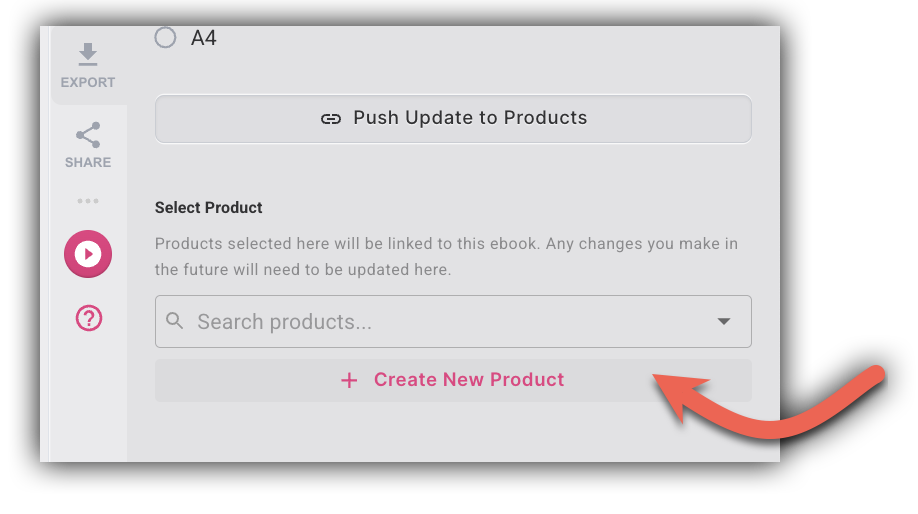
Step 4: A product form opens, pre-filled with your ebook title and set to Digital Product type. Enter a price and fill in any additional details.
Step 5: Click Save.
Your new product is created and your ebook is automatically attached as the digital download.
To push edits to linked products:
After making changes to your ebook, you can push the updated version to all linked products at once.
Step 1: Open your ebook in the Design tab and enter edit mode.
Step 2: Click the Export icon in the left sidebar.
Step 3: In the Select Product section, click Push Update to Products.
All linked products are updated immediately with the latest version of your ebook.
NOTE: Customers who have already received a download link will continue to receive the version that was available at the time of their purchase. If you'd like a specific customer to receive the updated file, re-send their receipt from the SamCart order dashboard — the new receipt will point to the updated version.
What happens if I delete an ebook from the Design tab?
Deleting an ebook from the Design tab does not automatically remove it from any linked products. Your products will retain a stored PDF copy and continue delivering it to customers. If you'd like to remove the file from a product, you'll need to do that separately from the product editor in SamCart.
Frequently Asked Questions
Q: What file types can I upload directly to SamCart?
A: SamCart accepts .png, .jpg, .mp3, .mp4, .pdf, and .zip files. Files must be 1 GB or under.
Q: What is the Asset Library?
A: The Asset Library contains ebooks and files you've created in Typeset, SamCart's AI-powered ebook builder. Linking an asset from the library smart links the file, so you can sync updates from Typeset without re-uploading.
Q: What does the sync icon do on a smart linked file?
A: If you've updated your ebook or file in Typeset after linking it to a product, clicking the sync icon pulls in the latest version. This ensures customers always receive the most current file without you needing to remove and reattach it.
Q: How do I deliver multiple files at once?
A: The easiest option is to compress your files into a single .zip and upload that directly to SamCart. Alternatively, you can host your files in a shared folder (such as Dropbox or Google Drive) and use the external link option to point customers there.
Q: What if my file is larger than 1 GB?
A: Files uploaded directly to SamCart must be 1 GB or under. For larger files, upload to a file sharing service like Dropbox or Google Drive and provide the download link to customers instead.
Q: Can I deliver an EPUB file?
A: EPUB is not a supported upload type in SamCart. However, you can host your EPUB on a platform like BookFunnel and use their download URL as your customer-facing link. Customers will be directed to the BookFunnel download page after purchase.
Q: What happens when I click "Push Update to Products"?
A: SamCart generates a fresh PDF from the current state of your ebook and pushes it to all linked products simultaneously, replacing the previous version.
Q: How long does PDF generation take?
A: Approximately 1 minute, running in the background. If it's a brand-new product with no prior PDF, a placeholder file is temporarily shown that reads "Generating your PDF. Please download again soon." Your final PDF will replace it once generation is complete.
Q: Will buyers who already purchased receive the old file after I push an update?
A: Existing download links — generated at the time of purchase — will continue to serve the file version that was available when the customer bought. If you'd like a specific customer to receive the updated version, re-send their receipt from the SamCart order dashboard.
Q: Can one ebook be linked to multiple products?
A: Yes! One ebook can be linked to as many products as you'd like, and pushing an update will sync to all of them at once.
Q: Can one product have multiple ebook files attached?
A: No — each product supports one digital download file at a time. This hasn't changed.
Q: What happens if I delete my ebook from the Design tab?
A: Deleting an ebook from the Design tab does not affect your linked products. They will retain a stored PDF copy and continue delivering it to customers. However, you'll no longer be able to push updates since the source ebook is gone. If you want to remove the file from a product entirely, you'll need to do that from the product editor in SamCart.