Sell appointments, consultations, and coaching calls through SamCart checkout or as an upsell, with automatic Google Calendar integration.
Calendar Bookings lets your customers select an appointment time as part of the checkout process, or straight after they accept an upsell. Once they pay, both you and your customer automatically receive a calendar invite with all the details. No follow-up emails, no scheduling back-and-forth.
This feature is ideal for coaches, consultants, and service providers who sell their time — strategy sessions, discovery calls, 1:1 coaching packages, and more.
NOTE: Only Google Calendar is supported at this time.
What Calendar Bookings Does
When a customer purchases a product with Calendar Bookings enabled, they'll complete these steps at checkout:
Step 1: Select their timezone
Step 2: Choose an available date
Step 3: Pick an available time slot
Step 4: Complete contact and payment details
Step 5: Receive an automatic calendar invite — sent to both you and your customer
Availability is pulled directly from your connected Google Calendar in real-time, so customers can only book times that are open. If no slots are available, customers won't be able to complete checkout. On an upsell, a buyer who finds no open times can continue without booking and book later from their order summary or receipt.
Note: What This Feature Does Not Support (Yet)
- No automated rescheduling — if an appointment needs to change, you'll need to update it in Google Calendar and contact your customer directly
- No cancellation management — refunds for canceled appointments must be processed manually through your SamCart dashboard
- No group bookings — each booking is for one customer at a time
- No order bump bookings — bookings can be enabled on main products and upsells, not order bumps
- No pop-up upsell bookings — upsells shown in modal (pop-up) mode don't show the booking step
- No upsell-specific settings — an upsell uses its product's booking settings
Connecting Your Google Calendar
Before creating a bookable product, you'll need to connect your Google Calendar to SamCart.
Navigate to Marketplace Settings > Bookings and click Connect New Calendar.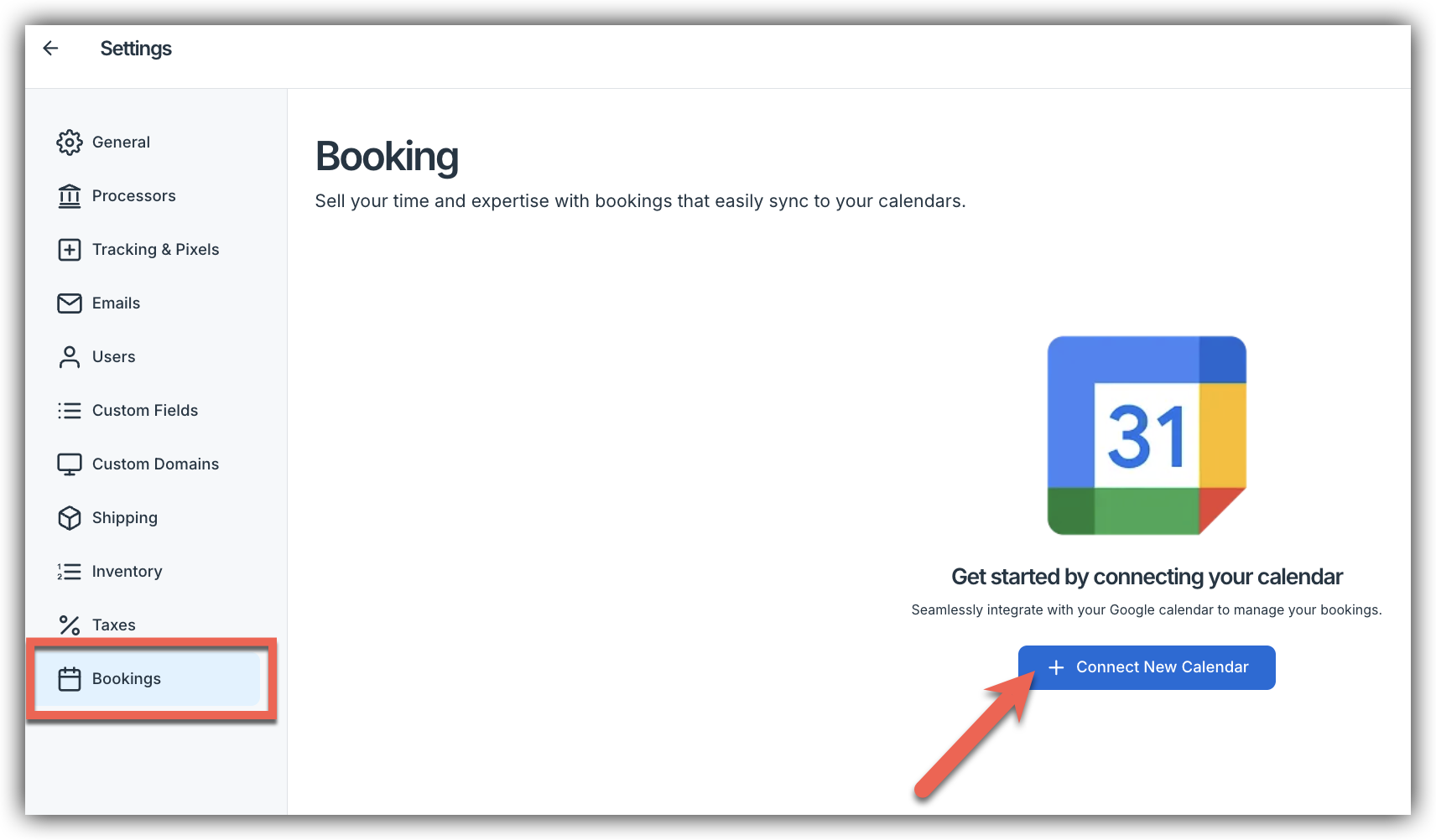
Sign in with your Google account, confirm the connection and select Allow.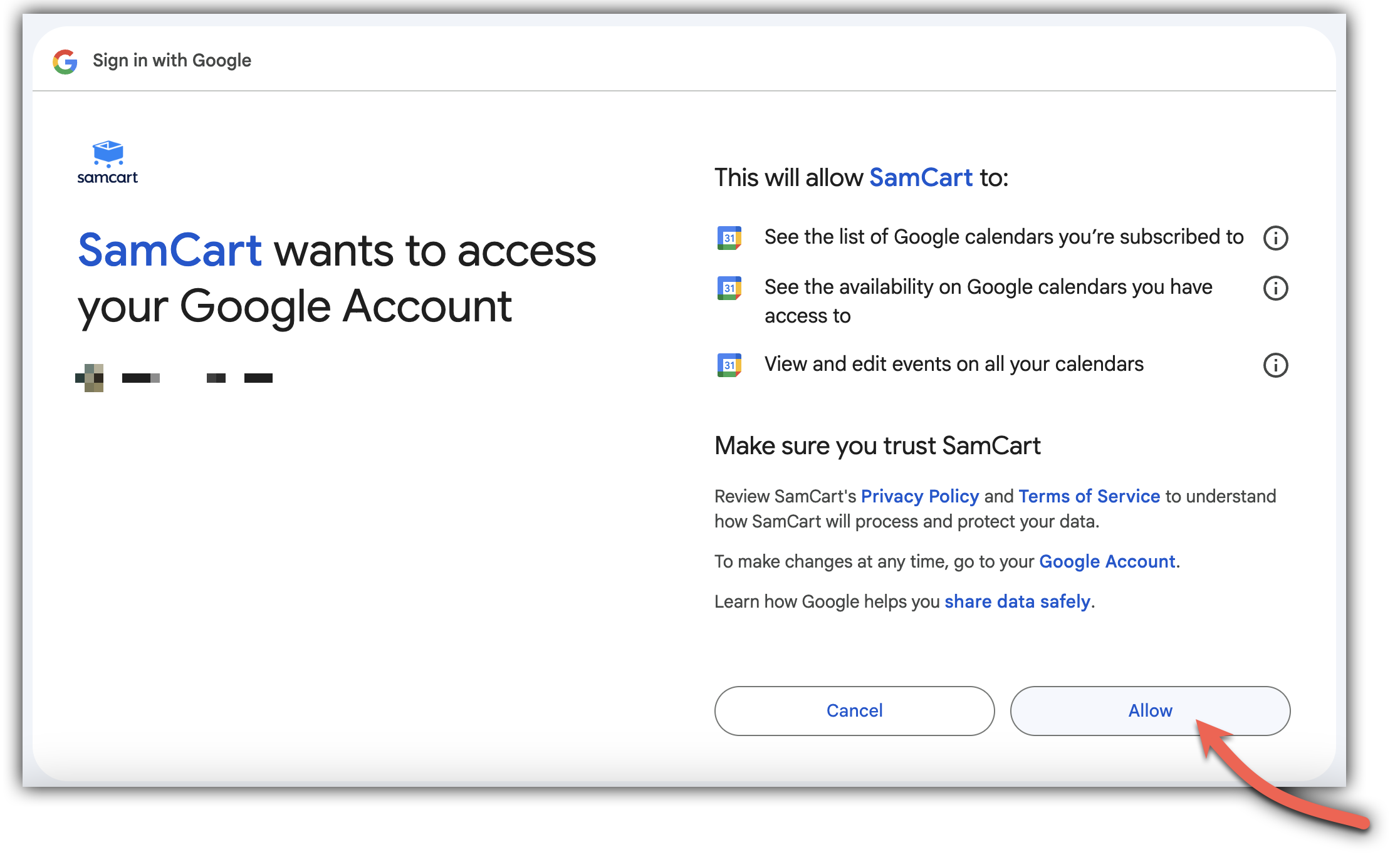 You should see a Connected status when it's done.
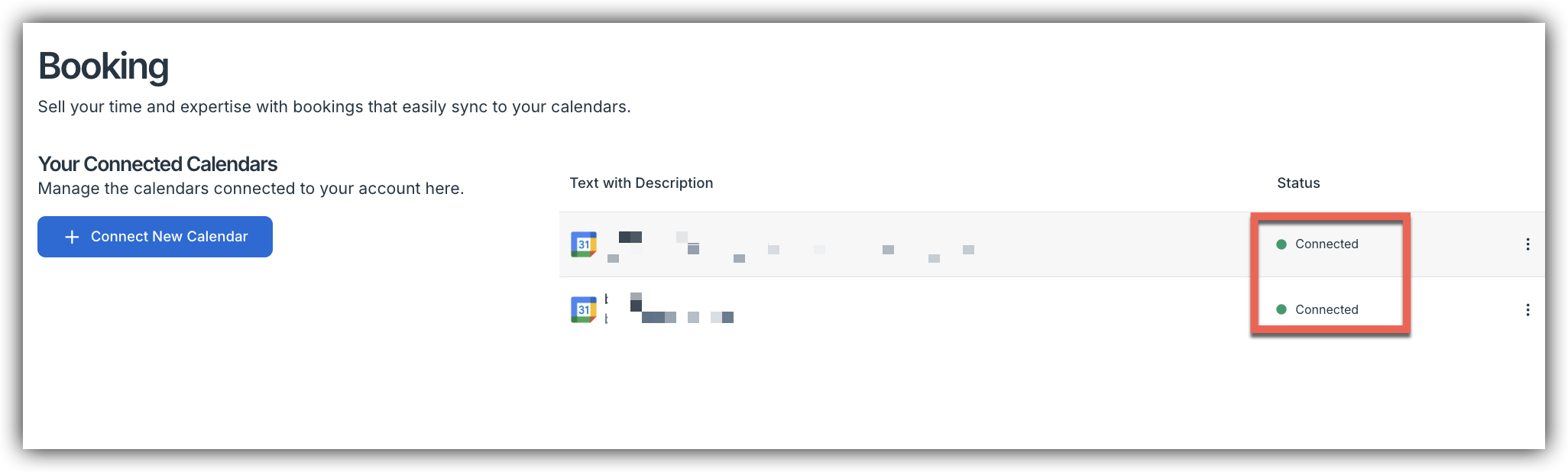 You can can Disable a connected calendar by clicking on the 3 dots to the right. Then just click Disable.
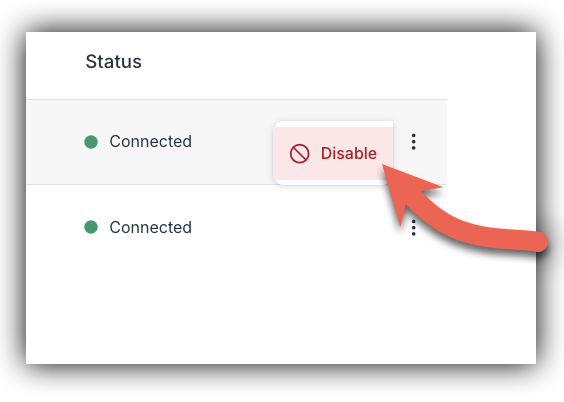 However, you can always Reenable a calendar at anytime! By again, clicking on the 3 dots to the right. Then just click Reenable.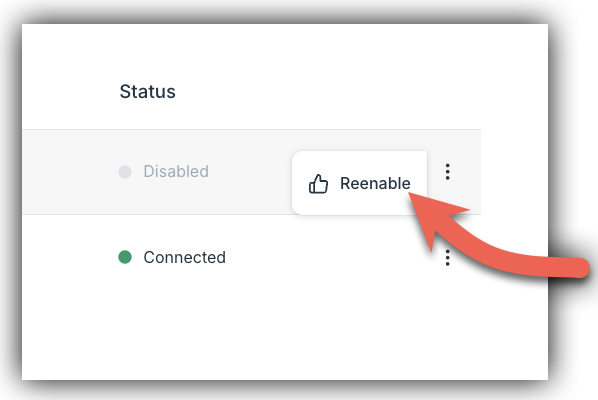
Note: Only Google Calendar is supported at this time. Outlook, Apple Calendar, and other providers are not currently available.
Once you have connected your Calendar - navigate to Products and create a new product or open an existing one you'd like to make bookable. We recommend using Digital Product as your product type.
Fill in your standard product details — name, description, price — then click on the Bookings tab.
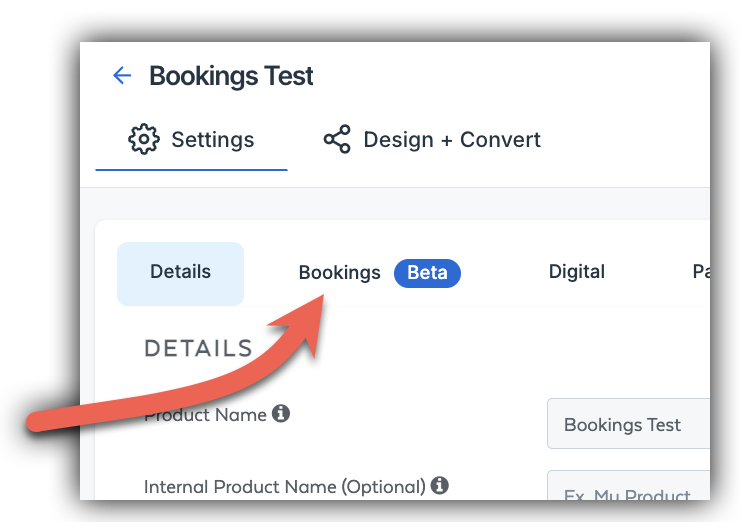
Enable and Configure Bookings
In the Bookings tab, toggle Enable Booking to ON. This makes appointment selection a required step for customers purchasing this product.
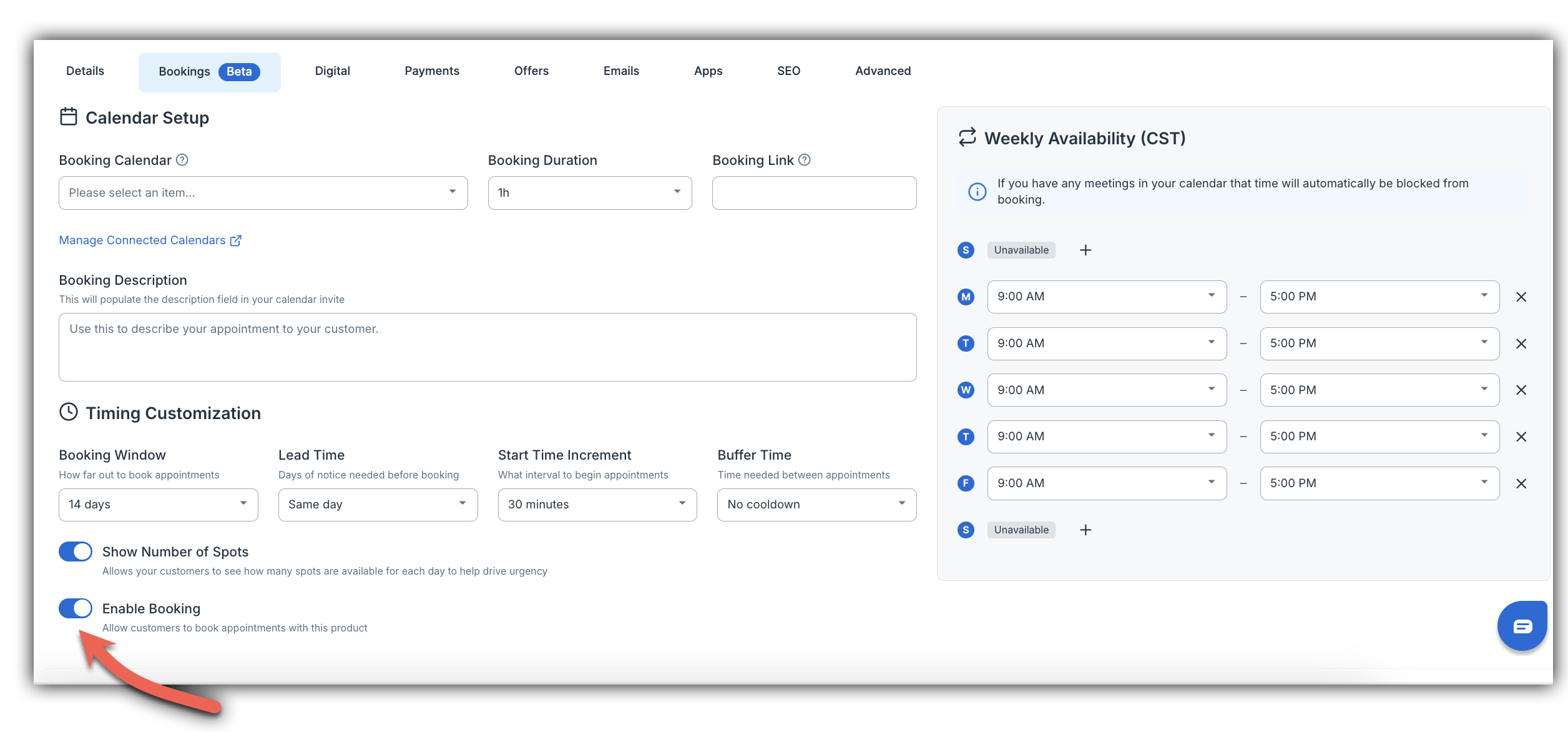
Configure Your Calendar Settings
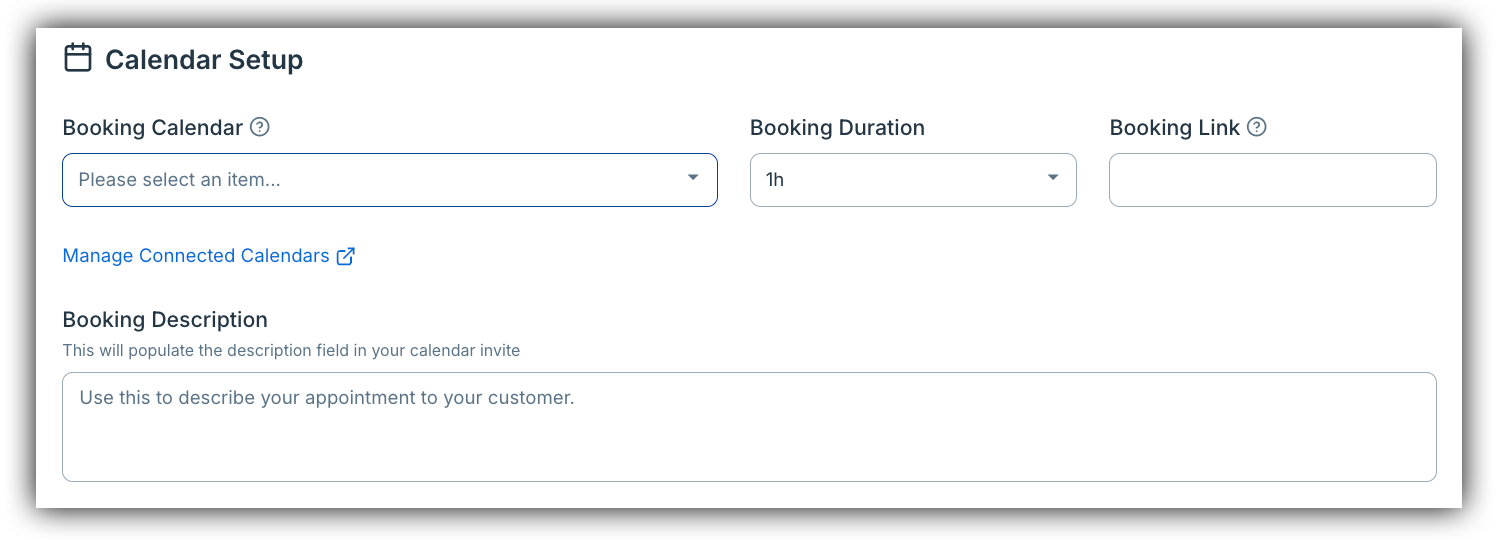
With bookings enabled, you'll see the following settings to configure:
- Booking Calendar — select the connected Google Calendar to use for this product
- Booking Duration — choose how long each appointment will be (e.g., 1 hour)
- Booking Link — optionally add a custom link to include in the calendar invite
- Booking Description — write what will appear in the calendar invite sent to your customer (e.g., "Thank you for booking! I'm looking forward to our consultation. Please have your questions ready.")
- Booking Button Text — the text on the button that takes a customer back to book if they haven't picked a time yet. It appears on the order summary, the receipt email and Customer Hub (up to 40 characters). Defaults to "Book your session"

Set Your Weekly Availability
Define the days and hours you're available each week. Click on any day to set your available hours, add multiple time blocks if needed, or mark days as Unavailable.
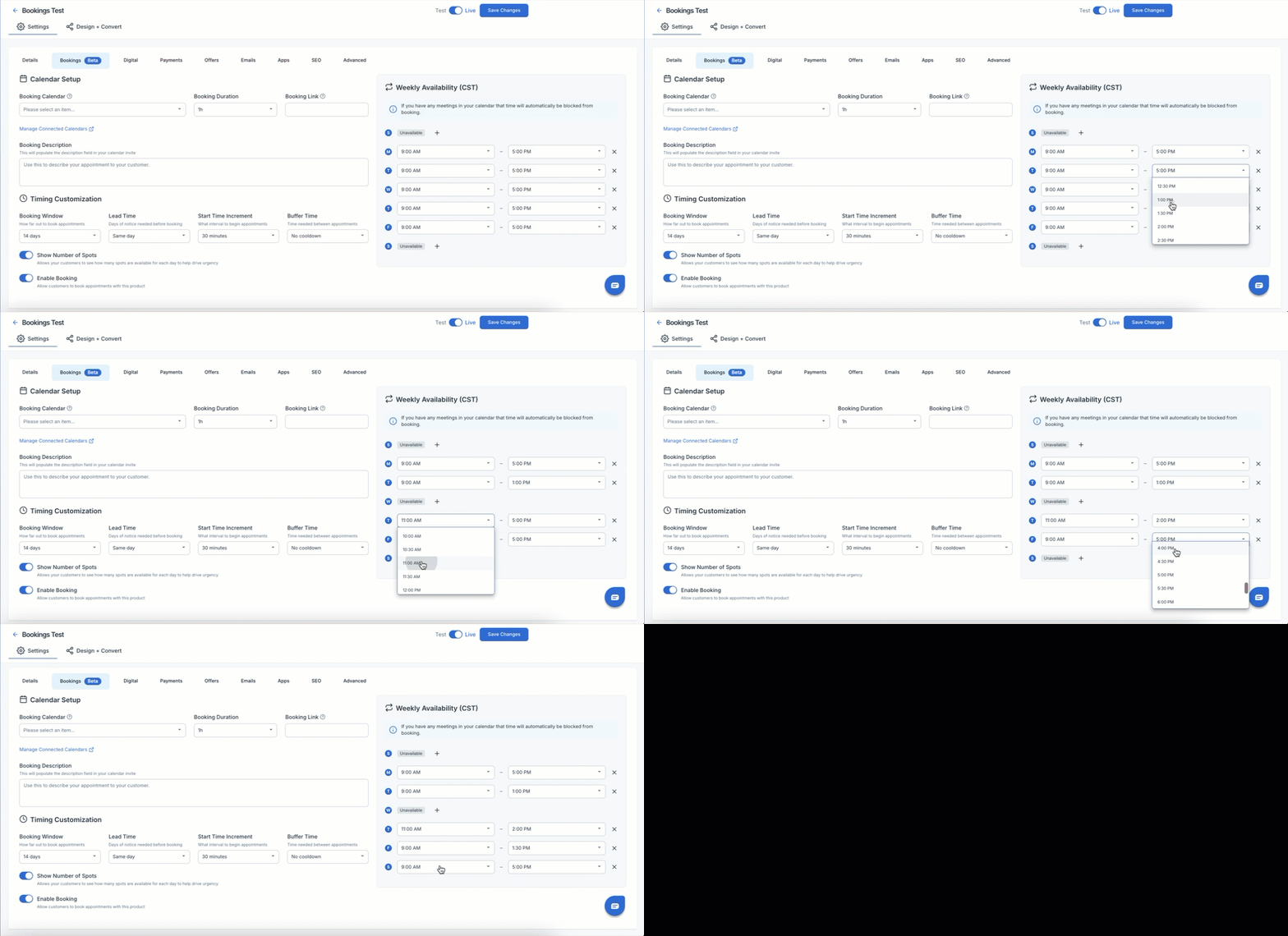
Note: Any existing events on your connected Google Calendar will automatically block those time slots from being available to customers. You don't need to manually remove them.
Configure Timing Settings
These settings control exactly how and when customers can book with you:
- Booking Window — how far in advance customers can book. Setting this to "14 days" means customers can only see and book appointments within the next 14 days. If you have no available slots within this window, customers won't be able to complete checkout.
- Lead Time — how much advance notice you need. "Same day" allows bookings for today; "2 days" requires customers to book at least 2 days ahead.
- Start Time Increment — how often appointment slots are offered. Setting this to "30 minutes" means slots appear at 9:00, 9:30, 10:00, and so on.
- Buffer Time — how much time you need between appointments. "No cooldown" allows back-to-back bookings; "15 minutes" adds a break between each.

Optional: Show Number of Spots
Toggle Show Number of Spots to ON to display how many appointment slots are available each day (e.g., "9 spots left"). This creates a sense of urgency and can help customers book faster.
Testing Before You Launch: Before going live, place a test order yourself to verify the full customer experience — including time slot selection, checkout, and calendar invite delivery. This is the best way to catch any configuration issues before your customers do.
Don't forget to click Save Changes when you're done configuring your booking settings!
Offer a Booking as an Upsell
You can sell a bookable product, such as a strategy call or onboarding session, as an upsell. Buyers who accept it pick a time straight away, inside your funnel.
- Make sure the product has booking turned on and a Google Calendar selected (Products > your product > Bookings tab).
- Create or open an upsell that offers that product.
- On the upsell's edit page, the booking card shows which product buyers will book, the calendar it goes to and the session length. Ask buyers to book after accepting is on by default.
- Save the upsell and add it to your funnel.

When a customer accepts the upsell and the payment succeeds, they go straight to a booking page to pick a time in their own time zone, or choose Skip for now. Then they continue through the rest of your funnel. Customers who decline the upsell, or whose payment fails, never see the booking step.

Note: Booking settings come from the product. To use different hours or durations for an upsell, create a separate product. If the booking card shows a warning (no booking settings, calendar disconnected, or product archived), customers get a normal upsell with no booking step until you fix it.
Booking Later
Customers who skip booking, or close the page before booking, can book later from:
- the Book your session button on their order summary page
- the same button in their receipt email
- their Customer Hub dashboard, if you use Customer Hub

If they've already booked, the link shows their appointment instead. This also covers checkout bookings that didn't go through, for example when a customer paid with PayPal.
Managing and Viewing Your Bookings
All confirmed bookings appear directly in your connected Google Calendar. You'll receive notifications based on your existing Google Calendar settings.
Go to Orders > Bookings to see every booking with its status and appointment time. Filter by status, or search by order ID or customer name or email.
- Pending — the customer hasn't booked yet
- Booked — the customer picked a time
- Skipped — the customer chose to book later
- Unavailable — the booking can't be made right now because the product is archived, booking is turned off for the product, or the calendar is disconnected

Blocking Time Off: To prevent bookings during vacations, meetings, or any unavailable time, simply add an event to your Google Calendar. The system will automatically mark that time as unavailable for customers.
Updating Your Availability: To change your available hours going forward, navigate to your product's Bookings tab, update your Weekly Availability, and click Save Changes. This only affects future bookings — existing appointments are not impacted.
Handling Cancellations and Rescheduling
If an appointment needs to be canceled or rescheduled:
- Update the event in your Google Calendar
- Contact your customer directly to let them know
- If a refund is needed, process it manually through your SamCart dashboard
Important: Changes made to Google Calendar events do not automatically update or trigger refunds in SamCart. Refunding an order or upsell does not remove the appointment either. Delete or update the event in Google Calendar yourself.
Bookings in the API
Developers can list bookings with GET /v2/bookings, filtered by order, customer, or status. See Bookings in the SamCart API docs. API keys with limited permissions need the View bookings permission.
Frequently Asked Questions
Q: What happens if I have no available slots during my booking window?
A: At checkout, customers won't be able to complete their purchase until availability opens up. On an upsell, they can continue without booking and book later. To resolve this, try extending your Booking Window to show more future dates, adding hours to your Weekly Availability, or checking your Google Calendar for events that could be moved.
Q: Can I offer different appointment lengths (like a 30-minute call and a 1-hour session)?
A: Yes! Create separate products for each appointment type and configure different booking durations and settings for each.
Q: Can I connect more than one Google Calendar?
A: You can connect multiple Google Calendars to your marketplace, but each product can only use one calendar at a time.
Q: Will my existing calendar events block booking times automatically?
A: Yes. Any event on your connected Google Calendar automatically makes that time unavailable to customers — you don't need to do anything extra.
Q: Can customers see my other appointments or calendar details?
A: No. Customers only see which time slots are available or unavailable. None of your appointment details are visible to them.
Q: What if two customers try to book the same time slot at the same moment?
A: In rare cases, both bookings may go through simultaneously. If you notice a double-booking, contact both customers right away, offer to reschedule one of them, and reach out to SamCart support to report the issue.
Q: How does the feature handle different timezones?
A: The system automatically converts times based on each person's timezone, so you and your customer both see the correct local time.
Q: Do customers book before or after they pay for an upsell?
A: After. The booking step only appears once the upsell payment succeeds.
Q: Can I turn booking off for one upsell without turning it off for the product?
A: Yes. Turn off Ask buyers to book after accepting on that upsell.
Q: What happens if I disconnect my calendar while an upsell is live?
A: Customers get the upsell without a booking step, and the upsell's booking card shows a warning. Reconnect your calendar to turn booking back on.
Q: What if a customer doesn't show up?
A: No-show handling is up to you. SamCart doesn't automatically track attendance or process refunds for missed appointments.