Accept PayPal payments in your SamCart marketplace by connecting your PayPal Business account as a payment processor.
PayPal is one of the most widely used payment platforms in the world. By connecting it to your SamCart marketplace, you can give your customers the flexibility to pay using their PayPal account — and once connected, Venmo becomes available as a payment option at checkout automatically.
There are two ways to connect PayPal to SamCart: you can link an existing PayPal business account, or create a new one during setup. Both paths are covered below.
How to connect a US PayPal Business Account
NOTE: PayPal business accounts must be based in the United States to use this version and set-up. If you try to connect a non-US PayPal Business account - you will receive an error message. If you have a non-US PayPal Business Account please head to the How to Connect a Non-US PayPal Business Account section below.
Connecting an Existing PayPal Account
Use this option if you already have a PayPal business account you'd like to link to your marketplace.
First Navigate to your payment processors by clicking on the blue person icon in the top right corner of your dashboard and select Settings from the dropdown menu:
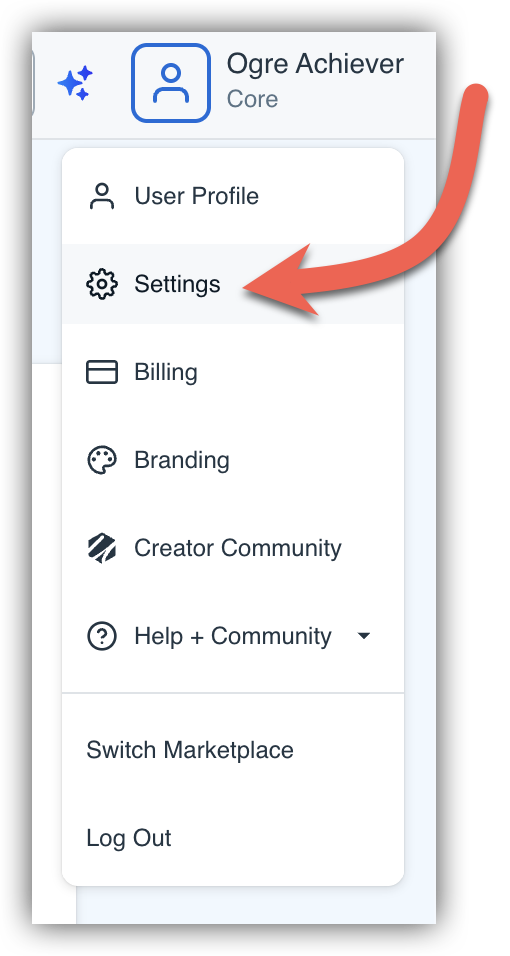
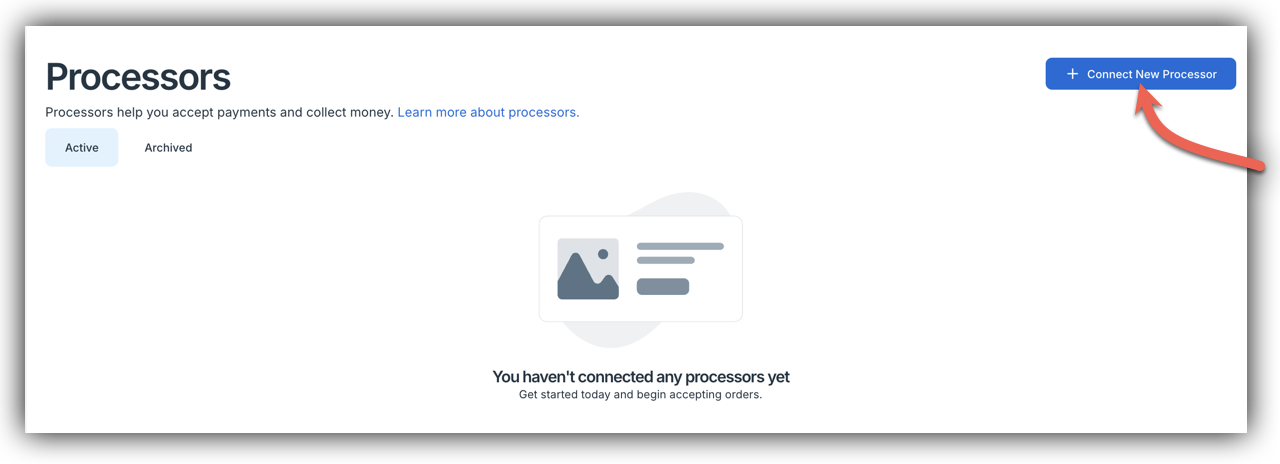
Step 1: Select Processor in your marketplace dashboard and click Connect New Processor.
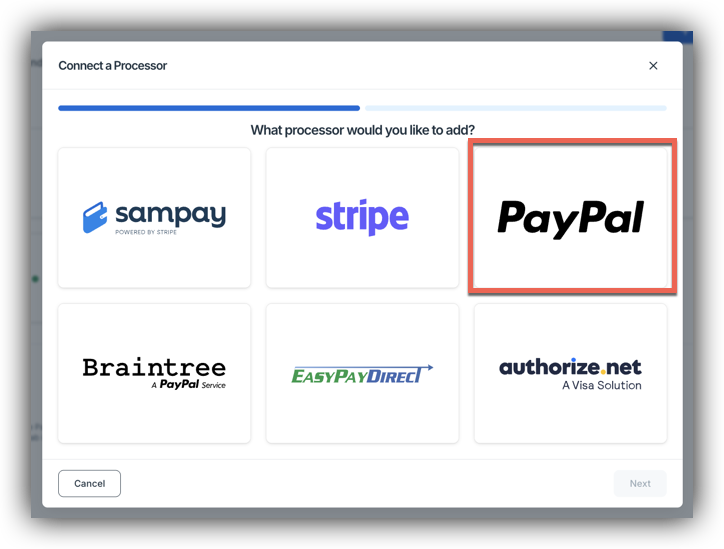
Step 2: Select PayPal from the list of available processors.
Step 3: Enter a label for this processor and click Finish.
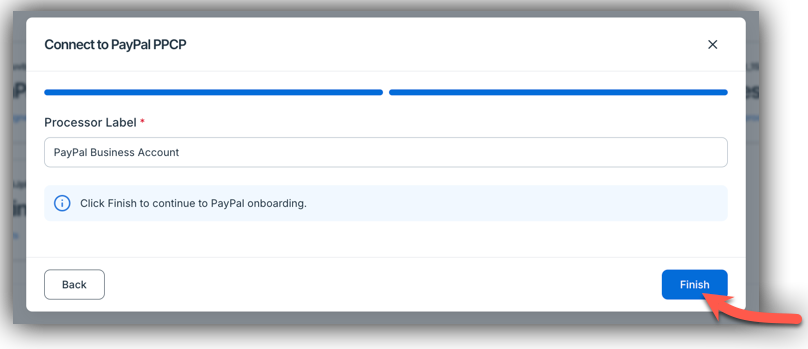
This label helps you identify the processor in your dashboard, especially if you have multiple processors connected.
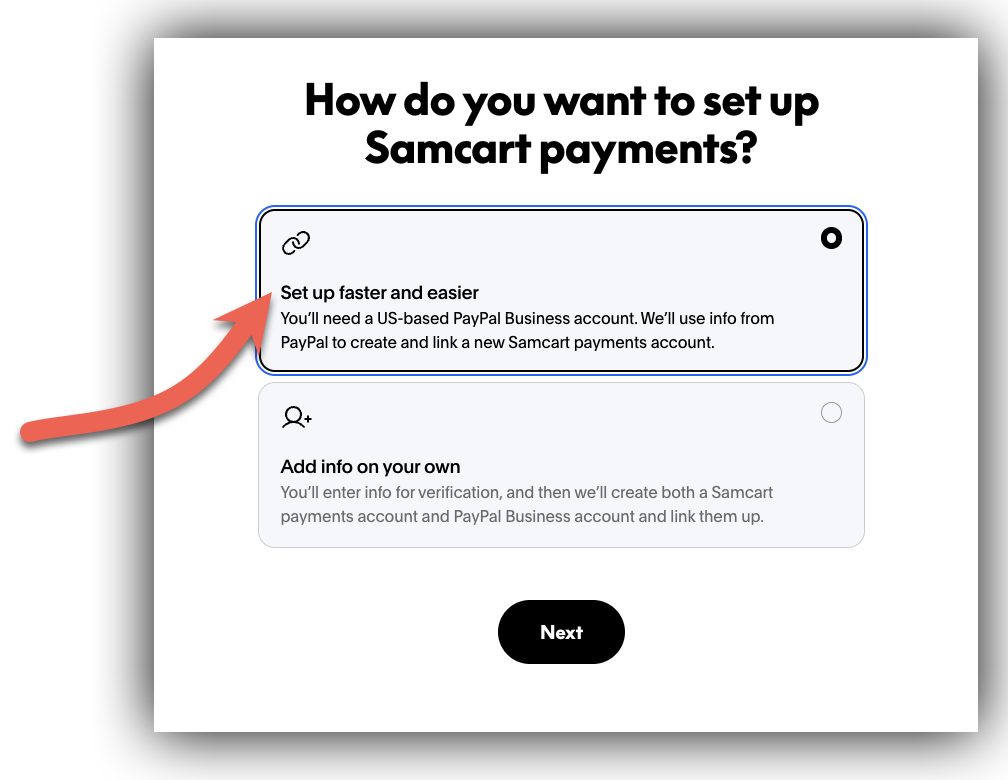
Step 4: When prompted to set up store payments, select Set up faster and easier.
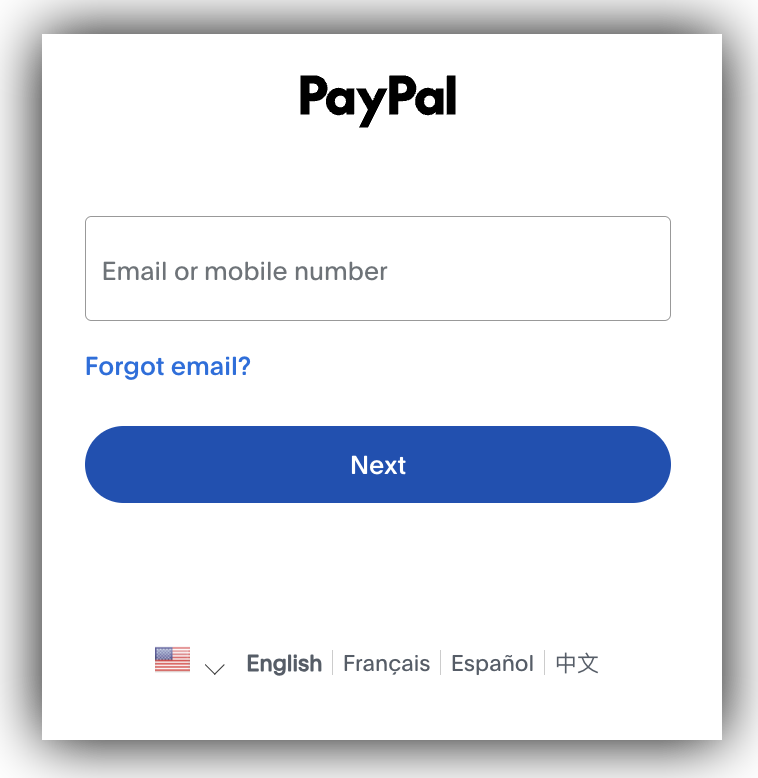
Step 5: A PayPal login window will appear. Log in with your PayPal account credentials to authorize the connection.
Step 6: Click Continue to connect your PayPal account to your marketplace.
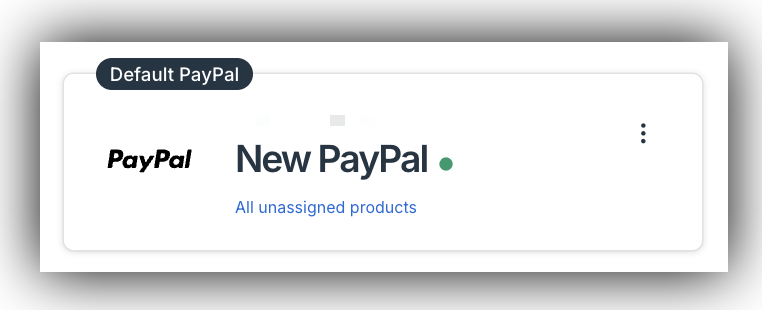
Once connected, your PayPal account will appear in your processors list, confirming everything worked correctly.
Creating a New PayPal Account During Setup
Use this option if you don't have a PayPal business account yet. You can create one directly within SamCart during the connection process.
Step 1: Navigate to Settings > Processor in your marketplace dashboard and click Connect New Processor.
Step 2: Select PayPal from the list of available processors.
Step 3: Enter a label for this processor and click Finish.
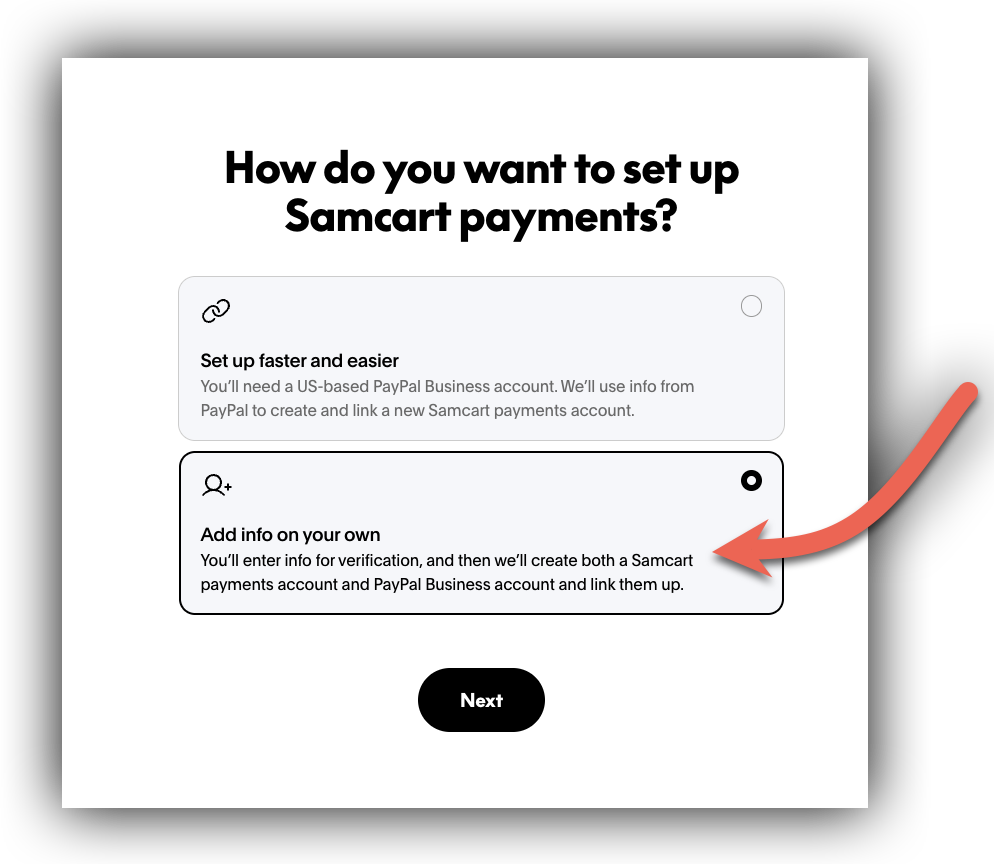
Step 4: When prompted to set up store payments, select Add info on your own.
Step 5: Fill out the required information to create your PayPal business account. You'll work through the following sections:
Business Type — Select the option that best describes your business:
- LLC, corporation, partnership, or government
- Sole proprietorship, or you sell on the side
- Nonprofit organization or a charity
Personal Info — Enter your name, date of birth, Social Security Number (SSN), home address, and phone number.
Additional Business Info — Select your business industry, primary currency, and business website (optional).
Step 6: Once all required fields are complete, click Next.
Your new PayPal account will be created and linked to your marketplace. It will appear in your processors list once the connection is complete.
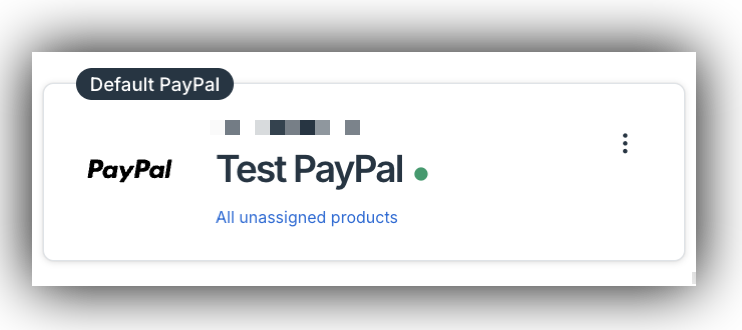
NOTE: If you created a new PayPal account during setup, your processor may show a pending state while PayPal finishes reviewing your account. You will know it is in a pending state if there is a yellow banner and the dot is not green. See the Troubleshooting section below for details on what to do if this happens.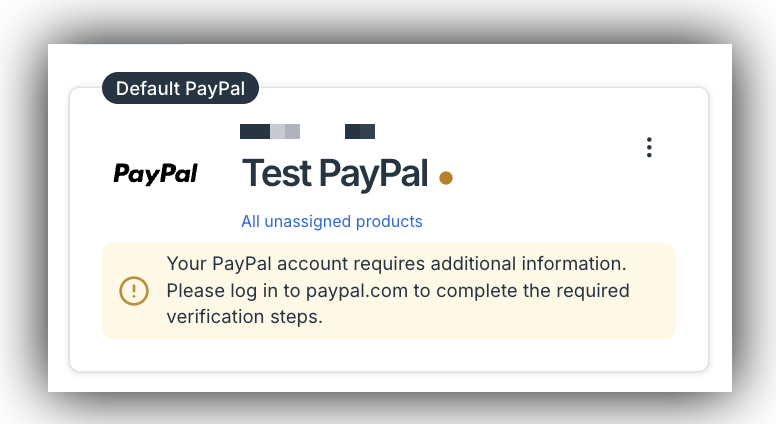
Venmo at Checkout
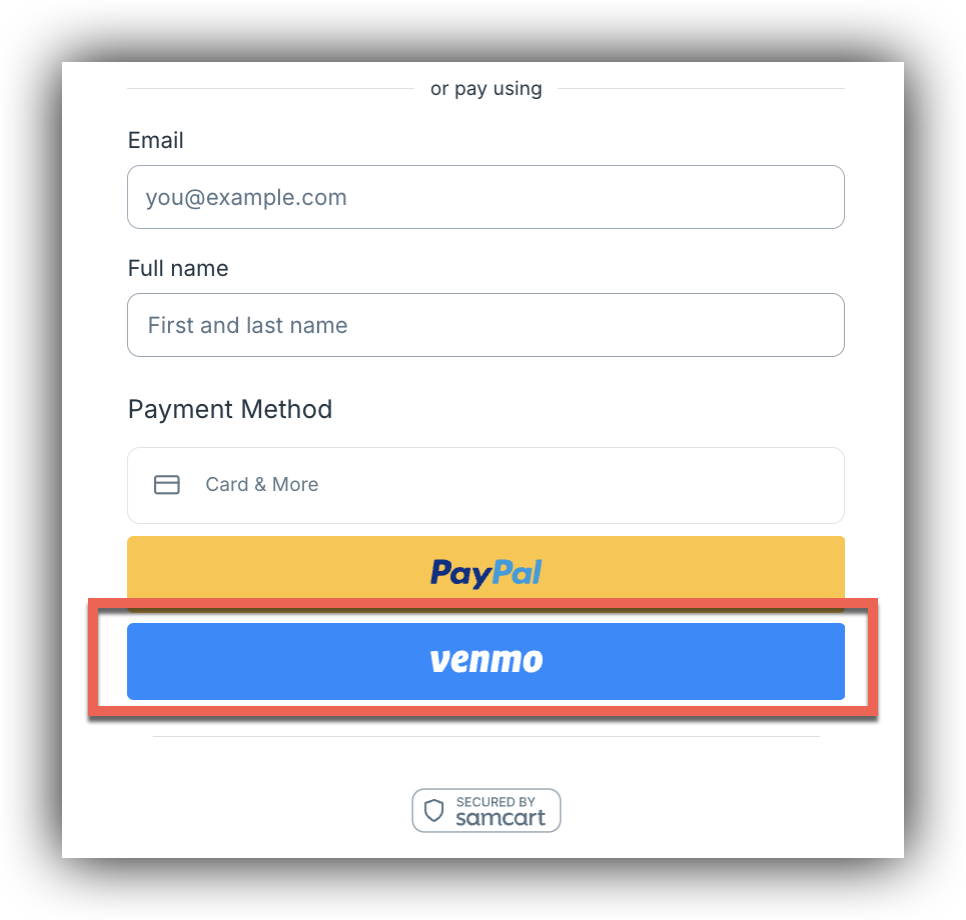
When you connect a PayPal processor, Venmo becomes available as a payment option for your customers at checkout automatically — no additional setup required.
A few things to keep in mind:
- Venmo does not support $0 charges. The Venmo option will not appear at checkout if the product or order total is $0.
- If a customer adds an order bump priced at $0.01 or more, the Venmo option will become available at checkout.
- Refunds, order reports, recurring subscription charges, and all other standard order actions work with Venmo the same as any other payment method.
Troubleshooting
My processor isn't showing in the Processors list after setup
If your PayPal processor does not appear in your processors list after completing setup, the connection was not fully completed. This can happen for the following reasons:
- KYC (Know Your Customer) verification is incomplete — PayPal requires identity and business verification before payments can be received. Log in to your PayPal account and complete any outstanding tasks listed there.
- Onboarding is still pending — If you created a new PayPal account during setup, PayPal may still be processing your information. Pending connections expire after 72 hours. If yours has expired, return to Settings > Processor > Connect New Processor and start the process again.
- Onboarding was not completed or was cancelled — If the setup window was closed before finishing, no processor record will be created. Return to Settings > Processor > Connect New Processor to try again.
My processor is showing, but there's a warning banner
In some cases your PayPal processor will appear in your processors list but display a banner indicating an issue. This means the connection was established, but there are outstanding items in your PayPal account that need attention. Common causes include:
- PayPal email not confirmed — Check your inbox for a confirmation email from PayPal and verify your email address.
- Required permissions not granted — Log in to your PayPal account and review any pending permission requests.
- Account capabilities under review — PayPal may require additional information or is still reviewing your account. Log in to your PayPal account and complete any outstanding tasks listed there. Once resolved, your processor status will update automatically.
How to Connect a Non-US PayPal Business Account
NOTE: This version and set-up is for Non-US PayPal business accounts only. This version does not include Venmo transactions. If you have a US PayPal Business Account please head to the How to Connect a US PayPal Business Account section above.
Select the Processors (1) tab at the top. Then, click on the Add New (2) button.
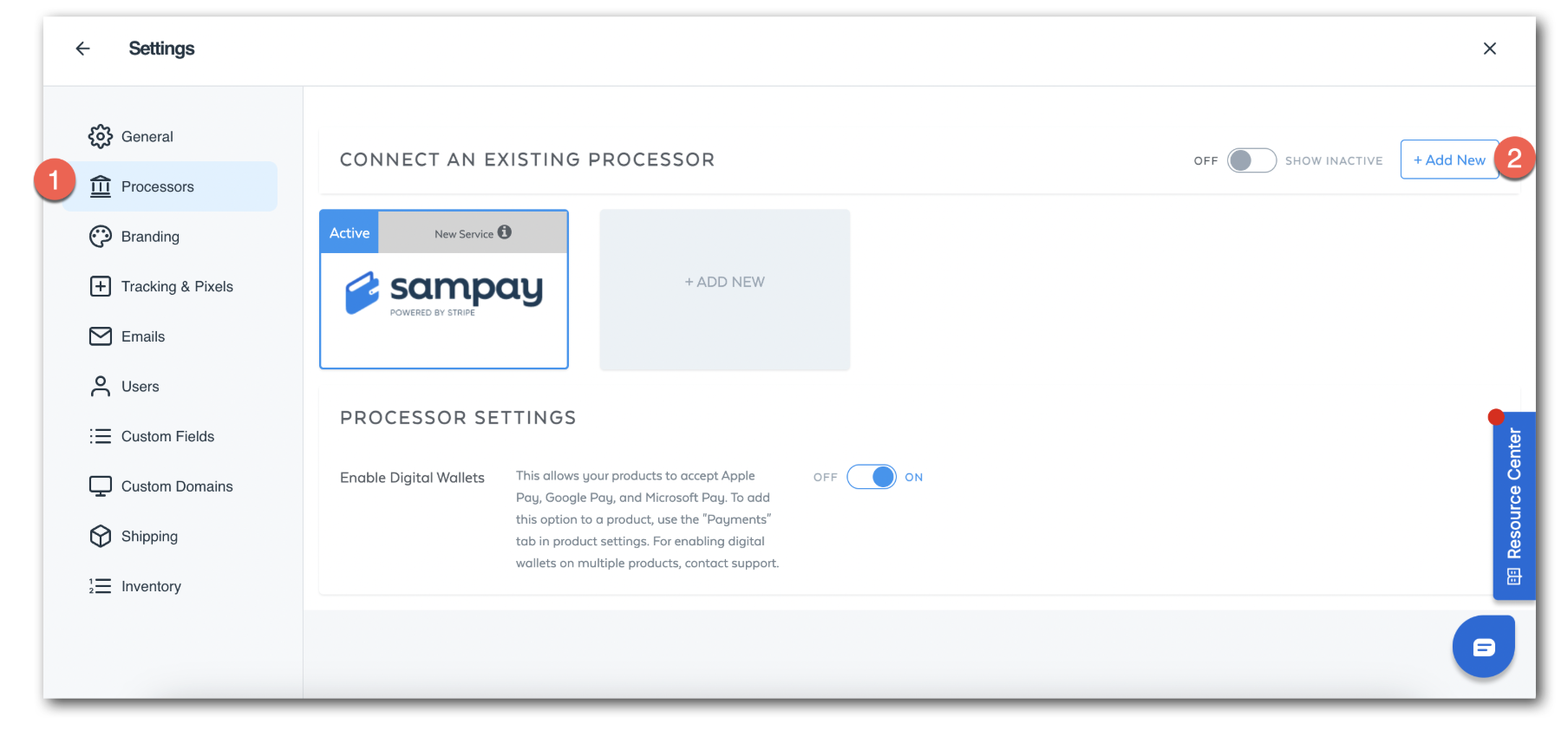
In the pop-up window, select which Payment Processor you would like to integrate with.
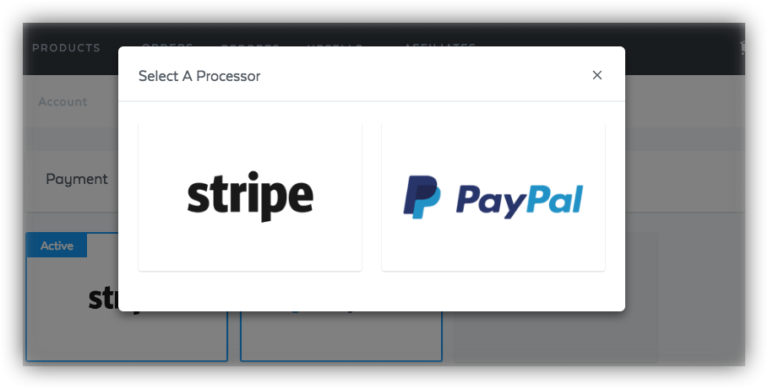
When you select PayPal, you will see the following pop-up.
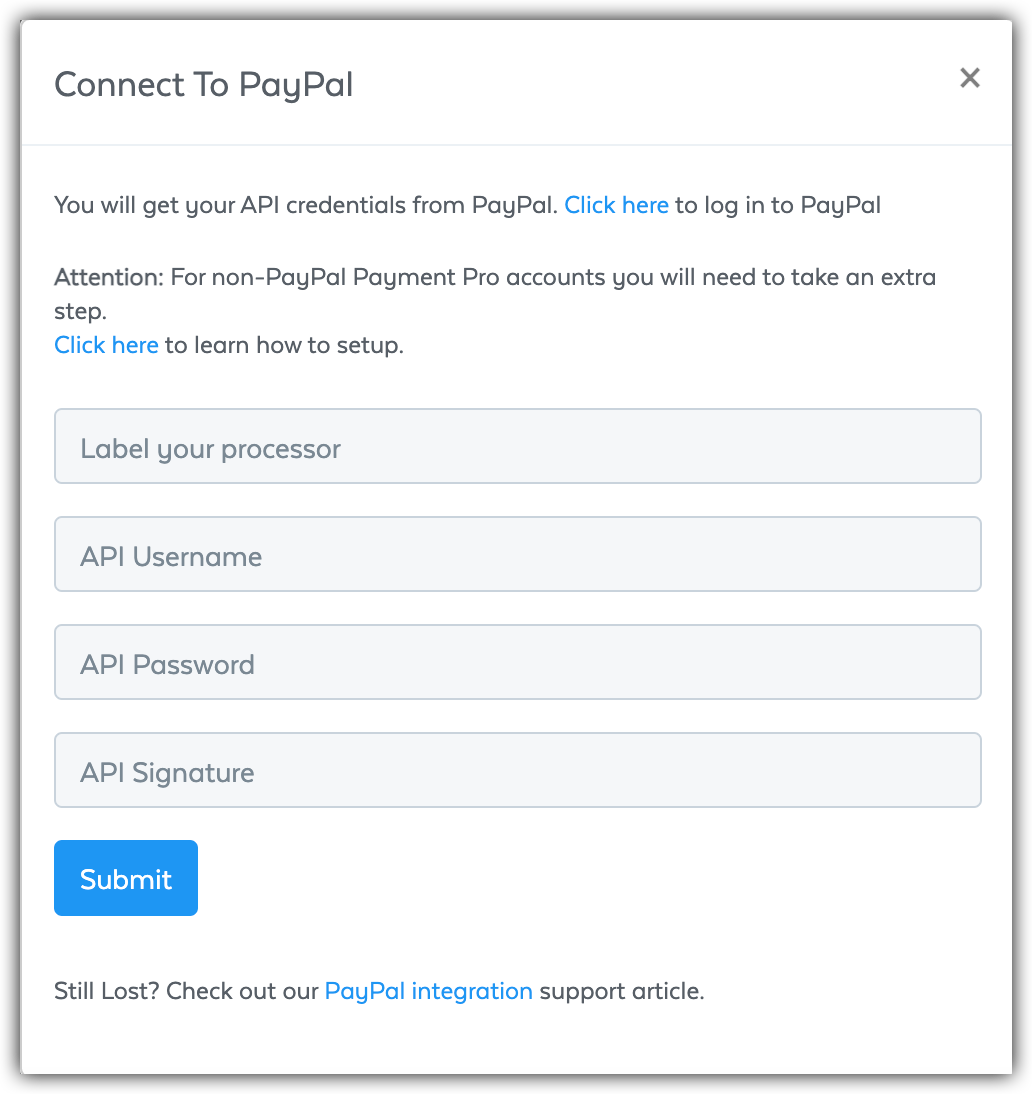
Give this connection a name in the Label your processor field, and then enter your PayPal API credentials in the API Username, API Password, and API Signature fields. Click the Submit button, and you're done! You will see PayPal as a connected payment processor in your Processors.
If you need help locating your API credentials, read on for more information! The first step is logging into PayPal - you can log into PayPal however your normally would, but you can also access the PayPal login page directly within the setup process by clicking the "Click Here to log in to PayPal" link in the PayPal connection popup window.
NOTE: Not all PayPal accounts look exactly the same. If accessing the API credentials on your PayPal account looks different from screenshots below, please contact PayPal for assistance with locating these API credentials.
From your PayPal dashboard, click on Account Settings from the dropdown menu in the top right corner:
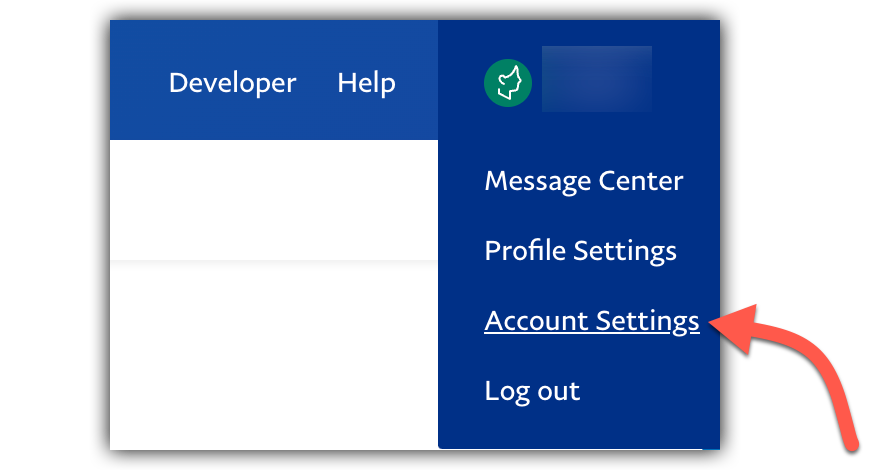
On the next page, click the Update button next to API access.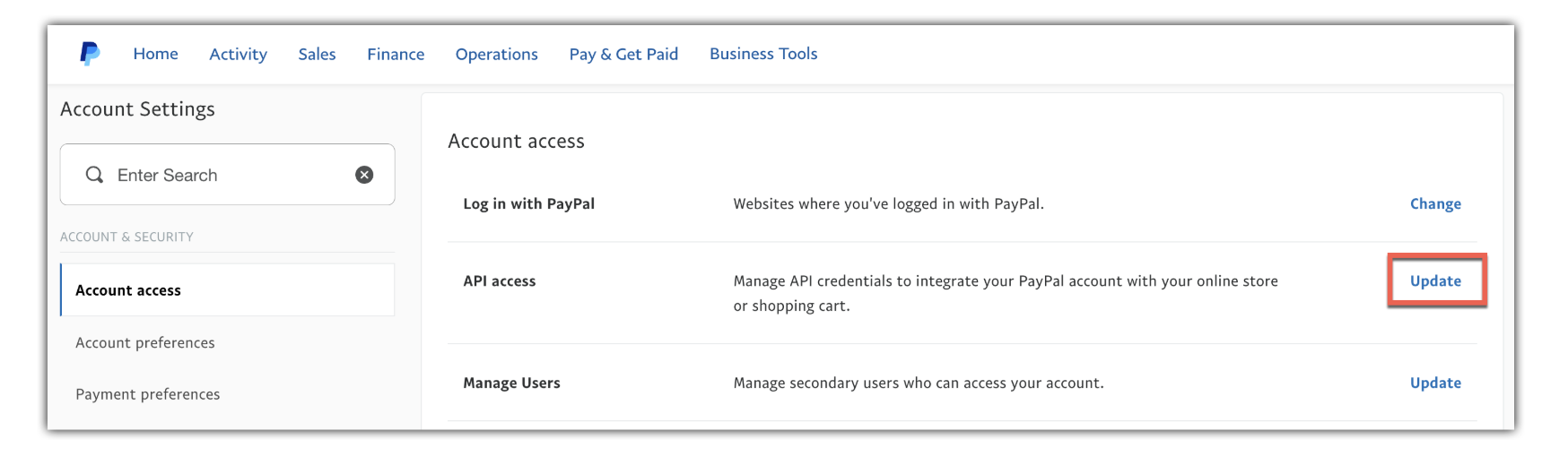
Here you will see several API access options. Select the NVP/SOAP API Integration (Classic) option.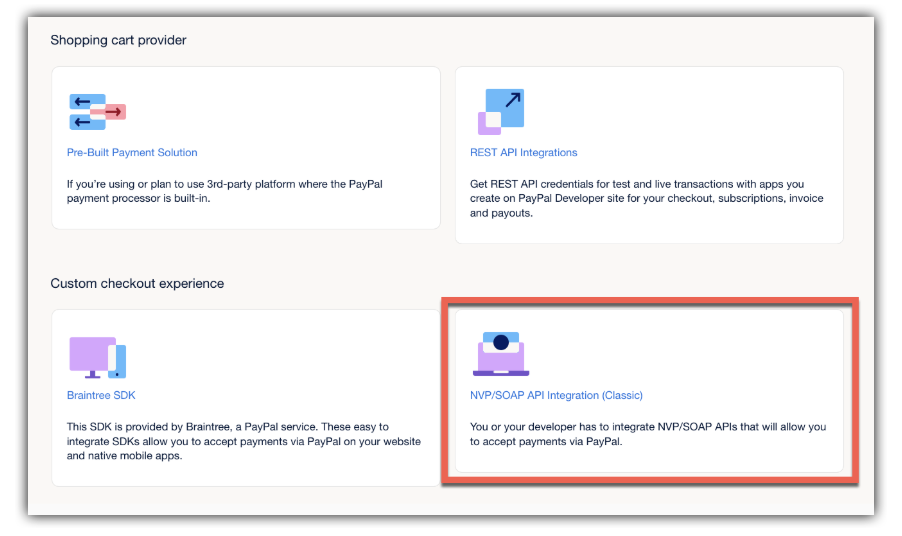
Clicking this option will bring up your PayPal API credentials! If you have not generated your API credentials in the past, you may see a button asking you to generate your API credentials. Just click that button, then you will see your API credentials here: 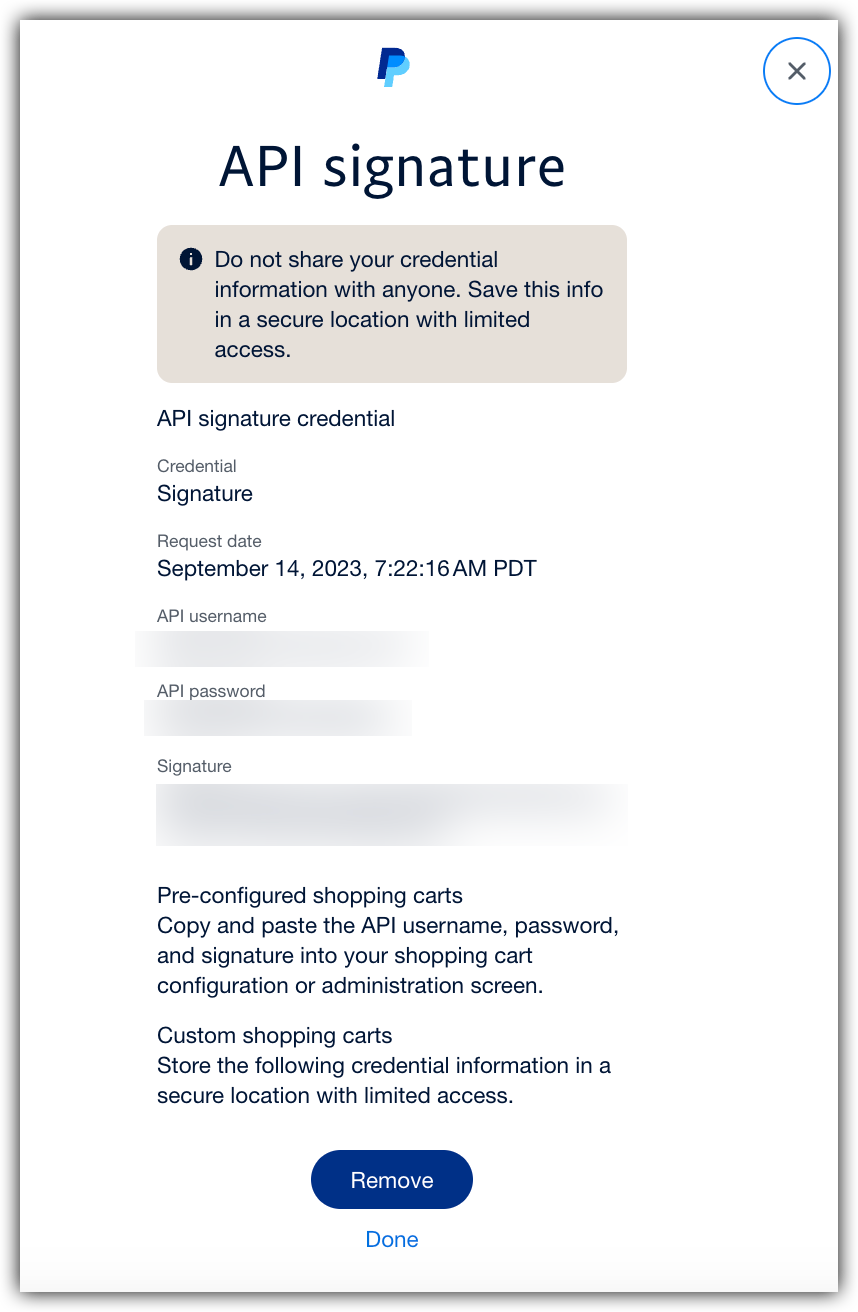 NOTE: If you are still having trouble getting your PayPal API credentials, please follow this guide from PayPal that will walk you through how to get this information from within your PayPal account. You can also reach out to PayPal Support for assistance!
Advanced Features With PayPal
SamCart has a “one-of-a-kind” integration with PayPal, and it opens up a whole new set of features for anyone with a PayPal account.
With this integration, your customers can go through 1-Click Upsell Funnels, purchase subscription products, purchase free and paid trail products, and more while paying you with PayPal.
This is the first time this has ever been possible with PayPal, and we’re extremely excited to allow SamCart users the ability to offer PayPal without limiting the features you love.
Reference Transactions
In order to accept PayPal payments for SamCart products with recurring charges of any kind or send customers through 1-click upsells, you will need “Reference Transactions” enabled inside of your PayPal account.
“Reference Transactions” is an optional PayPal feature that allow you to offer PayPal for more than just products with a single, one-time charge.
If reference transactions are enabled, then you will be able to offer PayPal as a payment option with SamCart features like…
- 1-Click Upsell Funnels
- Subscription Products
- Free Trial & Paid Trial Products
Do I Have Reference Transactions?
To find out whether your PayPal account has Reference Transactions enabled, visit your Payment Processor Integrations area.
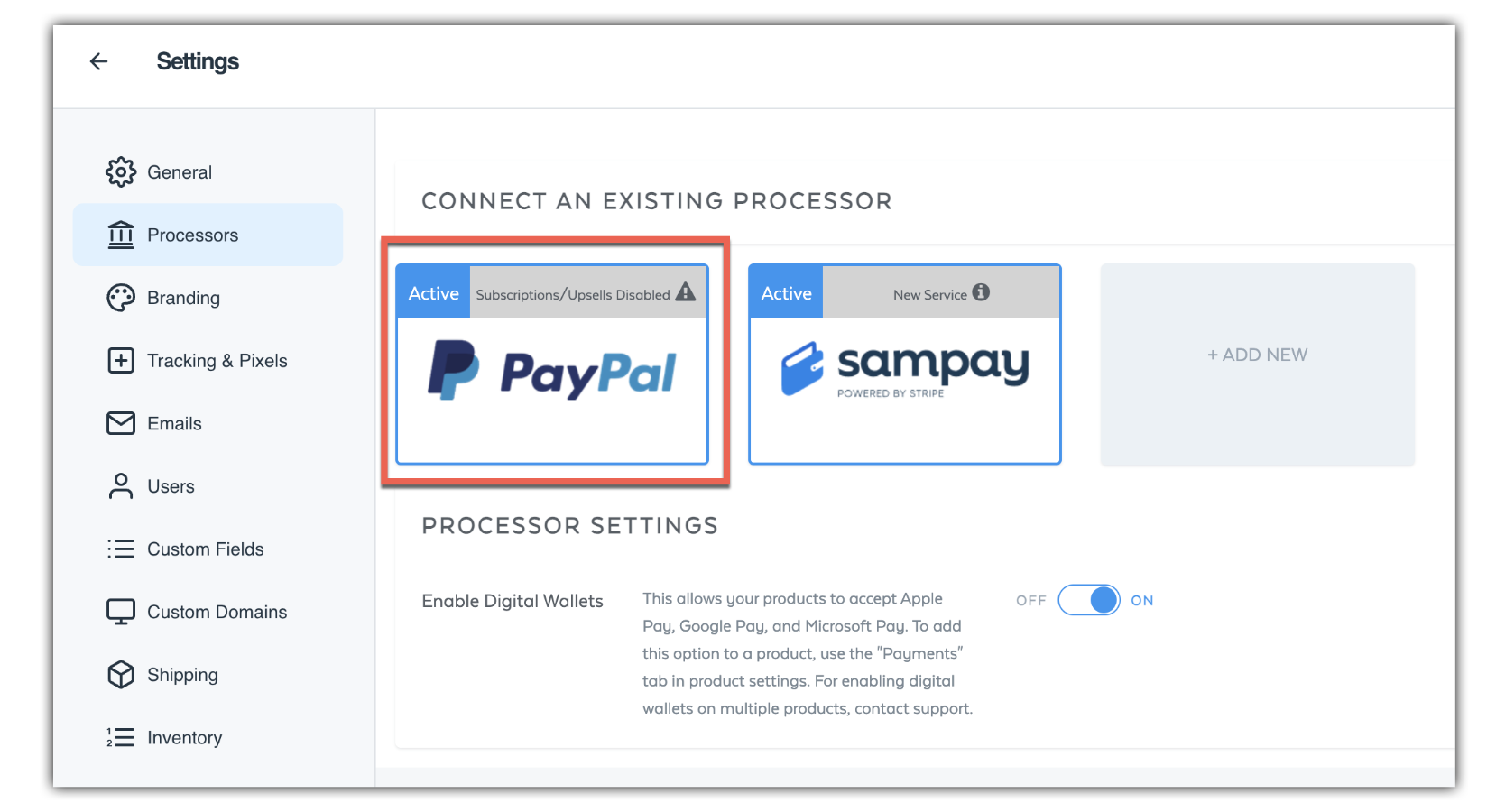
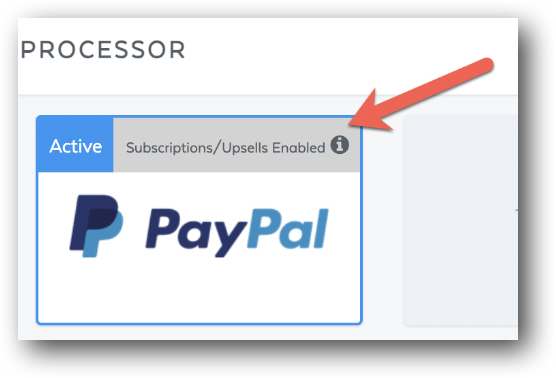
Scroll over your PayPal integration. At the top of the PayPal processor, you will see a message that either says "Subscriptions/Upsells Disabled" or "Subscriptions/Upsells Enabled" - If you do not see "Subscriptions/Upsells Enabled" you will need to contact PayPal to enable reference transactions.
If you do not have Reference Transactions, PayPal will only be available for one time charge products. Any products with a subscription or recurring billing of any kind will not display PayPal as a payment option.
To have SamCart ping PayPal and check for Reference Transactions again, click on the small "refresh" icon:
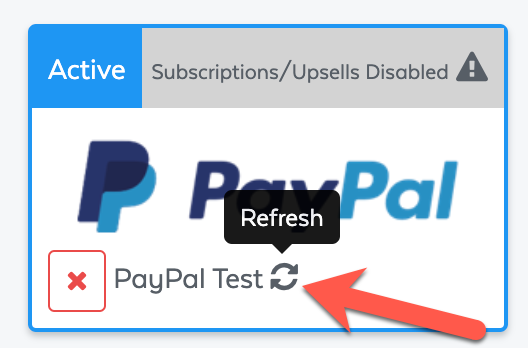
If PayPal has enable reference transactions for you, after refreshing you should see "Subscriptions/Upsells Enabled" on the PayPal processor!
Turning On Reference Transactions
To get Reference Transactions turned on for your PayPal account, get in touch with PayPal and request for this feature to be enabled inside of your account. You can call PayPal's support at 1 (888) 221-1161 (ask for business support).
After PayPal confirms they have activated Reference Transactions, then come back to SamCart and click on the small “Refresh” icon again. SamCart will check your PayPal account again, and see if Reference Transactions are enabled. Please keep in mind, we do not own PayPal. We do not have any power to make PayPal turn on this feature for your account. PayPal guidelines vary from country to country, and we cannot guarantee that PayPal will enable this feature for you.
PayPal Business Account
Note: SamCart’s integration only works for PayPal Business Accounts.
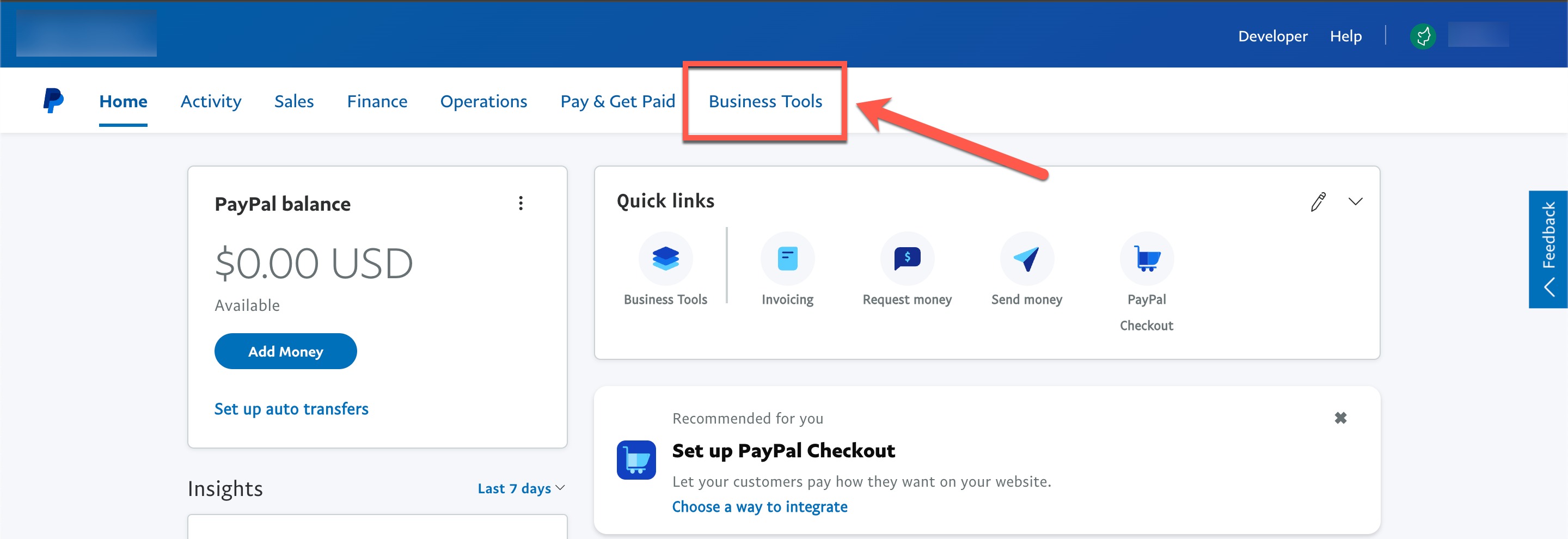
There are several types of PayPal Business accounts; some are free, some are paid. Below are some quick instructions to help you identify if your PayPal account is a PayPal Business Account. When you log in to PayPal, you should see "Business Tools" as an option within your account. PayPal accounts that are not a business account will not have this option.
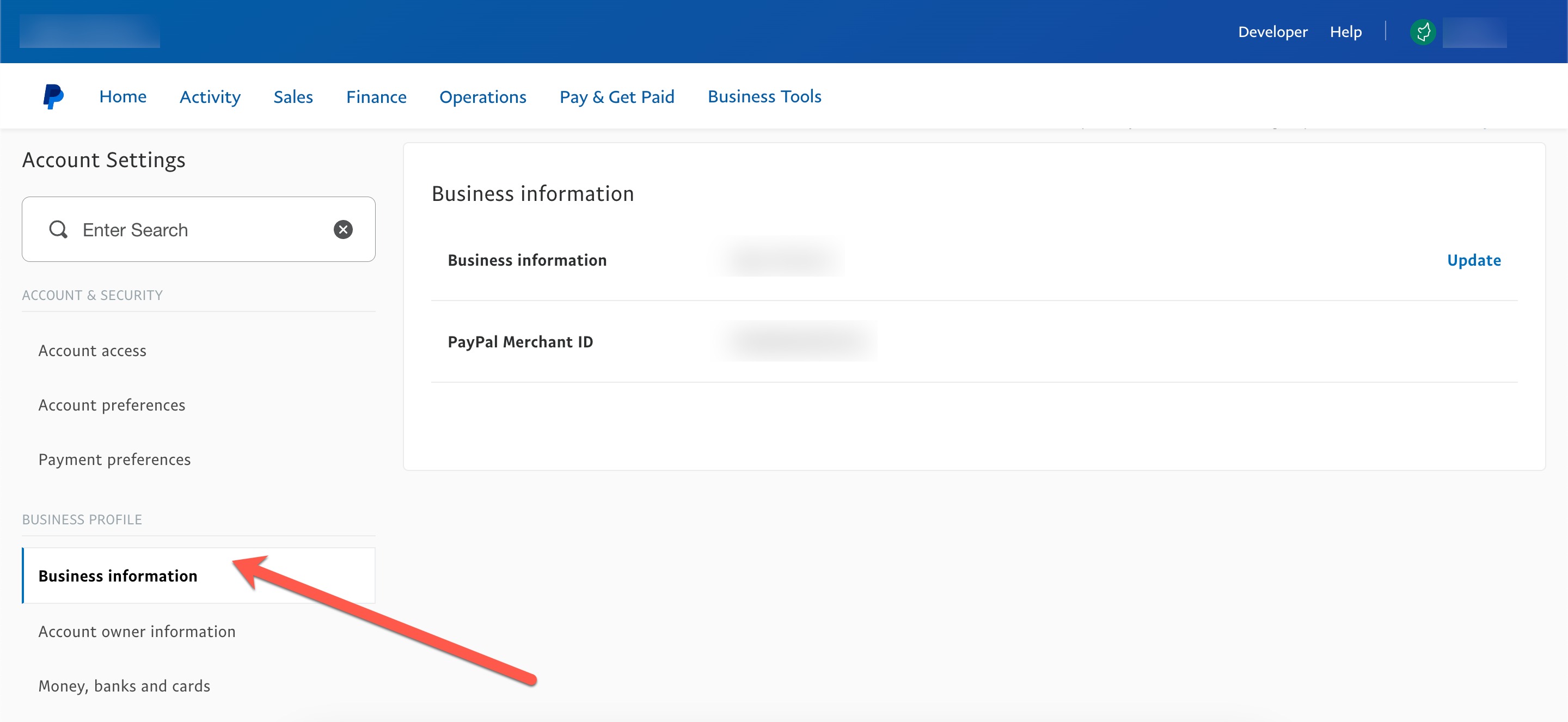
Additionally, if you have a business account then you should see a "Business Profile" with business information under your "Account Settings."
Frequently Asked Questions for US PayPal Business Account
Q: How do I know my PayPal processor connected successfully?
A: Once the connection is complete, your PayPal account will appear in your processors list under Settings > Processor. If it's visible there without any warning banners, everything worked correctly.
Q: Can I connect more than one PayPal account to my marketplace?
A: Yes — you can connect multiple PayPal accounts to your marketplace. Each account will appear as a separate processor in your Settings > Processor list.
Q: Do I need to enable Reference Transactions for upsells or subscription products?
A: No — Reference Transactions are no longer required for US Business Account PayPal connections. The new PayPal integration uses PayPal Complete Payments (PPCP), which includes Vaulted Payments. This allows SamCart to charge a payment method after the initial checkout, covering upsells, subscription renewals, and trial products automatically. If you need help determining whether or not your account needs reference transactions enabled - you can reach out to support@samcart.com.
Q: Why isn't Venmo showing up at checkout?
A: Venmo is only available when the order total is greater than $0. If your product is free or the current order total is $0, Venmo will not appear as a payment option. Adding an order bump priced at $0.01 or more will make Venmo available.
Q: Does PayPal work with subscription products?
A: Yes — recurring subscription charges work normally with PayPal, just like any other payment processor connected to your marketplace.
Q: Does the PayPal integration work outside the United States?
A: At this time, PayPal business accounts must be based in the United States to connect with SamCart. If you have questions about availability in your region, please reach out to our support team.
Q: My PayPal processor shows a warning that says "Required PayPal permissions have not been granted." What should I do?
A: This means SamCart does not have the necessary permissions to process payments through your PayPal account. To fix this, reconnect your PayPal account by navigating to Settings > Processor, selecting your PayPal processor, and following the prompts to reconnect. Make sure to approve all requested permissions when the PayPal authorization window appears.
Q: My PayPal processor shows a warning that says "Your PayPal account requires additional information." What should I do?
A: This means PayPal needs more information before your account can be fully activated. Log in to your PayPal account at paypal.com and complete any outstanding verification steps listed there. Once the required information has been submitted, your processor status will update automatically.
Q: My PayPal processor has an orange dot next to the name — what does that mean?
A: The orange dot indicates that your processor is connected but has one or more warnings that need attention. Check for any warning banners displayed on the processor and follow the steps provided to resolve them. Once all issues are cleared, the indicator will update to reflect the active status.
Q: What will the error look like if I try to connect a Non-US PayPal Account?
A: You will receive an error message like this below. If you need further guidance on what to do please reach out to support@samcart.com.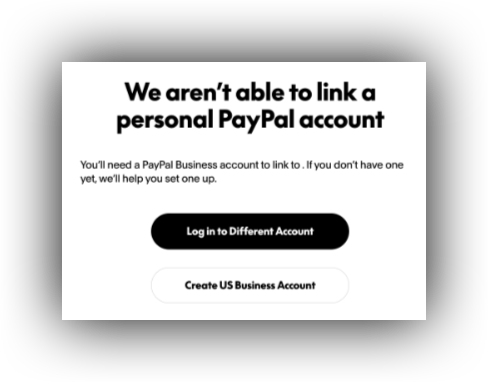
Q: How do I get in touch with PayPal?
A: If you have any questions specifically for PayPal, use their Contact Us page and reach out directly. You can also submit a Merchant Technical Support ticket at https://www.paypal-techsupport.com/ or call 1 (888) 221-1161 and ask for business support.
Q: Can I accept credit card payments with PayPal?
A: No. You must integrate with a Stripe account to accept credit card payments on SamCart. It’s super easy to setup, and we highly recommend having a Stripe account connected to SamCart.
Q: What happens if I sell subscriptions, but I don’t have “Reference Transactions” enabled on my PayPal account?
A: PayPal will not appear as an option on the checkout page for any subscription products until “Reference Transactions” are enabled. This is true for even if you have a One Time Payment option available on the checkout page. If you need help determining whether or not your account needs reference transactions enabled - you can reach out to support@samcart.com
This is just another reason we strongly suggest connecting a Stripe account to SamCart, so you have the ability to accept credit card payments while you work with PayPal to turn on "Reference Transactions".
Q: What happens to my upsells if a customer buys with PayPal, but I don’t have “Reference Transactions” enabled on my PayPal account?
A: PayPal customers will skip your upsell funnel. Customers will place an order with PayPal, and go straight to whatever Thank You Page you have selected.
Q: Does this integration work with “PayPal Payments Pro”?
A: Yes! This integration works with any and all types of PayPal Business Accounts.
Q: Are there any limitations to refunds when using PayPal?
A: PayPal refunds can only be issued within 180 days of purchase.
Q: If I cancel my SamCart account, will my subscriptions continue to charge?
A: Your customer charges for recurring and limited subscriptions would stop right away upon the cancellation of your SamCart account.
Q: Can I run a test order using PayPal?
A: No, you cannot. If you would like to test the purchase process for PayPal, they can do so in "Live Mode" by creating a specific testing coupon for the product so you can test the process for free! Alternatively, you can run a Test order if you have SamPay or Stripe also connected as a Payment Processor but you cannot select PayPal as your choice of payment when doing a Test order.