 View and export your sales tax data to manage tax compliance across all your jurisdictions.
The Sales Tax Report gives you a clear picture of the tax you've collected across every state or region where you have sales tax nexus. Whether you're doing a quick check on totals or pulling records for your accountant, all your tax data is in one place.
Accessing the Sales Tax Report
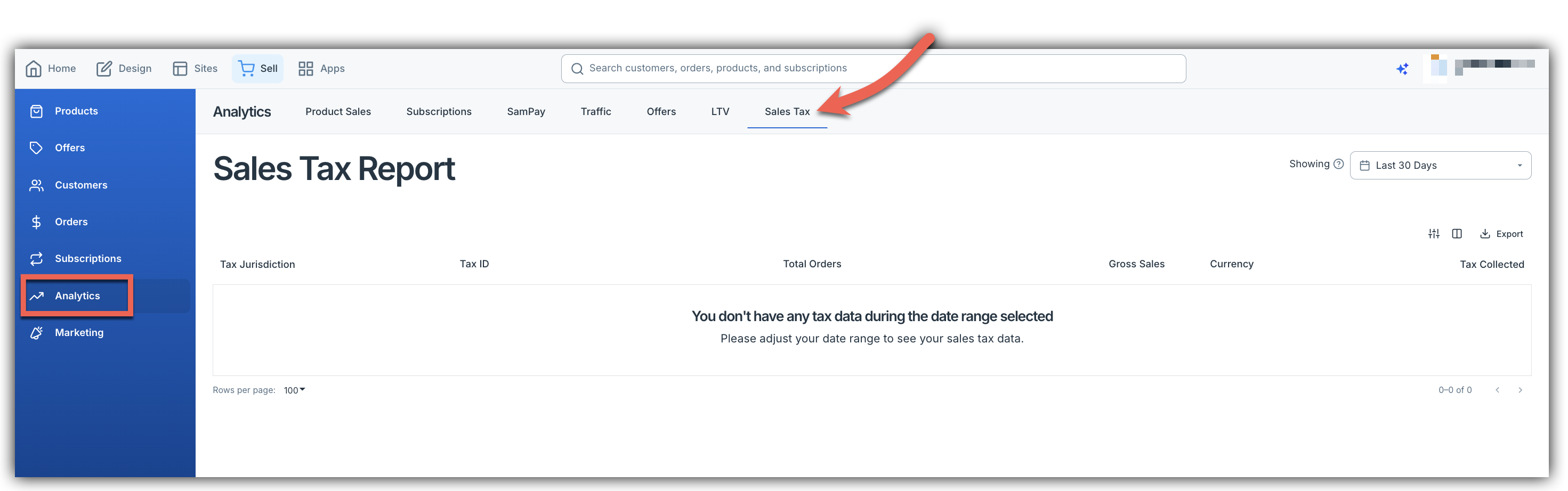
Navigate to Analytics > Sales Tax in your marketplace dashboard.
Understanding Your Sales Tax Report
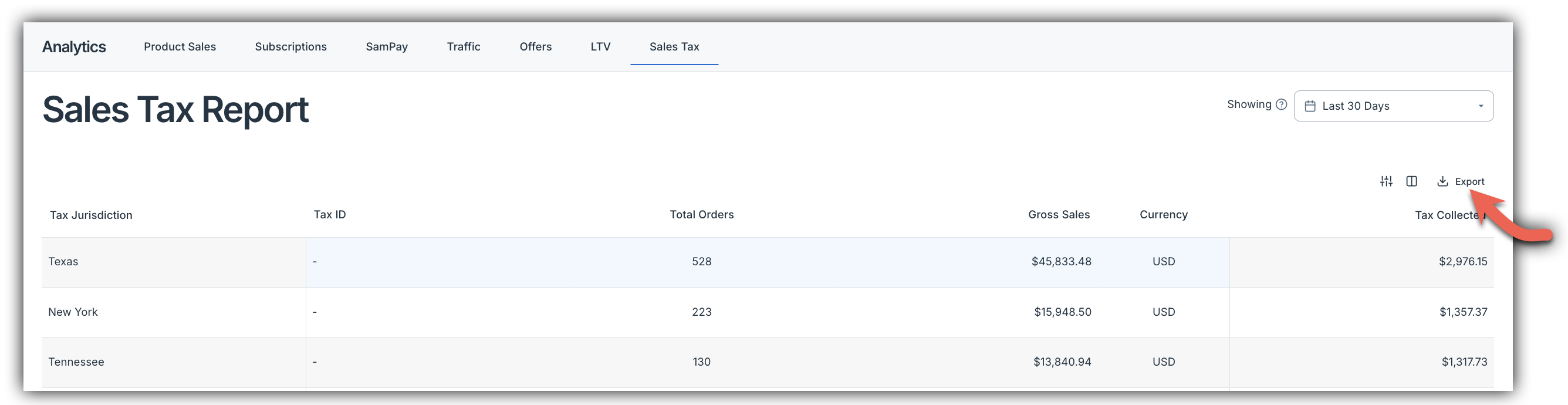
The Sales Tax Report displays your tax collected grouped by jurisdiction (nexus). For each jurisdiction, you'll see:
- Tax Jurisdiction — The state or region where tax was collected
- Tax ID — Your sales tax ID for that jurisdiction (if configured in your Tax Settings)
- Total Orders — Number of taxable orders from that jurisdiction
- Gross Sales — Total sales amount before tax
- Currency — The currency of the transactions
- Tax Collected — Total tax collected for that jurisdiction
Use the date picker in the top right corner to filter the report to a specific time period.
Exporting Your Tax Data
Click Export to download your tax data as a CSV file. You'll be prompted to choose between two report types:
Nexus Summary
A summary of tax collected per jurisdiction — the same data shown in the report view. Use this for quick tax filing or to review totals by state.
Detailed Report
A complete order-by-order breakdown that includes:
- Order ID and date
- Customer name and billing address
- Tax jurisdiction
- Subtotal, tax amount, and order total
- Breakdown of order taxes vs. subscription taxes
Use the Detailed Report when you need transaction-level records for your accountant or tax software. Both one-time and scheduled exports are available.
If you're newer to sales tax for digital products, our Tax Cheat Sheet for Digital Sellers is a great place to start.
Frequently Asked Questions
Q: Why don't I see a Tax ID for some jurisdictions?
A: Tax IDs come from your Tax Settings. If you haven't added your sales tax ID for a jurisdiction, that field will appear blank in the report. You can add Tax IDs by navigating to Settings > Taxes. For a step-by-step walkthrough, check out our Setting Up Taxes article.
Q: Why is a jurisdiction showing $0 in tax collected?
A: This means no taxable orders were placed by customers in that jurisdiction during your selected date range. Make sure tax collection is enabled for the products being purchased by customers in that area.
Q: Does this report include refunded orders?
A: No. Refunded orders are currently excluded from the Sales Tax Report.
Q: Does this include test orders?
A: No. Test and sandbox orders are not included in the report.
Q: Can I see VAT or GST in this report?
A: The Sales Tax Report currently focuses on US sales tax. VAT and GST reporting is not yet available.
Q: How do I see the breakdown between order taxes and subscription taxes?
A: Export the Detailed Report. The order vs. subscription tax breakdown is included in the detailed export and is not shown in the report view.