Create a fully branded Typeset theme in minutes
With Quick Create, you can build a complete, ready-to-use theme by simply entering your brand's hex color codes and selecting your preferred fonts. Typeset's palette engine takes care of all the shade and variation generation automatically, so you end up with a polished, professional theme without ever needing to touch a color wheel.
Themes created with Quick Create work exactly like any other Typeset theme — use them across your presentations, ebooks, and sites right away.
Accessing Quick Create
Navigate to the Themes section of your Typeset dashboard and look for the Quick create button.
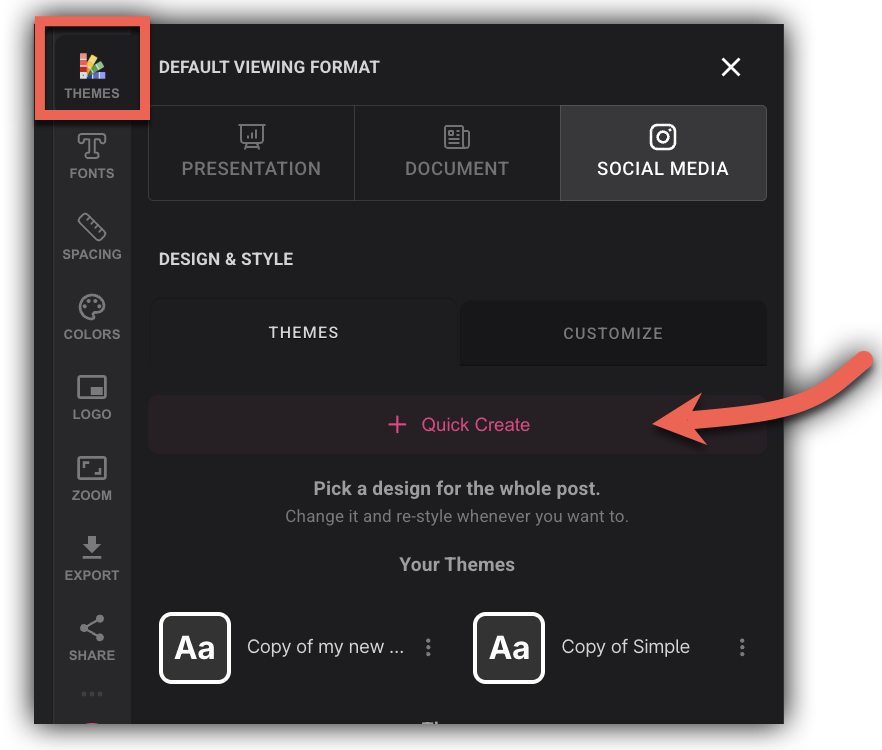
Click Quick Create to open the theme creation modal.
Creating Your Theme
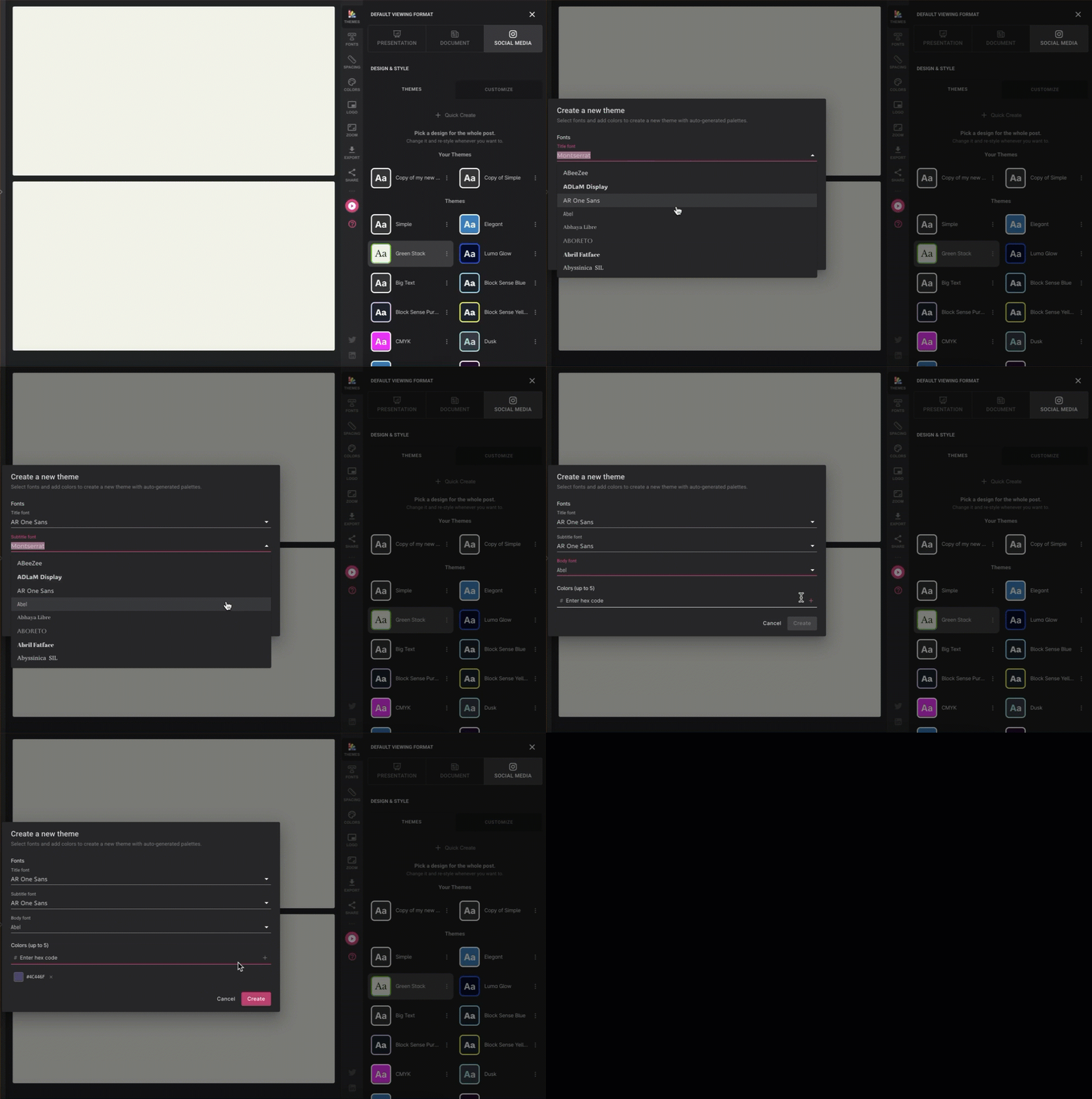
Once the modal is open, you'll fill in your brand colors and font choices. Here's how:
Step 1: Add your brand colors
Enter your brand's hex color codes in the color fields provided. You can add as many hex codes as you need — click Add to include more colors or the delete icon to remove any you don't want. There's no limit, so feel free to include your full brand palette.
Step 2: Select your fonts
Choose a Google Font for each of the three text roles:
- Title font — used for main headings
- Subtitle font — used for section headers and subheadings
- Body font — used for paragraph and body text
Step 3: Save your theme
When you're happy with your selections, click Create. Typeset's palette engine will automatically generate a complete theme — including all required shades and color variations — based on the hex codes you provided.
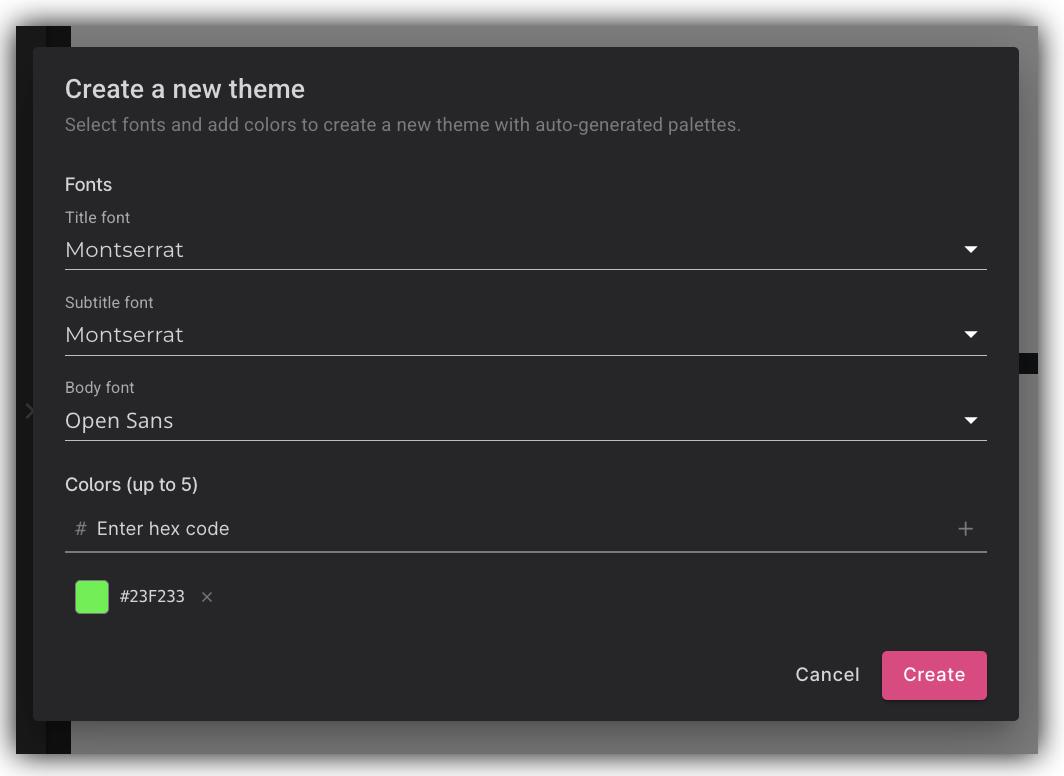
Your new theme will appear in Your Themes section and is ready to use immediately across any of your Typeset content.
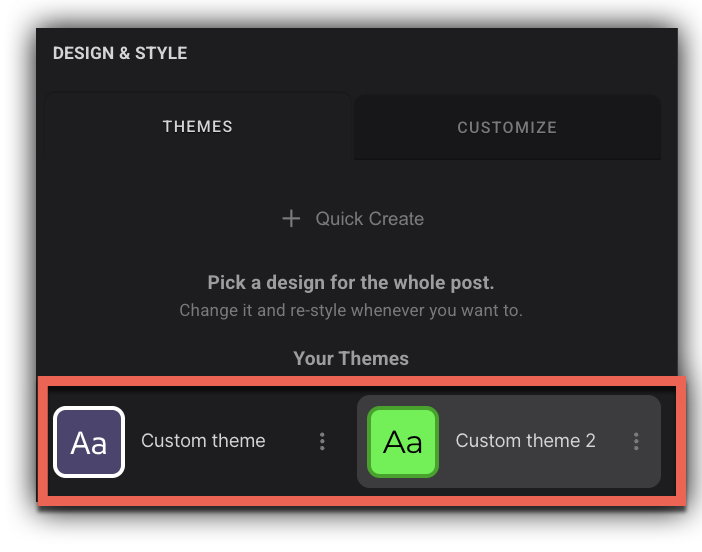
You can always Customize, Delete or Duplicate a Theme by clicking on the 3 dots to the right of a theme.
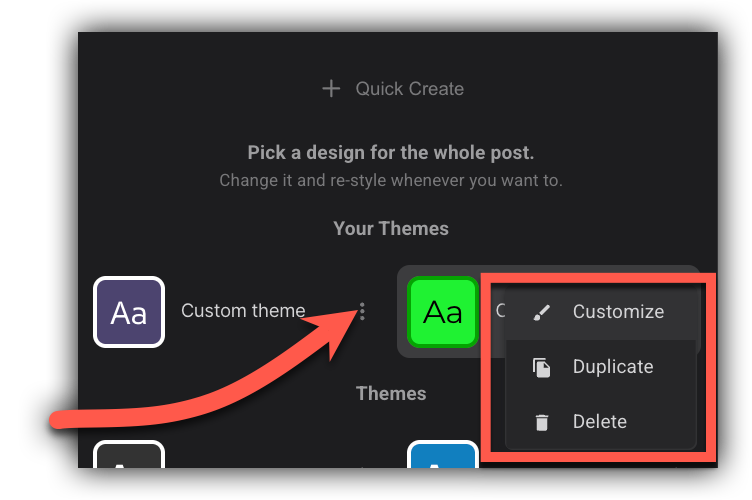
Customizing your Theme
At the top of the panel, you'll see a Theme Name field — update this to give your theme a recognizable name, then work through each of the sections below to adjust the look and feel:
- Text & Fonts — Choose font families, sizes, and styles for headings and body text
- Spacing — Whitespace and Margin adjustments
- Colors — Set your primary, background, and accent colors
- Logo & Branding — Upload your logo
- Advanced — Reduce Animations and allow Page Numbering
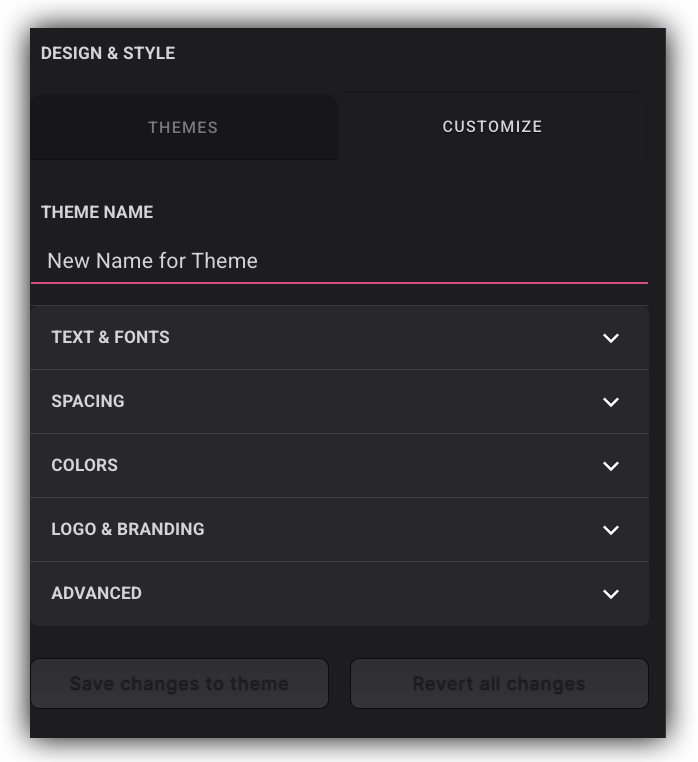
Click each section to expand it and make your changes. When you're done, click Save changes to theme to apply them. If you'd like to undo everything and start fresh, click Revert all changes.
Frequently Asked Questions
Q: Do I need design experience to use Quick Create?
A: Not at all. You only need to know your brand's hex color codes and which fonts you'd like to use. Typeset handles all the shade generation and palette building for you automatically.
Q: How many hex colors can I add?
A: You can add as many hex color codes as you need. Use the Add option in the modal to include additional colours, and the delete icon to remove any you no longer want.
Q: Can I use the theme I create across different content types?
A: Yes! Themes created with Quick Create are fully compatible with all Typeset content types, including presentations, ebooks, and sites — just like any theme created through the standard theme builder.
Q: What fonts are available to choose from?
A: Font selection pulls from Google Fonts. You can choose a different Google Font for your title, subtitle, and body text roles.