Managing Color Palettes in Typeset
The Typeset theme editor lets you customize the color palettes available in your document. You can add new palette sets based on any color you choose, and remove palette sets you no longer need — keeping your design options focused and on-brand.
These changes are stored at the document level, so they won't affect other documents using the same theme. You can save your custom palettes to a new theme at any time.
What you can do
- Add a new color palette set by picking a base color — Typeset generates a full coordinated palette automatically
- Remove any palette set from your document with a simple hover-and-click action
- Save your customized palette selection as a new reusable theme
How to add a new color palette
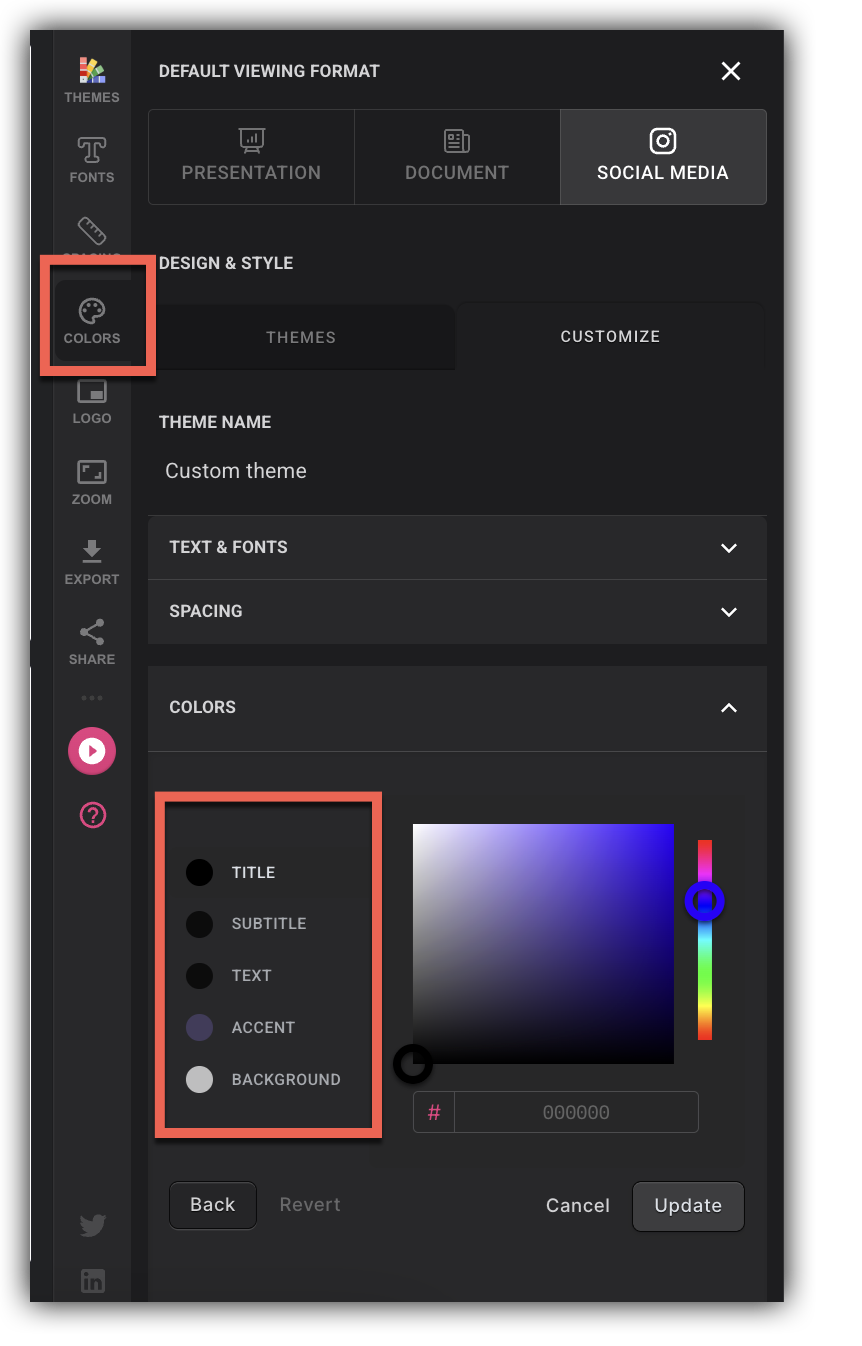
Step 1: Open the Colors panel
In the Typeset editor, open the theme panel in the sidebar and go to the Colors section.
Step 2: Select Which Color to Edit
You can choose either Title, Subtitle, Text, Accent, Background. Each will update a specific color on your document.
Step 3: Pick your base color
A color picker will appear. Enter a hex code, set RGB values, or use the point-to-color tool to pick any color from your screen.
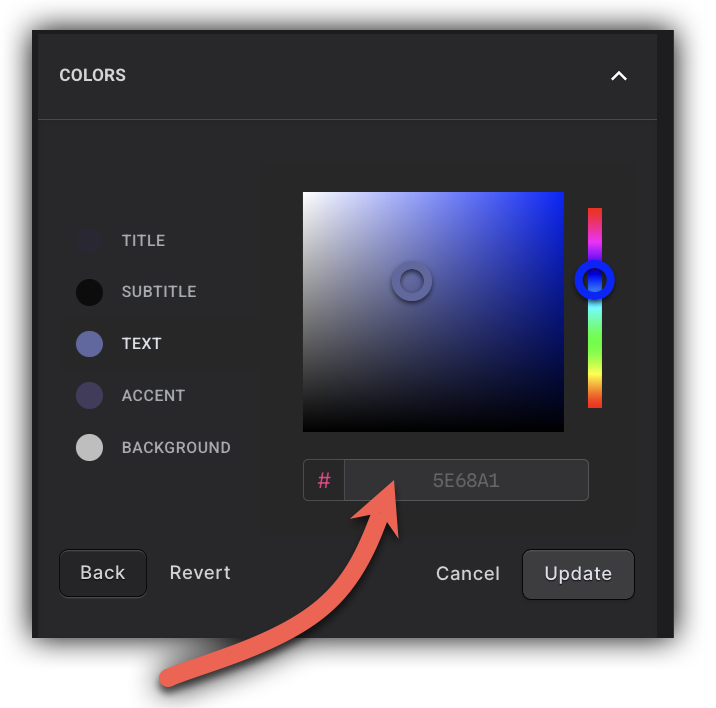
Step 4: Generate the palette
Confirm your color. Typeset will automatically generate a full, coordinated palette set from your chosen base color and add it to the list immediately.
Your new palette is saved to this document only. Other documents using the same base theme won't be affected.
How to delete a color palette
Step 1: Hover over the palette inkwell
In the Colors panel, hover over the palette set you want to remove. A small red × button will appear in the top-right corner of the inkwell.
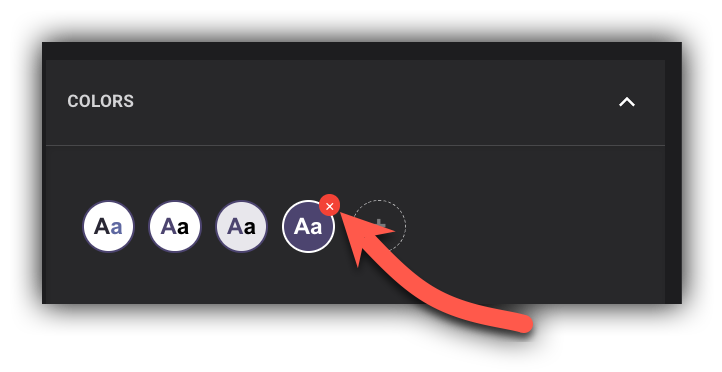
Step 2: Click the × button
Click the red × button to trigger the confirmation prompt.
Step 3: Confirm removal
Click "Yes" to remove the palette. Click anywhere else or press Escape to cancel.
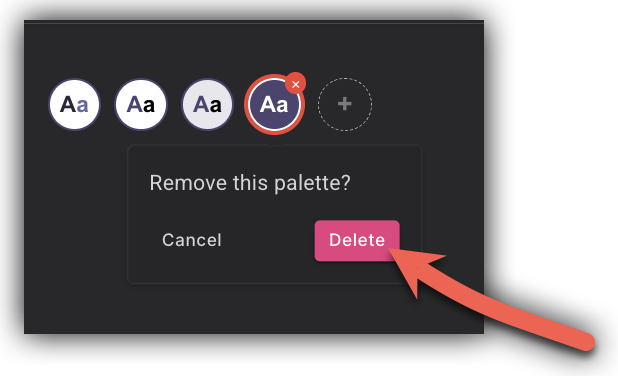
The palette will be removed from your document immediately. Note: deletions cannot be undone, so confirm before proceeding.
Note: If you delete the last palette in a palette set, the entire set is removed automatically.
Saving your custom palettes to a theme
After adding or removing palettes, you can save your changes so they're available in other documents:
- In the Typeset editor, open the theme panel
- Select "Save as new theme" or "Save changes to theme"
- Your custom palette selections — including any additions or removals — will be saved to the theme
Frequently Asked Questions
Q: Can I add as many palette sets as I want?
A: Yes, there's no limit on the number of custom palette sets you can add to a document.
Q: Will my changes affect other documents using the same theme?
A: No. Palette additions and deletions are stored at the document level. Your other documents and any shared themes are not affected unless you explicitly save your changes to a theme.
Q: Can I undo a palette deletion?
A: Not at this time. Deletions are permanent, which is why a confirmation prompt appears before any palette is removed. If the palette came from a saved theme, you can access it again by applying the original theme to a new document.
Q: What happens if I delete all palettes from a set?
A: When the last palette in a set is removed, the entire palette set is automatically deleted.